

Overview
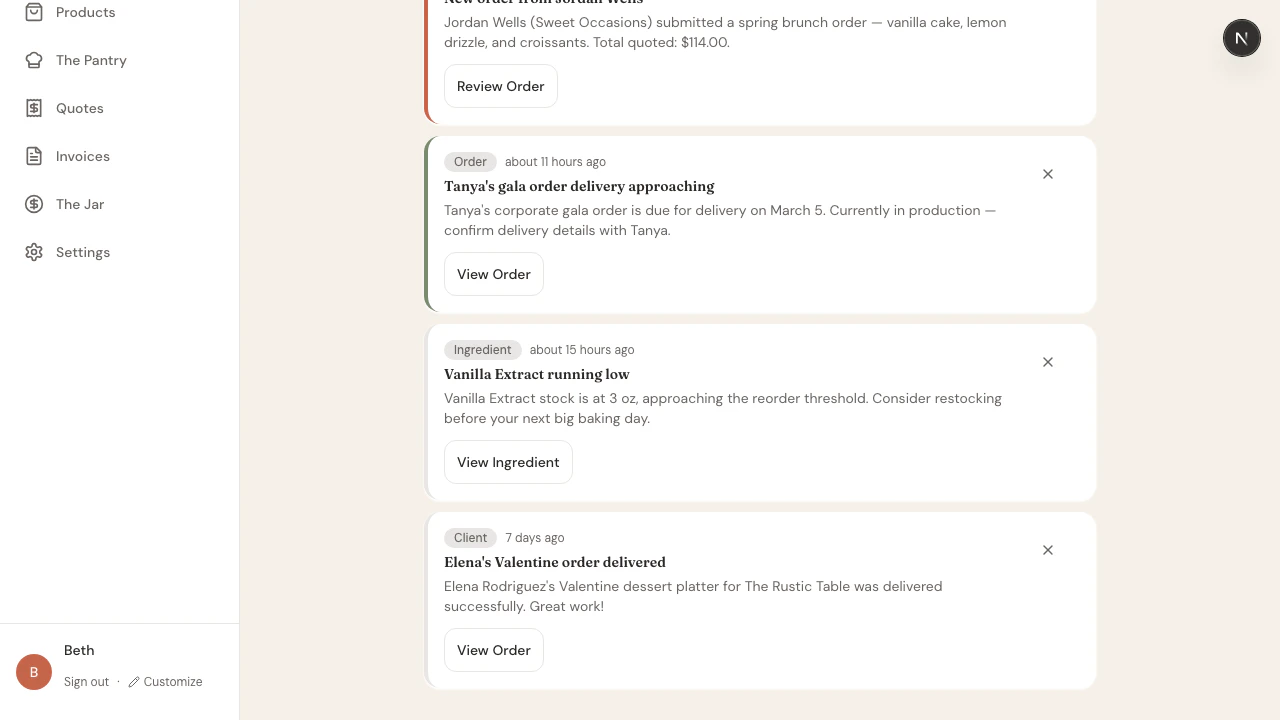
Your morning briefing is a smart feed that surfaces what matters most right now. On The Counter it appears under the heading What’s new — so instead of checking every section of Knead, you just open The Counter and let the feed tell you what needs attention. When there’s nothing pressing, it reads “Nothing new to flag.”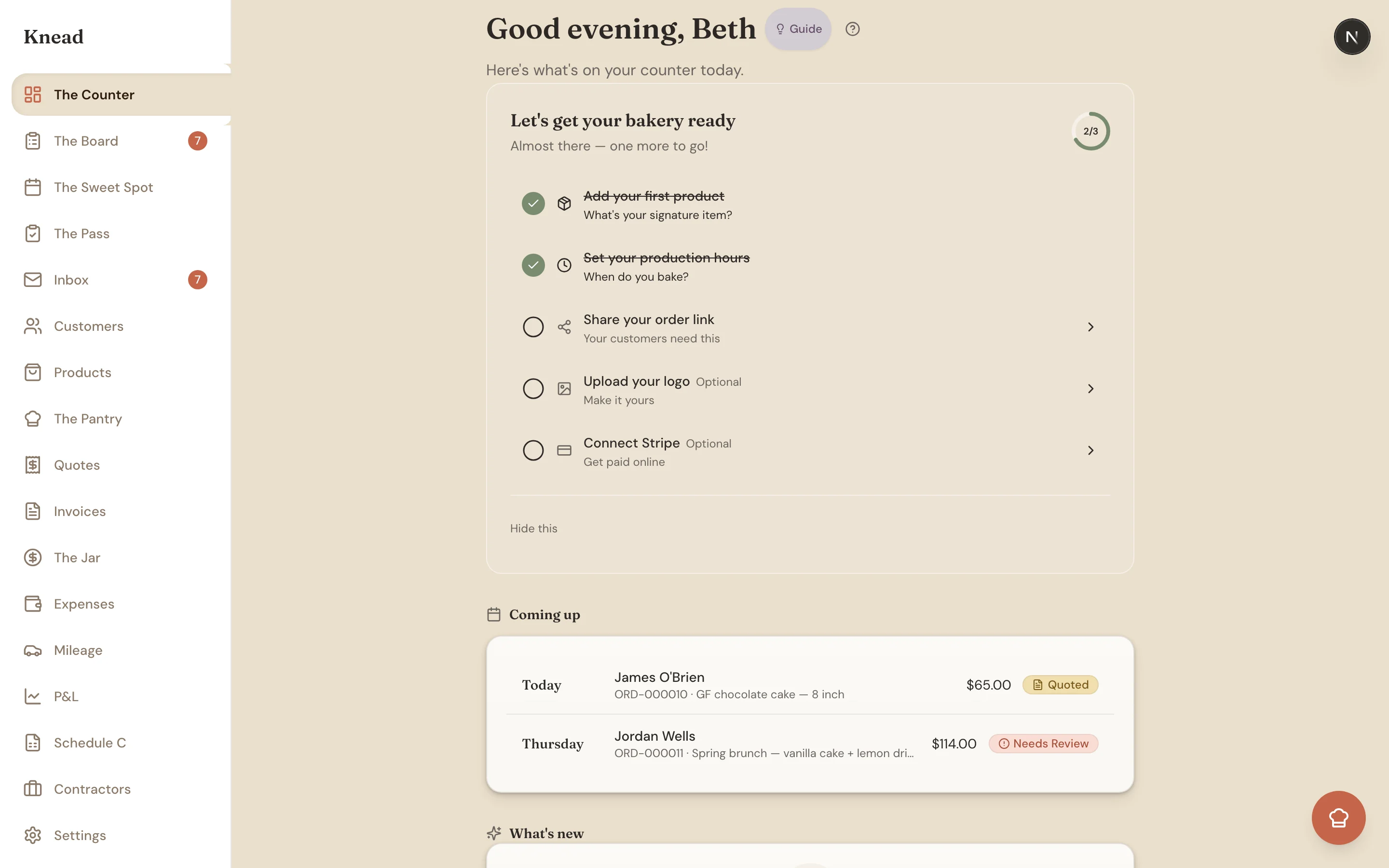
How the Briefing Works
Knead watches your business events throughout the day — new orders, payments, production deadlines, customer messages, ingredient prices, and more. When something needs your attention, a briefing card appears in the feed. Cards are ranked so the most useful items rise to the top, and each links straight to the order, invoice, quote, or conversation it’s about. You don’t configure any of this — the briefing runs automatically based on what’s happening in your bakery.Good to know: Some briefing cards are paid-plan features. On the Free plan you’ll see only the four essentials — new order, invoice overdue, production start, and payment received. The Trial, Starter, and Growth plans unlock the full set below, including the customer-growth nudges.
Order Lifecycle Cards
These keep every order moving from first request to pickup:- New order — A customer placed a new order. Tap to review and accept.
- New inquiry — A new order-form inquiry came in. Reply, then quote or convert it.
- Unanswered inquiry — An inquiry has gone 48+ hours without a reply. Follow up before you lose it.
- Stale sent quote — A quote you sent has gone 48+ hours with no response; the card notes whether the customer viewed it.
- Quote approved 🎉 — A customer accepted your quote. Turn it into an order and invoice.
- Time to start baking — An order’s production day has arrived. A Dismiss for today hides it until tomorrow if you still haven’t started.
- Missed pickup — An order wasn’t collected at its scheduled time. Reach out to reschedule.
- Stuck order — An order has sat awaiting action with no change for 7+ days. Move it forward.
Money Guardrails
These protect your cash flow so nothing slips through unpaid:- Payment received 🎉 — A customer paid an invoice or deposit. The card shows the amount and order.
- Invoice overdue — An invoice passed its due date. Follow up with the customer.
- Auto-invoice failed — An automatic invoice couldn’t be created. Create it manually.
- Payout status — Your Stripe payout was initiated, paid, or failed.
- Deposit uncollected — A deposit-required order is in production with nothing collected. Collect it before you get further in.
- Unpaid before pickup — A balance is due within 3 days of pickup. This one’s top priority — collect before the handoff.
- Month-end receipt nudge — After the 26th, if you’ve taken payments but logged fewer than 2 expenses this month, Knead reminds you to snap your receipts so your Schedule C stays accurate.
Capacity Cards
These help you say yes to the right amount of work:- Capacity warnings — A day is filling up. The thresholds are 70% (getting busy), 90% (nearly full), over 100%, and dates you’ve blocked off.
- Monthly order limit — On the Free plan, a card appears as you approach or reach your monthly limit of 5 orders.
- Slow week ahead — On Thursdays, if next week is under about 40% full, Knead suggests running a promo to fill the gap.
Grow-Your-Business Nudges
These are your Kitchen Table nudges — gentle prompts to build relationships and bring customers back. Many open a pre-filled outreach message you can edit and send in seconds:- Follow up with a top customer — A customer who’s spent $500+ with you in the last year, with a ready-to-send thank-you.
- Customer milestone 🎉 — A customer just hit their 3rd, 5th, 10th, 25th, 50th, or 100th order.
- Win back a regular — A repeat client who hasn’t ordered in 90+ days.
- A seasonal regular is due — Someone who ordered this same month last year.
- Welcome them back — A first-time client, 2–14 days after their first order.
- Customer anniversary — A year since a customer’s first order.
- Ask for a referral — An engaged regular with 3+ orders and $300+ spent.
- New client added / Welcome to Knead 🎉 — Friendly prompts when you add a client or first get started.
Ingredient Cards
These keep your recipes profitable and your shelves stocked:- Ingredient price changed — The cost of a Pantry ingredient moved. Review the recipe margins that use it.
- Low stock / out of stock — An ingredient dropped below its reorder threshold. Restock before your next bake day.
Message Cards
These make sure no customer message goes cold:- Unanswered message — A customer messaged you over 24 hours ago with no reply. Respond from the inbox.
- Order intent detected — A message reads like an order request; the card includes a live capacity read for the requested date so you can convert it on the spot.
Good to know: For the complete, scannable catalog of every card — with what triggers each one — see What The Counter Watches For.
How Cards Rank & Rotate
The briefing stays useful because it curates itself. A few rules do the work:- Newer cards rank higher. A fresh card outranks one that’s a few days old, so the feed always leads with what’s most current.
- The feed diversifies. You won’t see five of the same thing stacked up — at most 2 cards with the same title appear at once.
- Cards auto-expire. If you never touch them, cards age out on their own: action items after about 14 days, heads-ups after 7, suggestions after 6, and celebrations after 3.
Acting on Briefing Cards
Each card includes an action you can take directly from the feed:- Tap the card to open the related order, invoice, quote, or conversation.
- Tap the action button (such as “Review Order” or “Send Reminder”) to take the next step without leaving The Counter.
Dismissing Cards
If a card doesn’t need action, tap the X to dismiss it — a dismissed card is hidden for good. Use this for items you’ve handled outside of Knead or events that don’t need a response. (The production-start card is the exception: its Dismiss for today simply returns tomorrow if you still haven’t started.)Related Articles
- Understanding The Counter (Your Dashboard)
- What The Counter Watches For
- Understanding Your Analytics
- Quote Expiration and Follow-Up
- Using The Sweet Spot
- Tracking Business Expenses
Still need help? Contact us