

Overview
Running a bakery is rarely a solo act. When you bring on a helper, a partner, or a bookkeeper, you can invite them into Knead so they see the same orders, calendar, and numbers you do — with exactly the level of access you choose. Team management lives at Settings → Members, and only the account Owner can send invites.The Three Roles
When you invite someone, you assign them a role. Here’s what each one can do:
The Owner is the person who created the account. There’s one Owner, and they’re the only one who can invite teammates or manage the subscription.
Staff is the right fit for a co-baker, an assistant, or a family member who helps run the business day to day. They can do everything you can inside your bakery — take orders, build recipes, send invoices — except touch your team settings or billing. Each Staff member uses a paid seat.
Read-only is perfect for your accountant or bookkeeper. They can open your orders, expenses, and reports to do their work, but they can’t change a thing. Read-only seats are free, so looping in a financial helper costs you nothing.
Good to know: A Read-only seat is the safest way to share your books at tax time. Your bookkeeper sees everything they need without any risk of accidentally editing an order or a price.
Inviting a Teammate
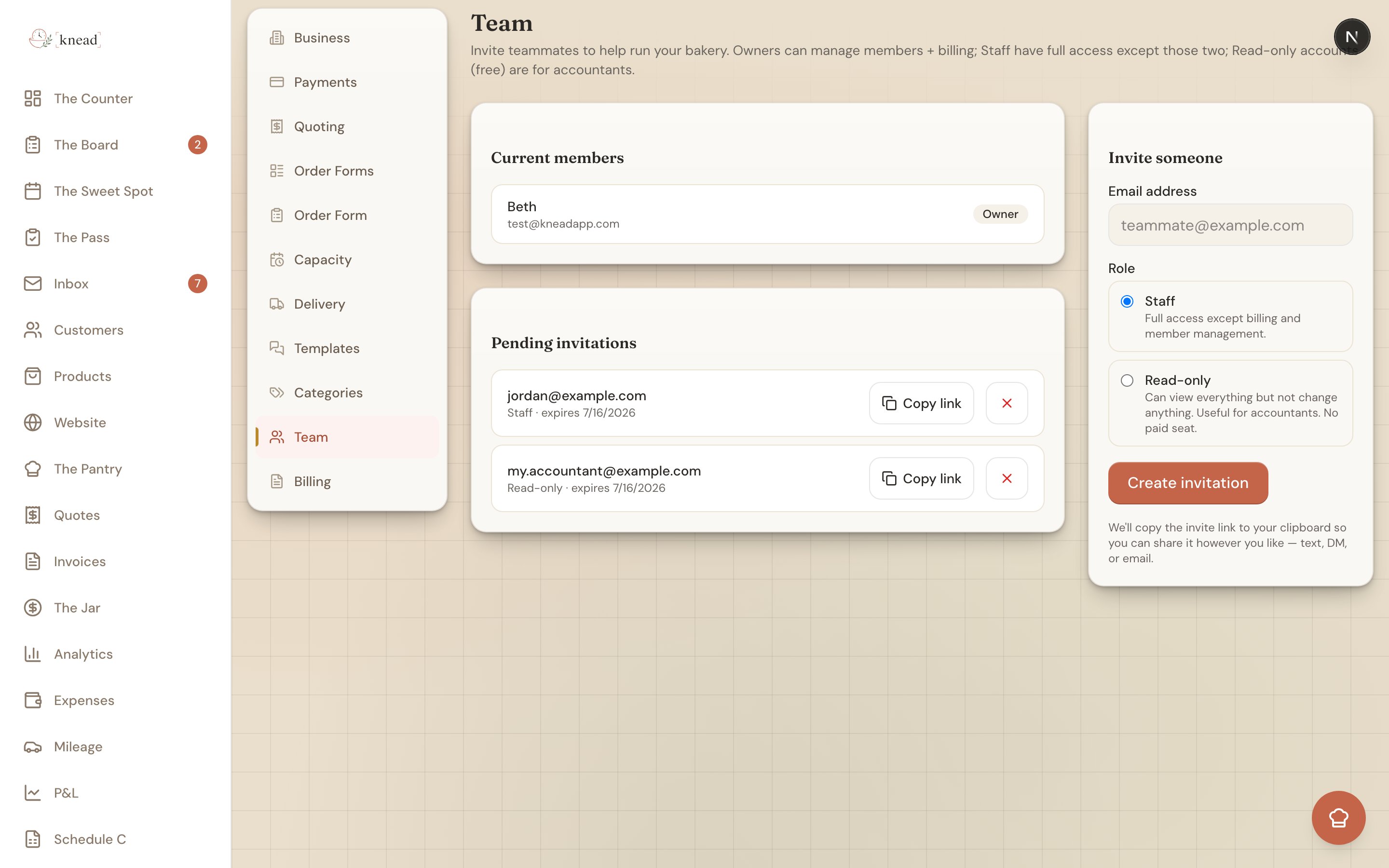
- Go to Settings → Members.
- Enter your teammate’s email address.
- Choose their role — Staff or Read-only.
- Send the invite. Knead generates an invite link and copies it to your clipboard.
- Share the link with your teammate yourself — paste it into a text, email, or wherever you two chat. Knead doesn’t send the invite for you.
Managing Roles and Seats
Because Staff members use paid seats and Read-only members are free, your team makeup can affect your bill. Keep an eye on how many Staff seats you’re using, and switch a teammate to Read-only if they no longer need edit access. Billing is always managed by the Owner from Settings → Billing.Related Articles
Still need help? Contact us