

Overview
When it’s time to hand your numbers to a bookkeeper or tax preparer, you don’t want to retype anything. Knead lets you export your key reports as CSV files — clean spreadsheets your accountant can open in Excel, Google Sheets, or their tax software. Each file is scoped to a single calendar year, so you download exactly the year they asked for.Which Reports You Can Export
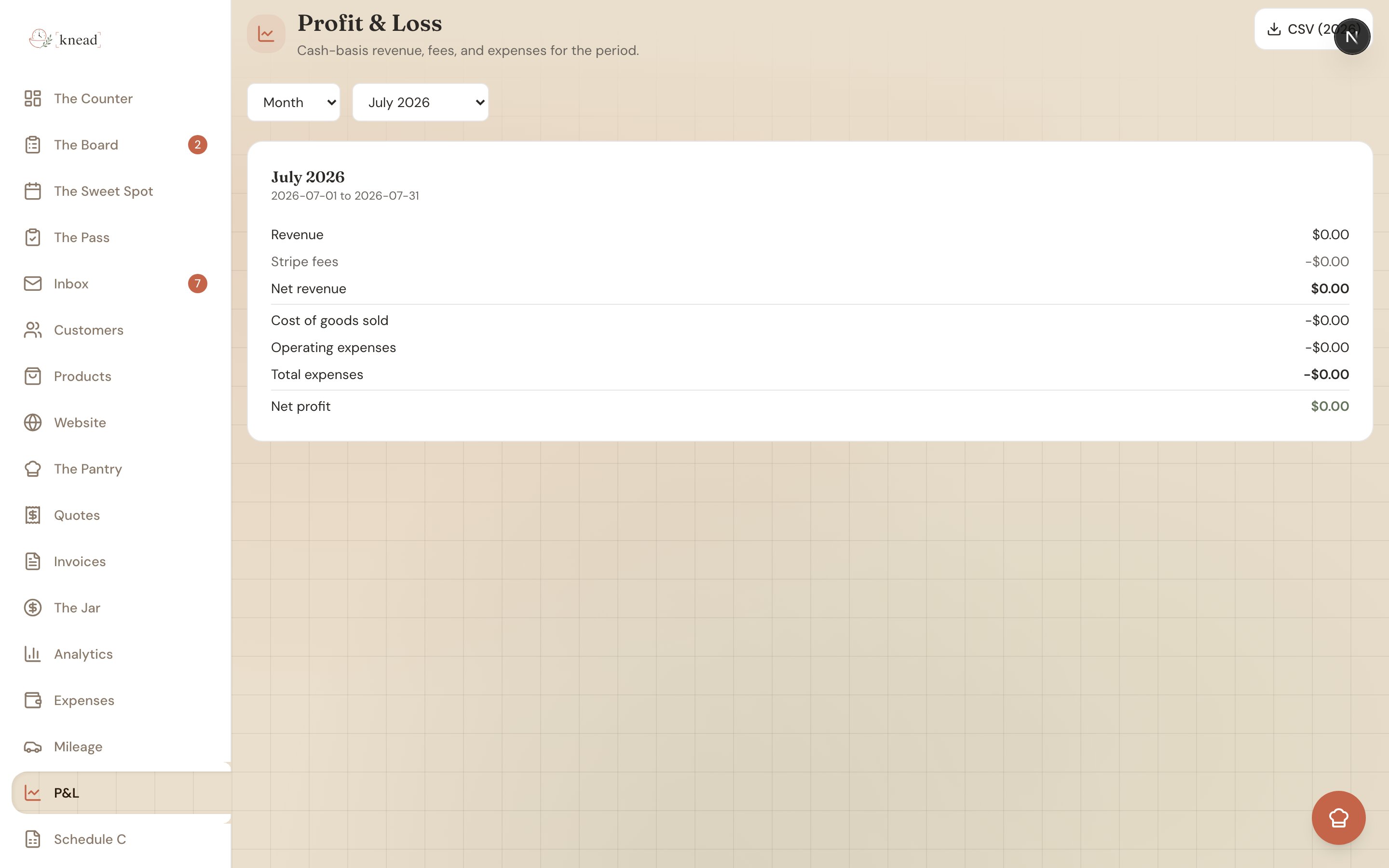
A CSV download button now sits on each of these screens:
Each
{year} is replaced by the calendar year you’re viewing — for example, expenses-2025.csv.
How to Export a CSV
The steps are the same on every screen:- Open the report — P&L, Expenses, Mileage, Jar → Payments, or Schedule C from the sidebar.
- Use the year selector to pick the calendar year you want.
- Tap the CSV button (Schedule C also has a PDF button).
- The file downloads to your device, named for that report and year.
What’s in Each File
- Profit & Loss — your revenue, Stripe fees, and expenses by category, laid out the way the on-screen report reads.
- Expenses — one row per expense with the date, vendor, category, and amount.

- Mileage — one row per trip with the date, purpose, miles, and the IRS rate it was logged at.

- Payments — every customer payment from The Jar, with client, amount, and date.
- Schedule C — your income and expenses rolled up by IRS Schedule C line, ready for your preparer.
Good to know: Before you export the Schedule C file, clear any uncategorized-expense warning so every dollar lands in the totals. See The Schedule C Worksheet.
Related Articles
- Your Profit and Loss Report
- The Schedule C Worksheet
- Tracking Business Expenses
- Tracking Mileage for Tax Deductions
- The Jar
Still need help? Contact us