

Overview
Before you commit to a new order, you want to know the impact. The What-If toggle lets you preview how a pending order would fill your Sweet Spot — without accepting it first. Each pending order has its own toggle, so you can try one on, or stack several, and watch the combined load build up.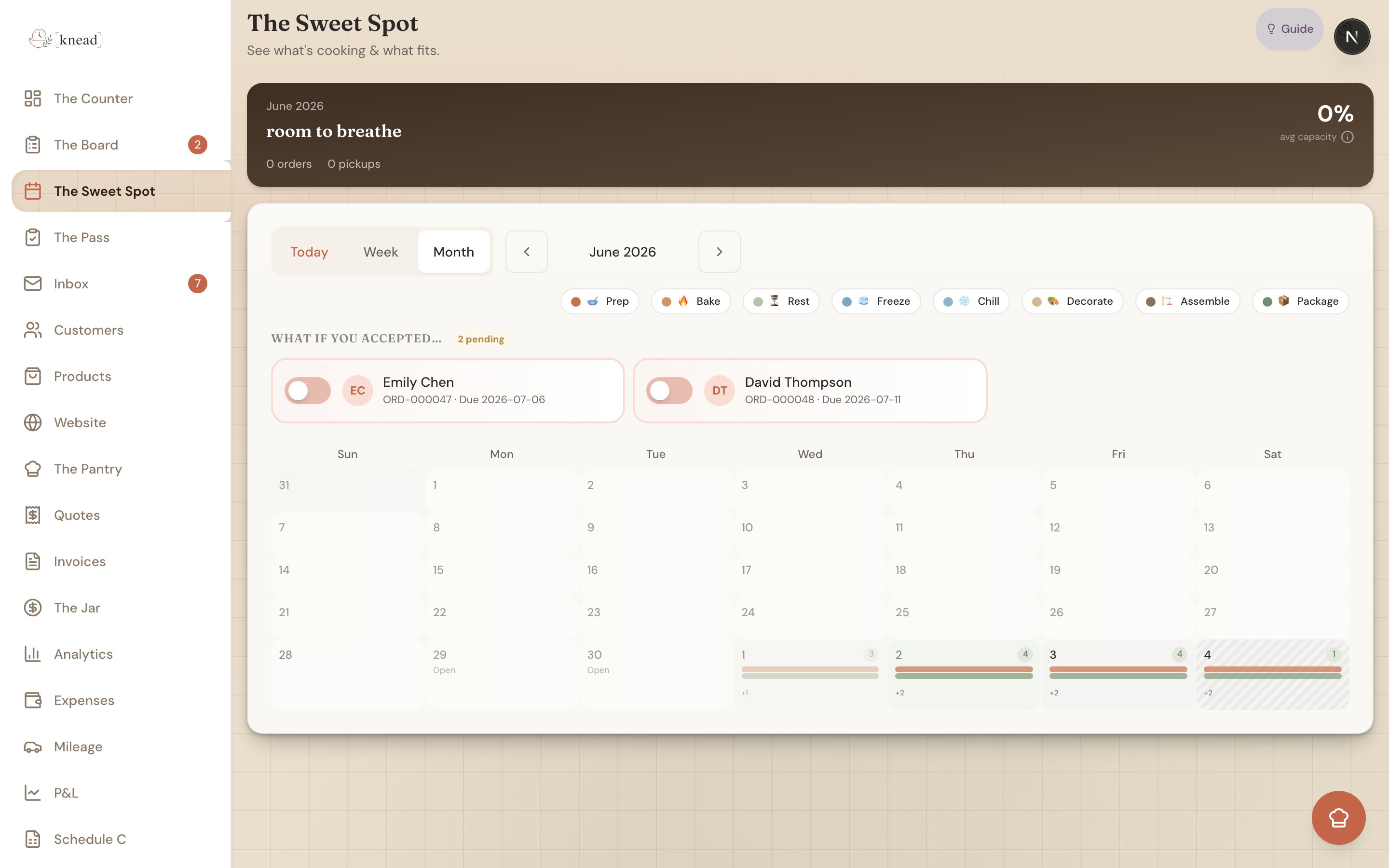
How the What-If Toggle Works
By default, pending orders don’t count toward your capacity. Your Sweet Spot shows only committed work, so you always know your real schedule. The Sweet Spot has a “What if you accepted…” section that lists your pending orders — with a pending count — and gives each one its own toggle. Every row shows the customer and the order’s number and due date. When you turn an order’s toggle on, Knead overlays its work onto your calendar so you can see where it would land, and a banner reads “Showing projected capacity with pending order(s).” Turn it off and that order drops back out of the projection.Toggles Are Cumulative
The real power shows up when you have more than one order in the pipeline. Turning on several toggles is cumulative — Knead stacks every enabled order on top of your committed work and on top of each other, so the capacity bars reflect the combined load, not just one order at a time. That means you can answer the question that actually matters on a busy weekend: “Can I take all of these, or do I have to choose?”Good to know: What-If is a preview only. Nothing is committed and no customer is notified until you actually accept an order. Toggle freely.
Using the What-If Toggle
- Open The Sweet Spot and find the “What if you accepted…” section.
- Turn on the toggle next to a pending order you’re considering.
- Watch the affected day cards update to include that order’s work.
- Turn on additional pending orders’ toggles to see the stacked total.
- Turn any toggle back off to remove that order from the projection.
Reading Phase Chips on Day Cards
Day cards don’t just show a single number — they break the day into phase chips. Each chip names a stage of production and the hours it takes, like mix, bake, and decorate. When you flip on a What-If toggle, you can see which phases the new order would add to which days, since Knead spreads work backward from the due date across your recipe phases. This makes it clear whether a new order piles onto an already-heavy decorate day or slots into a lighter mixing day earlier in the week.When to Use What-If
The What-If toggle earns its keep when you’re triaging. Common moments:- Two enquiries for the same weekend. Turn both toggles on to see whether you can fit both, or have to pick one.
- A large custom order. See whether saying yes crowds out the rest of the week.
- End-of-week planning. Flip through next week’s pending orders and decide which to accept before the rush.
Making Your Decision
After previewing the stacked impact:- If the combined bars stay comfortable, go ahead and accept.
- If a day tips into red, suggest an alternative date or take just one of the orders.
- If several overlap, prioritize by deadline, margin, or the customer relationship.
Related Articles
- Using The Sweet Spot (Calendar & Capacity)
- Understanding Sweet Spot — How Capacity Works
- “Can I Take This Order?” — Checking Your Capacity
- Reviewing and Accepting Enquiries
Still need help? Contact us