

Overview
Snap & Create lets you photograph a recipe from a cookbook, handwritten card, or printed page and have Knead automatically extract the ingredients, quantities, instructions, and production steps. Instead of typing everything out, snap a photo and let AI do the data entry.How It Works
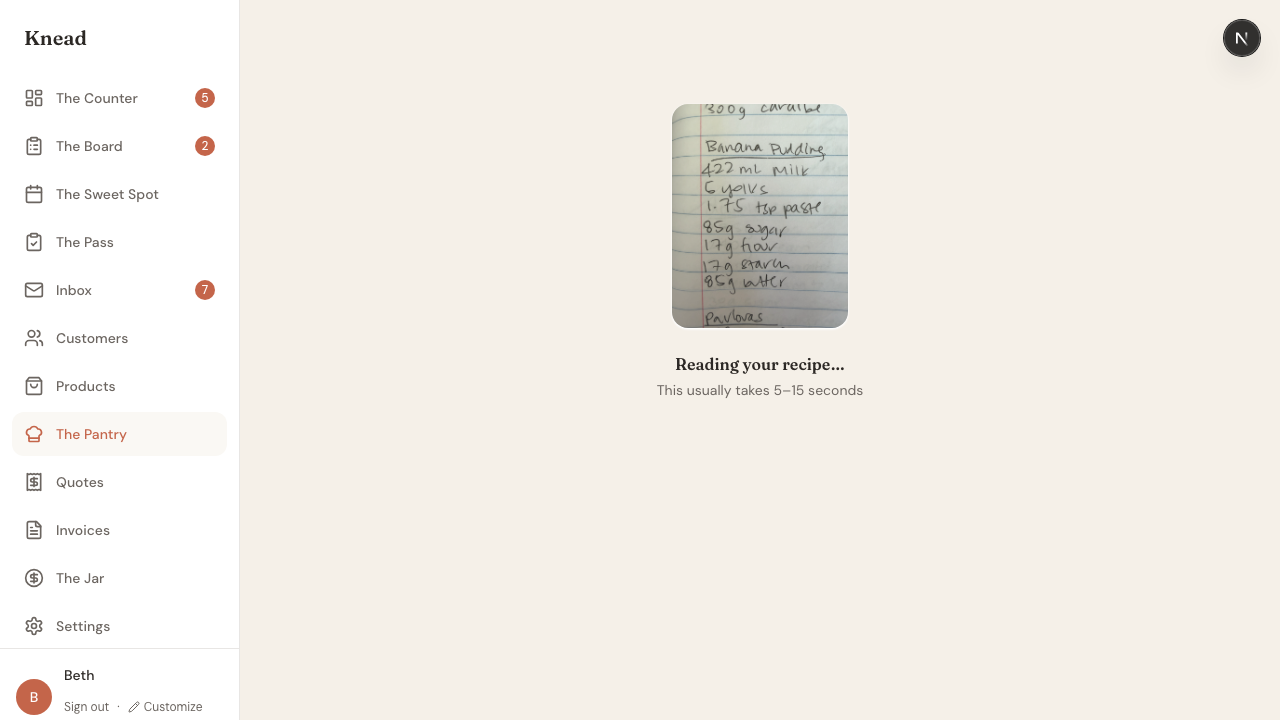
Snap & Create uses AI vision to read your recipe photo and extract structured data — the recipe name, ingredients with quantities and units, instructions, yield, prep times, and even production steps with active and passive timing. The extracted recipe is presented for your review before saving. You can edit anything the AI got wrong, match ingredients to your Pantry, and then save the recipe directly to your ingredient library.Where to Start a Snap
You can snap a recipe from two places:- The recipe library — tap The Pantry → Recipes, then Snap Recipe.
- While building a product — in a product’s Recipes card, tap Add recipe → Snap a photo (right next to Paste recipes). When you save, the new recipe is linked to that product automatically and you stay on the product form.
Taking a Recipe Photo
- Tap The Pantry in the sidebar, then tap Recipes.
- Tap the Snap Recipe button in the top right.
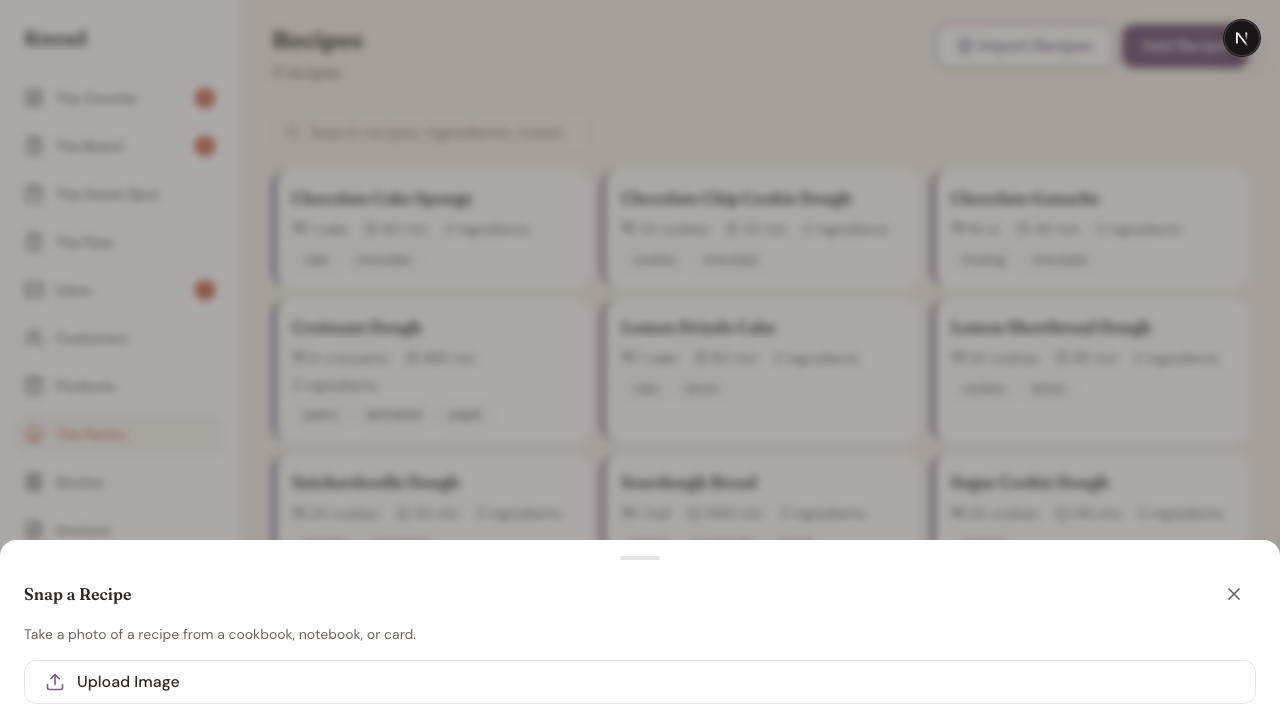
- The capture sheet opens at the bottom of the screen.
- On mobile: tap Take Photo to use your camera, or Choose from Photos to upload from your library.
- On desktop: tap Upload Image to select one or more image files.
- You can upload multiple pages of the same recipe (for example, a recipe that spans two cookbook pages).
Previewing Your Photos
After selecting photos, you see a preview screen showing thumbnails of your recipe pages. Review them to make sure the text is legible.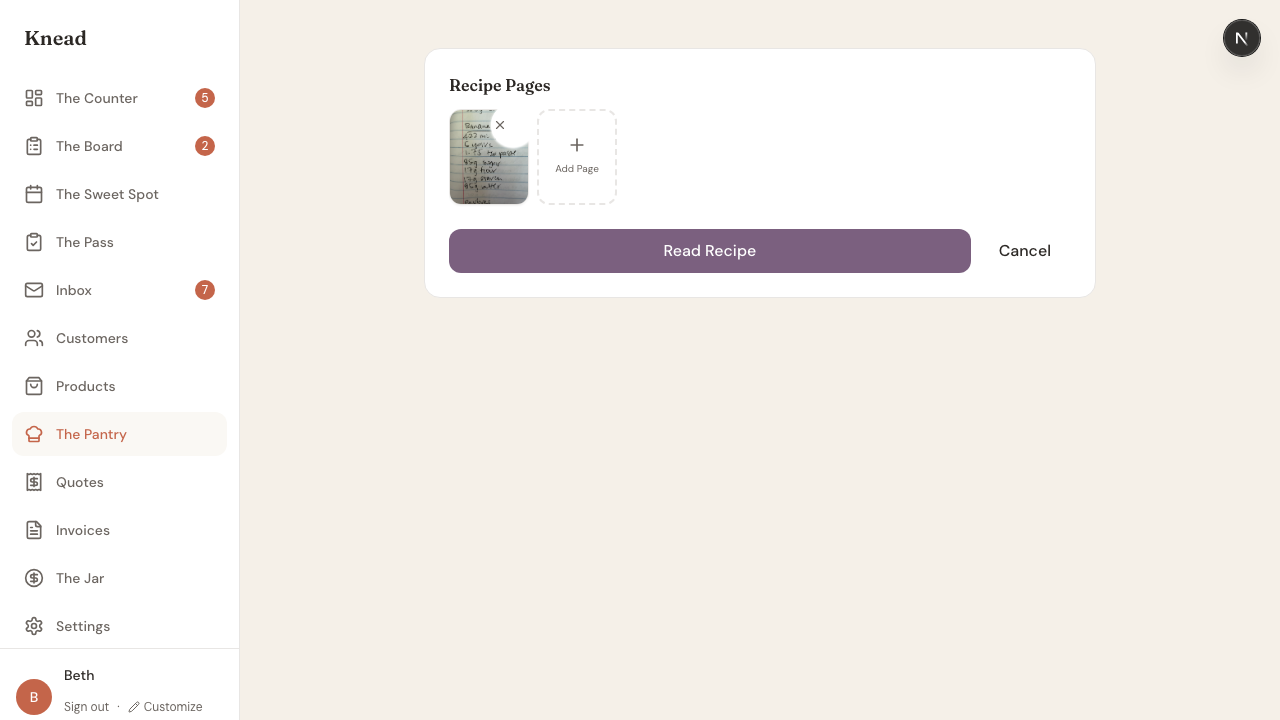
Reviewing the Extracted Recipe
Once extraction is complete, you land on the review screen. This is where you verify and fine-tune everything before saving.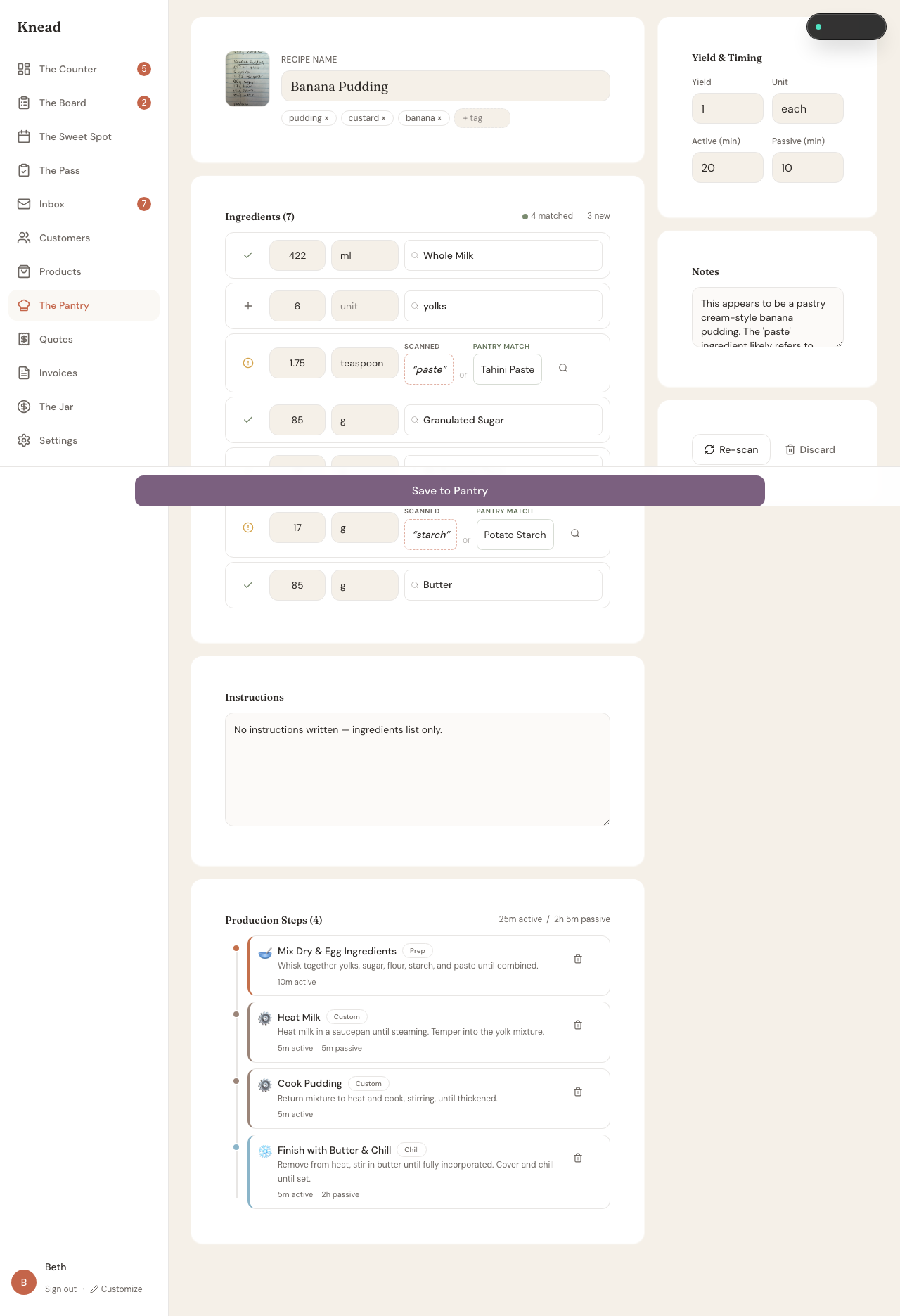
- Recipe Name — The AI’s best guess at the recipe title. Edit if needed.
- Tags — Auto-generated tags for categorization. Add or remove as needed.
- Ingredients — Each ingredient shows a quantity, unit, and name. Green dots indicate ingredients matched to your Pantry. Gray dots are new ingredients that will be created when you save.
- Instructions — The full recipe instructions as extracted from the photo.
- Production Steps — If the AI detected distinct phases (prep, bake, chill), they appear as a timeline with active and passive times.
- Yield & Timing — The recipe yield, unit, active prep time, and passive time.
- Notes — A space for baker’s notes.
Ingredient Matching
Knead automatically matches extracted ingredients against your existing Pantry. When a match is found, the ingredient links to your existing cost and stock data. When no match exists, you can:- Search for a different Pantry ingredient using the search icon.
- Accept the new ingredient — it will be created in your Pantry when you save.
Good to know: Knead also matches against King Arthur reference ingredients for accurate volume-to-weight conversions. If you see a close match suggestion, tap it to link the ingredient.
Saving the Recipe
When everything looks right, tap Save to Pantry. The recipe is saved to your Pantry’s recipe library and you are redirected to the recipe detail page. If you are not satisfied with the extraction, tap Re-scan to try again with the same photos, or Discard to start over.Related Articles
- Paste & Go — Bulk Recipe Upload
- Recipe Costing with The Pantry
- Linking Recipes to Products
- Tracking Ingredients in The Pantry
Still need help? Contact us