

Overview
Pricing is the hardest part of running a bakery, so Knead does the math for you. Every product form has a Help me price this calculator that turns your real costs — ingredients, time, overhead, packaging, and card fees — into a suggested price with a healthy margin baked in. It is available on every plan, and one tap drops the number straight into your price field.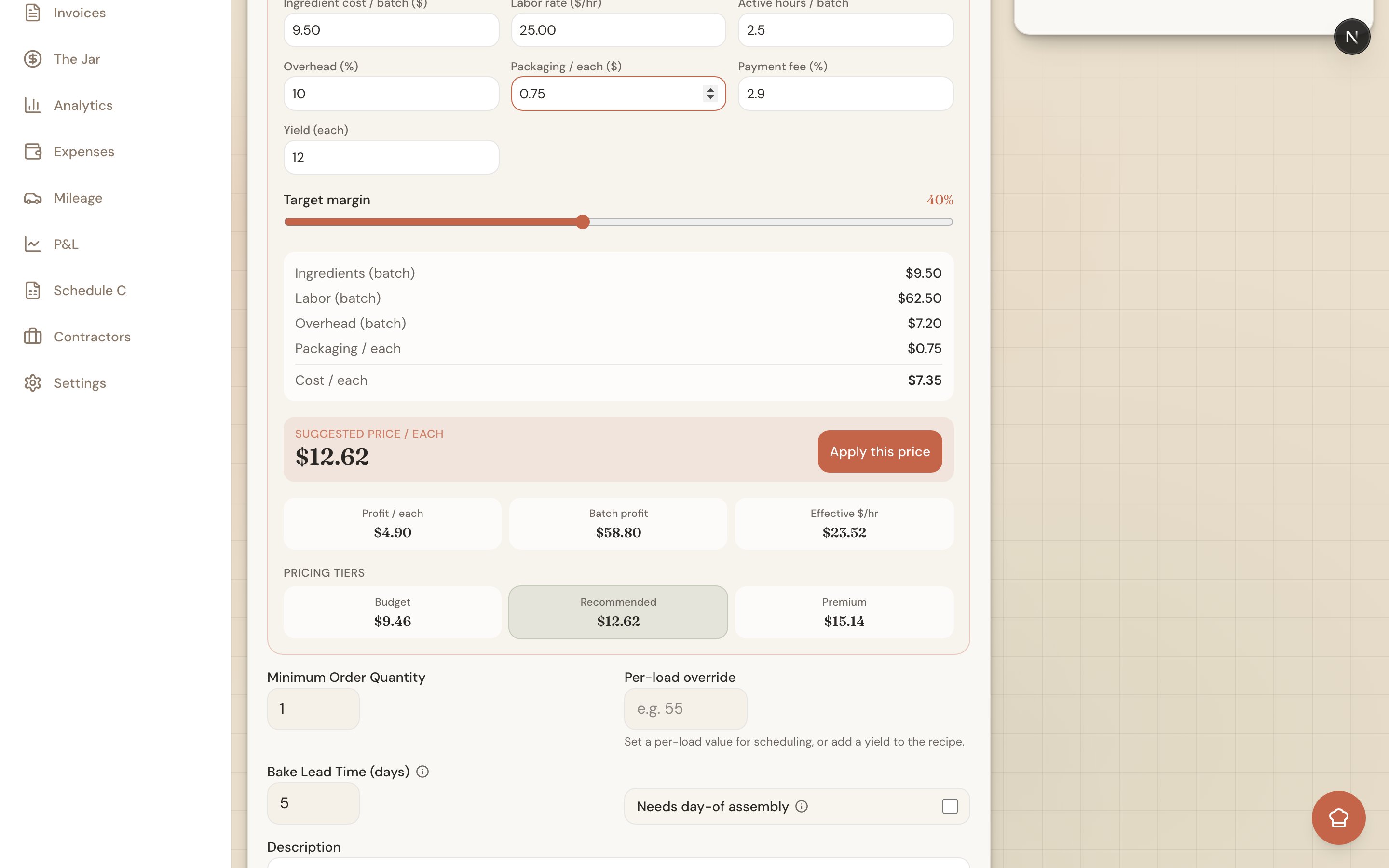
Opening the Calculator
The calculator lives right on the product form.- Open a product from your catalog, or start a new one.
- Expand the Help me price this section.
- Fill in your costs (below), then read off the Suggested price.
What You Enter
The calculator asks for the numbers that actually make up your cost per item:- Ingredient cost per batch — What the ingredients for one batch cost you.
- Labor rate — Your pay in dollars per hour.
- Active hours per batch — Hands-on time for one batch (mixing, decorating, packing).
- Overhead % — A percentage added to cover rent, utilities, and other fixed costs.
- Packaging cost per unit — Boxes, ribbon, and labels for one unit.
- Payment fee % — The card processing fee you pay (for example, ~2.9%).
- Units per batch — How many sell units one batch yields.
Good to know: If the product is linked to a recipe, Knead prefills your ingredient cost, units per batch, and active hours straight from that recipe — so you often only need to check the numbers and set your target margin. See Linking Recipes to Products.
What the Calculator Shows You
As you type, Knead updates a full breakdown:- Suggested price — Your recommended price, grossed up so the card fee comes out of the customer’s payment instead of your margin.
- Cost breakdown — Ingredients, labor, overhead, and packaging, line by line.
- Profit per unit — What you keep on each item after all costs.
- Batch profit — What you keep on a full batch.
- Effective $/hour — What you are really earning per hour of hands-on work at this price. This is the number that tells you whether a product is worth your time.
Three price tiers
Knead also offers three ready-made price points so you can position a product:
When the price looks right, tap Apply this price and Knead drops the suggested price into the product’s Price field. You can still edit it by hand afterward.
Setting Your Pricing Defaults
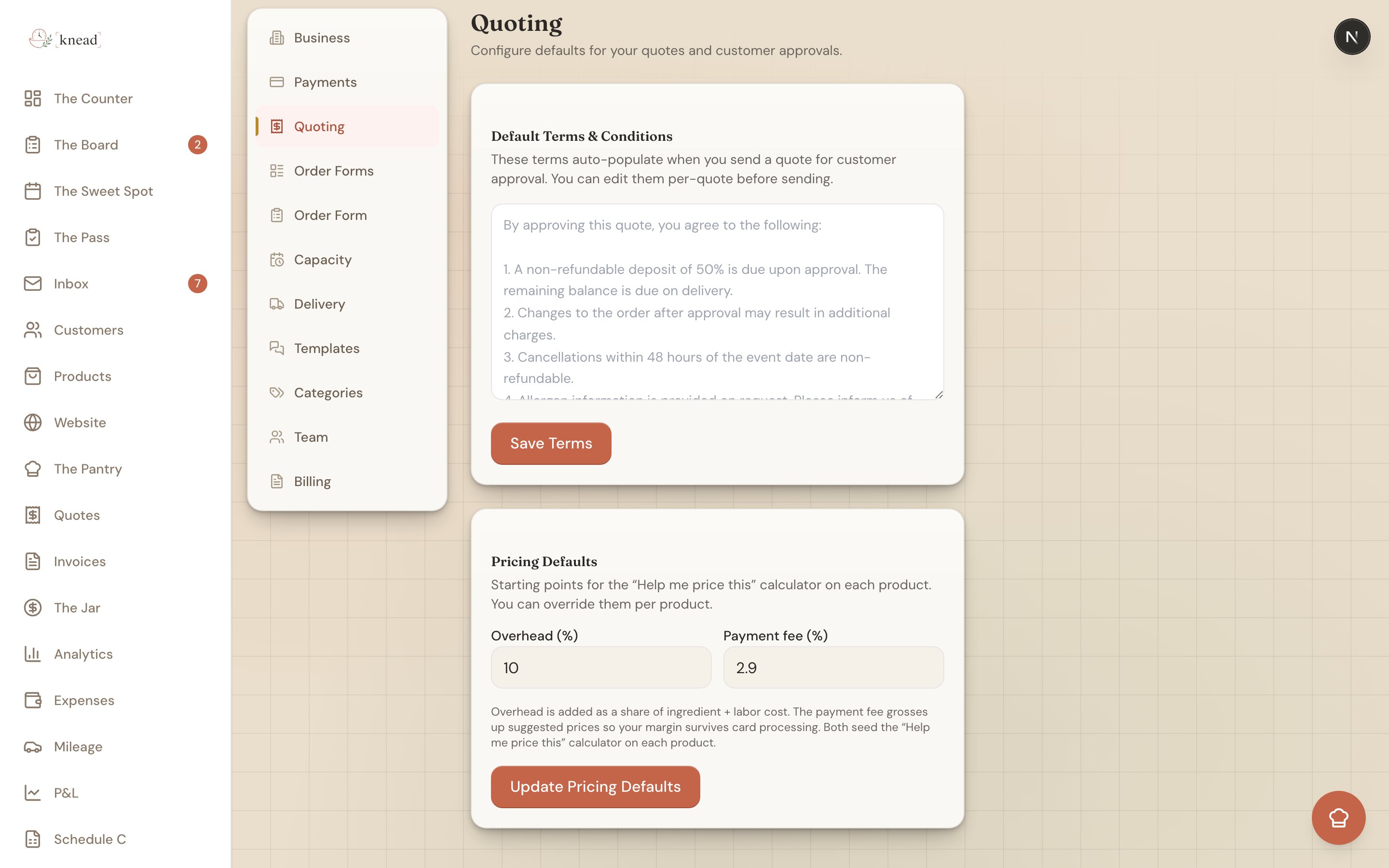
So you are not re-typing the same numbers on every product, Knead fills in a few fields from your business settings.- Go to Settings then Quoting.
- Open Pricing Defaults.
- Set your default overhead % and payment fee %.
How Knead Reads Your Margin
Once a product has a price and a cost, Knead flags its margin so you can spot the weak ones at a glance:
If a product lands in the warning or critical range, that is Knead’s cue to raise the price, trim a cost, or reserve it for higher-volume orders.
Related Articles
- Setting Prices and Understanding Margins
- Recipe Costing with The Pantry
- Linking Recipes to Products
- Setting Your Labor Rate
- Understanding Sell Units
Still need help? Contact us