

Overview
If you already have a client list in a spreadsheet or QuickBooks Online, you can import them into Knead in bulk instead of adding them one by one. The import tool maps your data to Knead’s client fields and lets you review everything before saving.Importing from a Spreadsheet
Knead accepts.csv and .xlsx files for bulk client import.
Preparing Your File
Your spreadsheet should include columns for client information. Knead recognizes these columns:Uploading and Reviewing
- Tap Customers in the sidebar.
- Tap Import Clients (or navigate to the import page from your client list).
- Make sure the Knead Template tab is selected.
- Tap Choose File and select your
.csvor.xlsxfile.
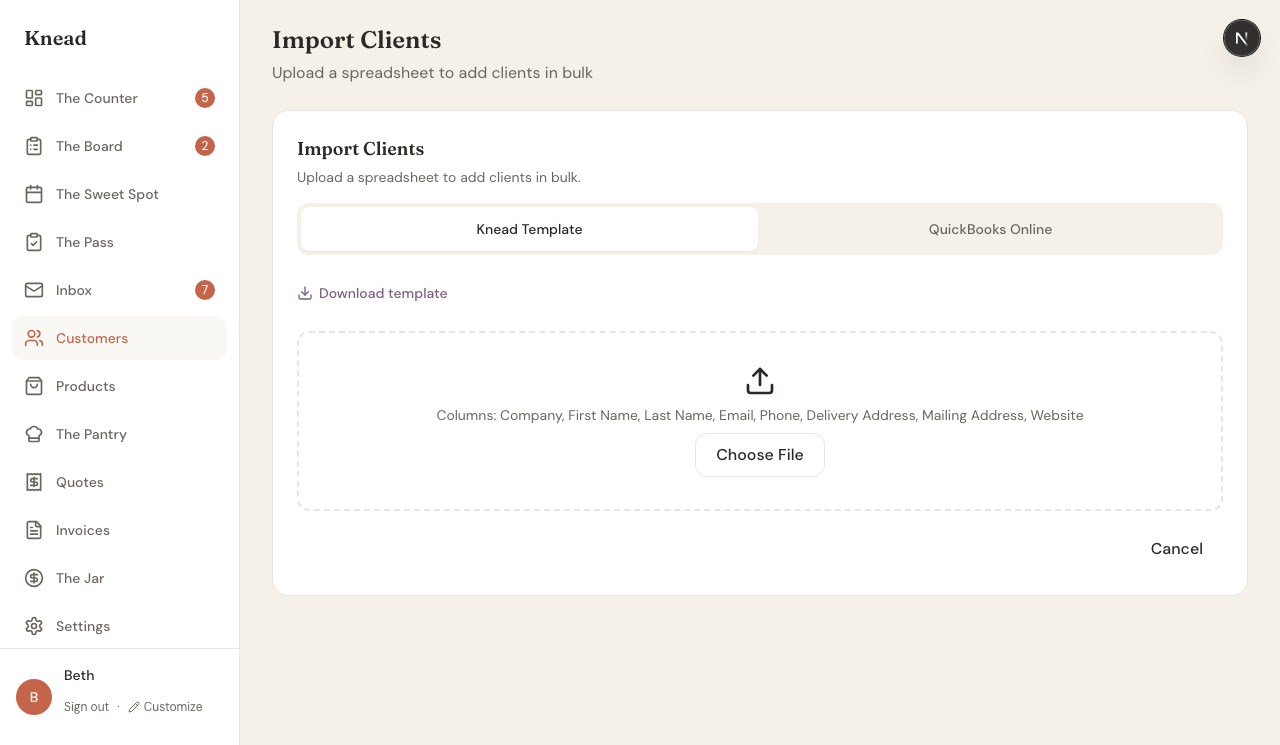
- Knead parses your file and shows a review list of all clients found. Each card shows the client’s name, email, and any other fields from your file.
- Review the list. Clients with incomplete or invalid data (for example, missing addresses) are flagged so you can fix them before importing.
- Tap Import to save all clients to your Knead account.
Good to know: Knead skips rows with incomplete addresses to prevent validation errors. You can add addresses manually after import.
Importing from QuickBooks Online
If you use QuickBooks Online, you can import your customer list directly without exporting a spreadsheet first.- On the Import Clients page, tap the QuickBooks Online tab.
- Sign in to your QuickBooks account when prompted.
- Knead pulls your customer list from QuickBooks.
- Review the imported clients and tap Import.
After Importing
Imported clients appear in your client list immediately. From there you can:- Add tags to organize them.
- Add allergy notes for clients with dietary restrictions.
- Link clients to companies if they belong to a business.
- Mark frequent buyers as priority customers.
Related Articles
Still need help? Contact us