

Overview
Knead gives you two ways to offer choices on a product: Options and Add-ons. Options are things a customer picks one of — like a cake size or cookie flavor. Add-ons are extras a customer can stack on top — like fondant flowers or custom writing. Together, they let you sell one product with many variations without cluttering your catalog.Options vs. Add-ons
Setting Up Options
Options are organized into groups. A “Size” group might have choices like “6 inch,” “8 inch,” and “10 inch.” A “Flavor” group might have “Classic Sugar,” “Chocolate Chip,” and “Lemon Shortbread.” You can have as many groups as you need.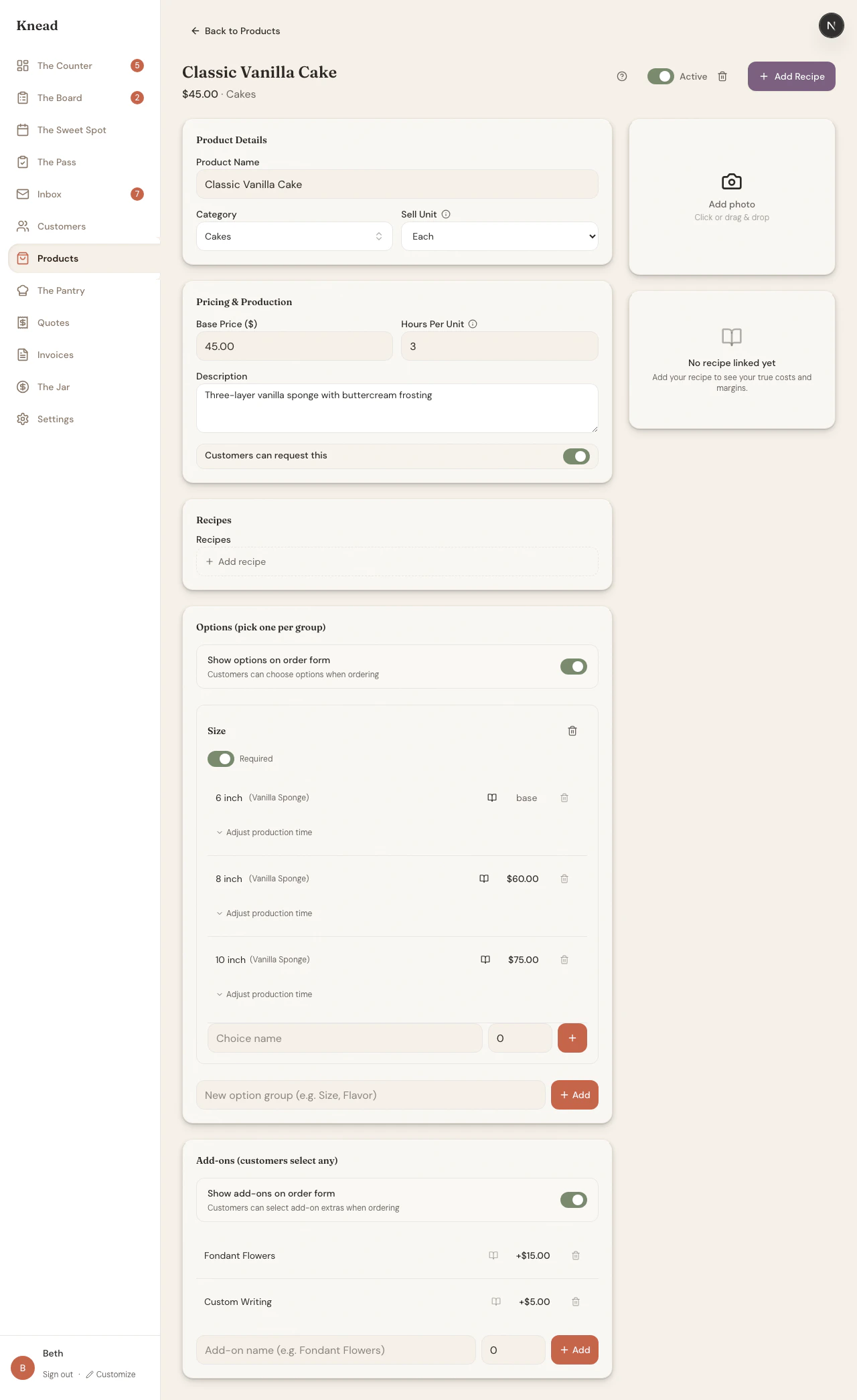
Adding an Option Group
- Open the product from your catalog.
- Scroll to the Options section.
- Type a group name (e.g., “Size” or “Flavor”) in the input at the bottom and tap the add button.
- The new group appears with a Required toggle — leave it on if customers must pick one, turn it off if the option is optional.
Adding Choices to a Group
- Inside the option group, type a choice name (e.g., “8 inch”).
- Set the price. This is the full price for the product when this choice is selected — not an adjustment. If your 8-inch cake costs $60, enter $60.
- Tap the add button.
- Repeat for each choice.
Linking Recipes to Choices
Each choice can link to a different recipe for production costing. Tap the recipe icon next to a choice and search for the recipe. This lets Knead calculate accurate costs per variation — a 10-inch cake uses more ingredients than a 6-inch.Setting Up Add-ons
Add-ons are simpler than options — there are no groups. Each add-on is a standalone extra with a name and a price.- Scroll to the Add-ons section below Options.
- Type the add-on name (e.g., “Fondant Flowers”).
- Set the price. This is always additive — it gets added on top of whatever the option price is.
- Tap the add button.
- Fondant Flowers — +$15.00
- Custom Writing — +$5.00
- Gift Box Packaging — +$8.00
- Edible Image Topper — +$12.00
Good to know: Add-on prices always show with a ”+” to make it clear they are extras on top of the base or option price.
How Pricing Works
Options and add-ons work together to calculate the final price:- Start with the base price — the price you set on the product.
- Apply the selected option — if a customer picks “8 inch” at $60, the price becomes $60 (replaces the base).
- Add selected add-ons — Fondant Flowers (+$15) and Custom Writing (+$5) stack on top.
- Final price — $60 + $15 + $5 = $80.
Multiple Option Groups
A single product can have several option groups. Cookies, for example, might have both a Size group and a Flavor group.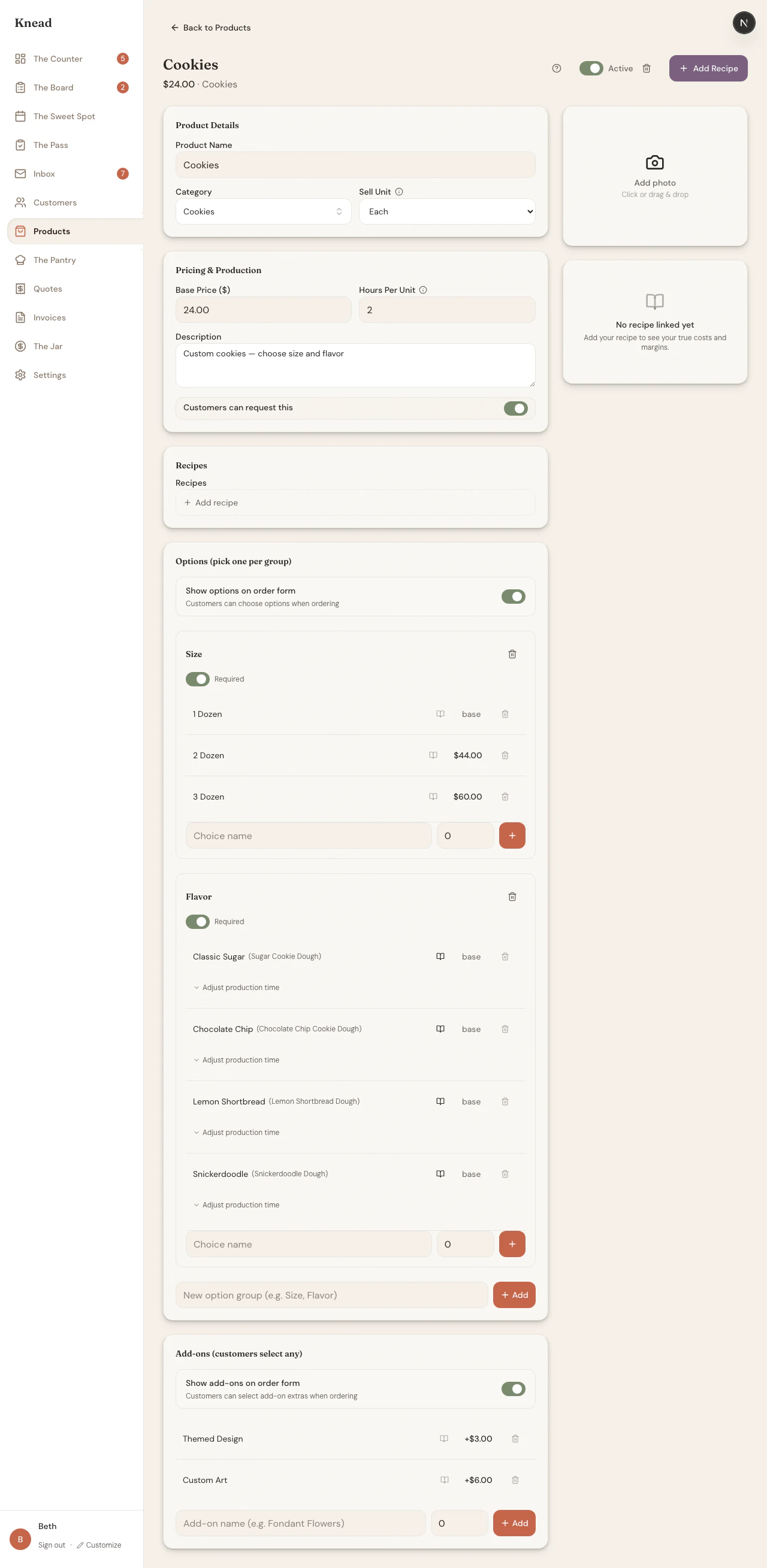
Controlling Visibility
You can control whether customers see options and add-ons on The Board separately.- Show options on order form — when off, customers see the base price and cannot choose options. Use this when you track sizes internally but quote prices manually.
- Show add-ons on order form — when off, extras are hidden. Use this when you offer add-ons only by request.
How Customers See Options and Add-ons
On The Board, products with options show the base price and an “options available” label. When a customer taps + Add, they see: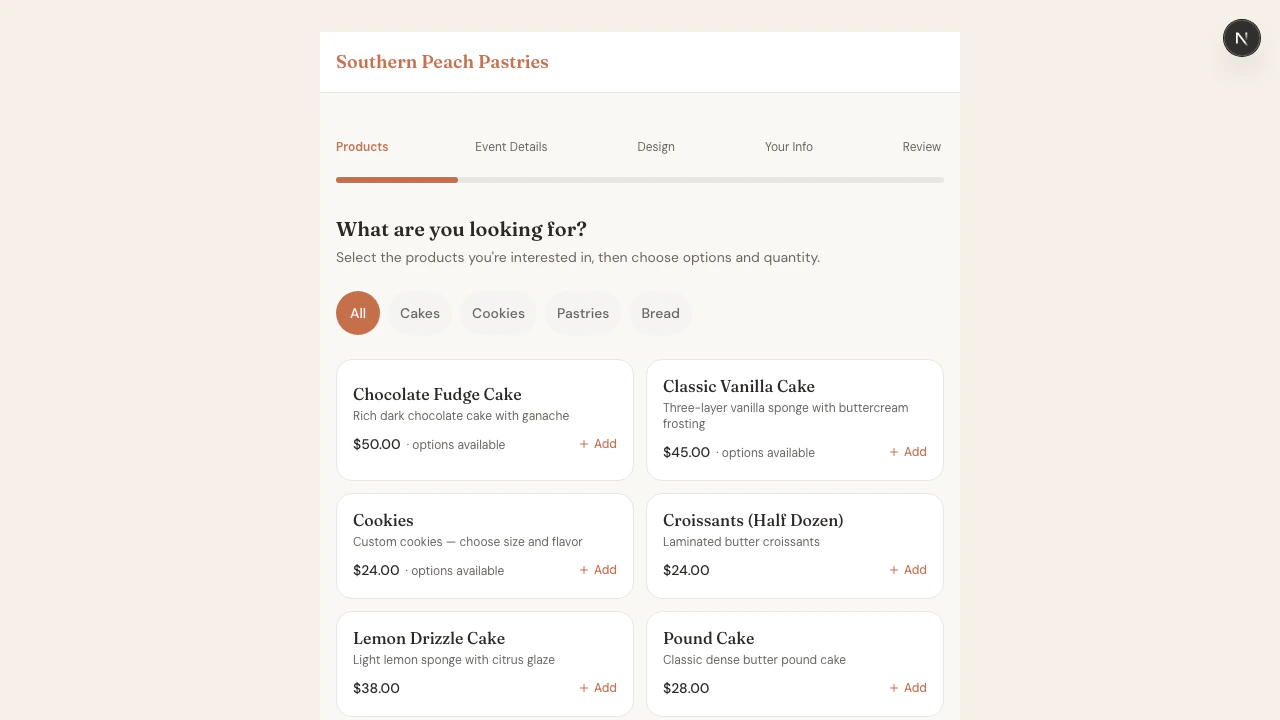
- Option groups appear as pill buttons — tap to select one per group. The selected pill fills with your brand color.
- Add-ons appear below as “Extras (select any)” — tap to toggle on. Each shows its ”+$X.XX” price.
- The price updates live as customers make selections.
Related Articles
Still need help? Contact us