

Overview
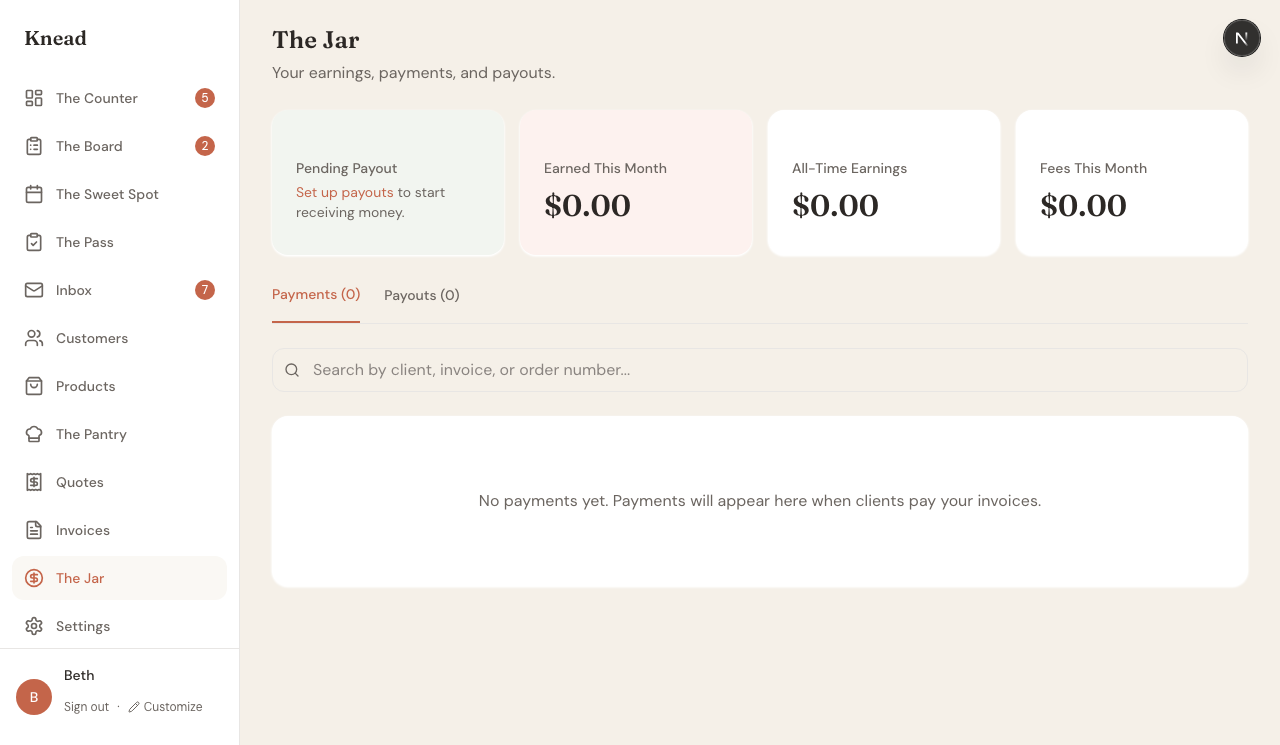
The Jar is your financial hub inside Knead. It shows what you have earned, what your customers have paid, and what has been deposited into your bank account. Instead of digging through Stripe dashboards or spreadsheets, The Jar gives you one place to see all your money at a glance.What You See in The Jar
When you open The Jar, the top of the page shows four summary cards:- Pending Payout — Money collected from customers that has not yet been transferred to your bank. If you have not set up payouts, you will see a prompt to connect Stripe.
- Earned This Month — Total revenue from customer payments this calendar month.
- All-Time Earnings — Your cumulative earnings since you started using Knead.
- Fees This Month — Processing fees deducted by Stripe this month.
Payments Tab
The Payments tab shows every payment your customers have made. Each row includes the client name, invoice or order number, amount, and date. You can search by client name, invoice number, or order number to find a specific payment quickly. Payments appear here as soon as a customer completes a card payment or you record a manual payment on an invoice. Tap the CSV button to download the year’s payments aspayments-{year}.csv for your accountant — see Exporting Reports for Your Accountant.
Good to know: Manual payments (cash, check, Venmo) appear in The Jar alongside Stripe payments. The Jar tracks all your revenue, not just card payments.
Payouts Tab
The Payouts tab shows every transfer Stripe has made to your bank account. Each payout entry shows the date, gross amount, fees deducted, and net amount deposited. Tap any payout to see the individual payments that were included in that batch.Setting Up Payouts
If you see “Set up payouts to start receiving money” on the Pending Payout card, you need to connect Stripe first.- Tap the Set up payouts link on the card.
- Follow the Stripe Connect onboarding flow.
- Once connected, payments from customers are automatically batched and transferred to your bank account on your chosen schedule.
Related Articles
- Payout Schedule and History
- Understanding Processing Fees
- Creating and Sending Invoices
- Connecting Stripe
Still need help? Contact us