

Overview
A Knead invoice is one clean piece of paper — a letterpress-style statement that pulls in your order automatically, adds up the total, and gives your customer a way to pay. You create it in a tap from the order, tidy up the line items and fees if you need to, then send it with a friendly email and a Review and pay button. This article walks through the whole flow.Creating an Invoice from an Order
Invoices don’t appear on their own — you decide when to bill. When an order is ready to invoice:- Open the order from The Counter.
- Tap Create Invoice.
- Knead pulls in the order details automatically — items, quantities, sell units, and prices — and drops them onto a fresh invoice.
Good to know: If you already collected a deposit on this order, Knead credits it automatically. The deposit shows up as a recorded payment and the invoice bills only the remaining balance — so you never double-charge. See Deposits and Partial Payments.
What the Invoice Looks Like
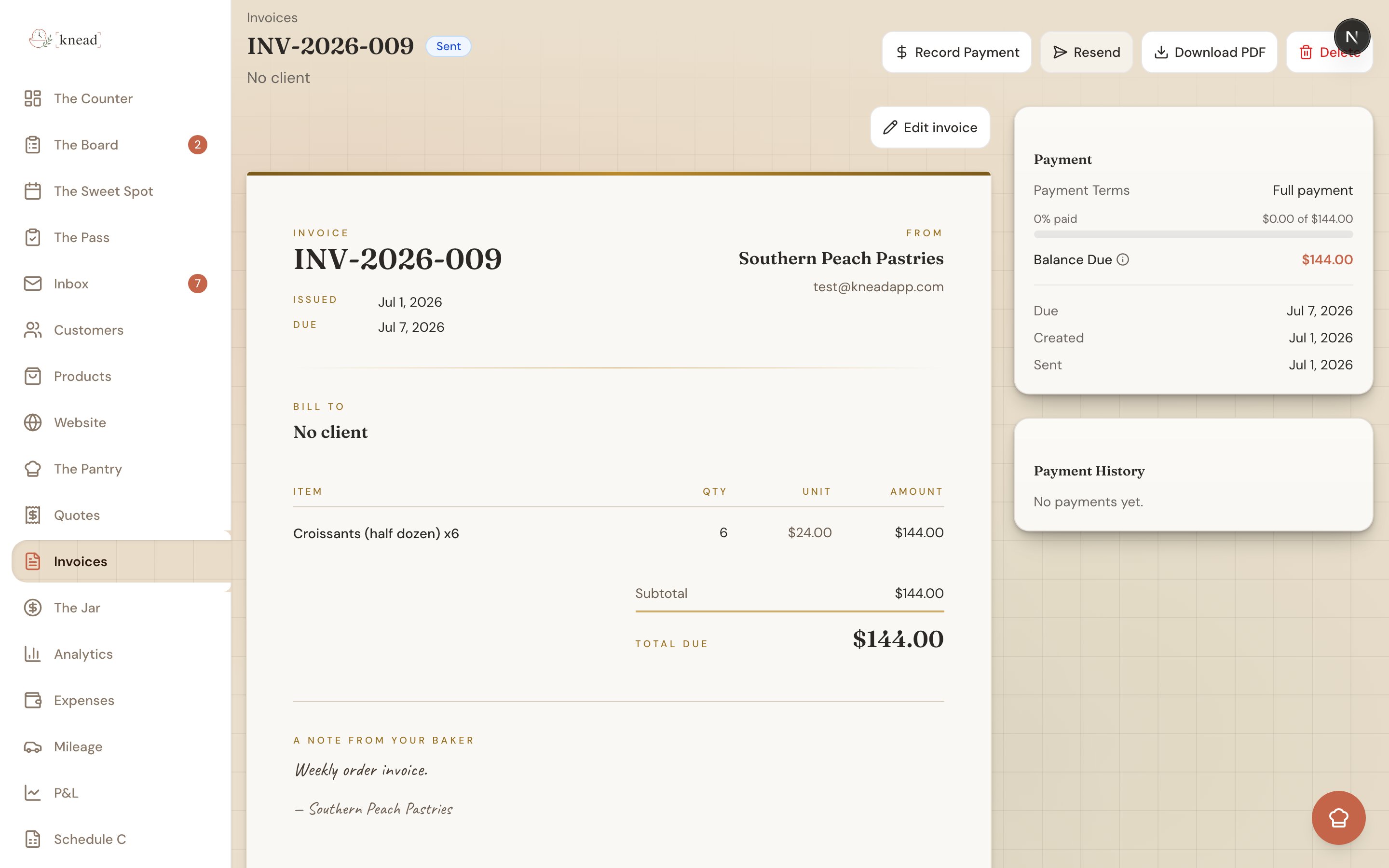
Everything sits on one page, designed to feel handmade rather than corporate:- A large INVOICE label with the invoice number.
- Your From block — your business name, email, and phone. (Your name prints as text; the invoice doesn’t print your logo.)
- A Bill to block with your customer’s name and email.
- An items table with four columns — Item, Qty, Unit, and Amount — where each line can carry a short note.
- The totals: Subtotal, Tax (using your tax label, when tax applies), and Total Due.
- A handwritten “A note from your baker” signoff at the bottom.
- A green PAID stamp once the invoice is settled.
Editing an Invoice
You can fine-tune any unpaid invoice. Tap Edit invoice to open edit mode, where totals update live as you type.Line items
- Change a line — Adjust the quantity or unit price; the line’s amount recalculates.
- Add a line — Include something that wasn’t on the original order.
- Remove a line — Delete anything you don’t need.
- Add a per-line note — A short note under any item (flavor, filling, a special request).
Fees & discounts
Open the Fees & discounts section to add:- A delivery fee for drop-offs.
- A rush charge for a tight turnaround.
- A discount — discounts show in green so they’re easy to spot.
Tax-free lines
While editing a line, tick “Tax-free line (e.g. delivery)” and it picks up a green Tax-free badge. That line is left out of the tax calculation — handy for delivery charges. For customers who are fully tax-exempt on everything, see Tax-Exempt Clients.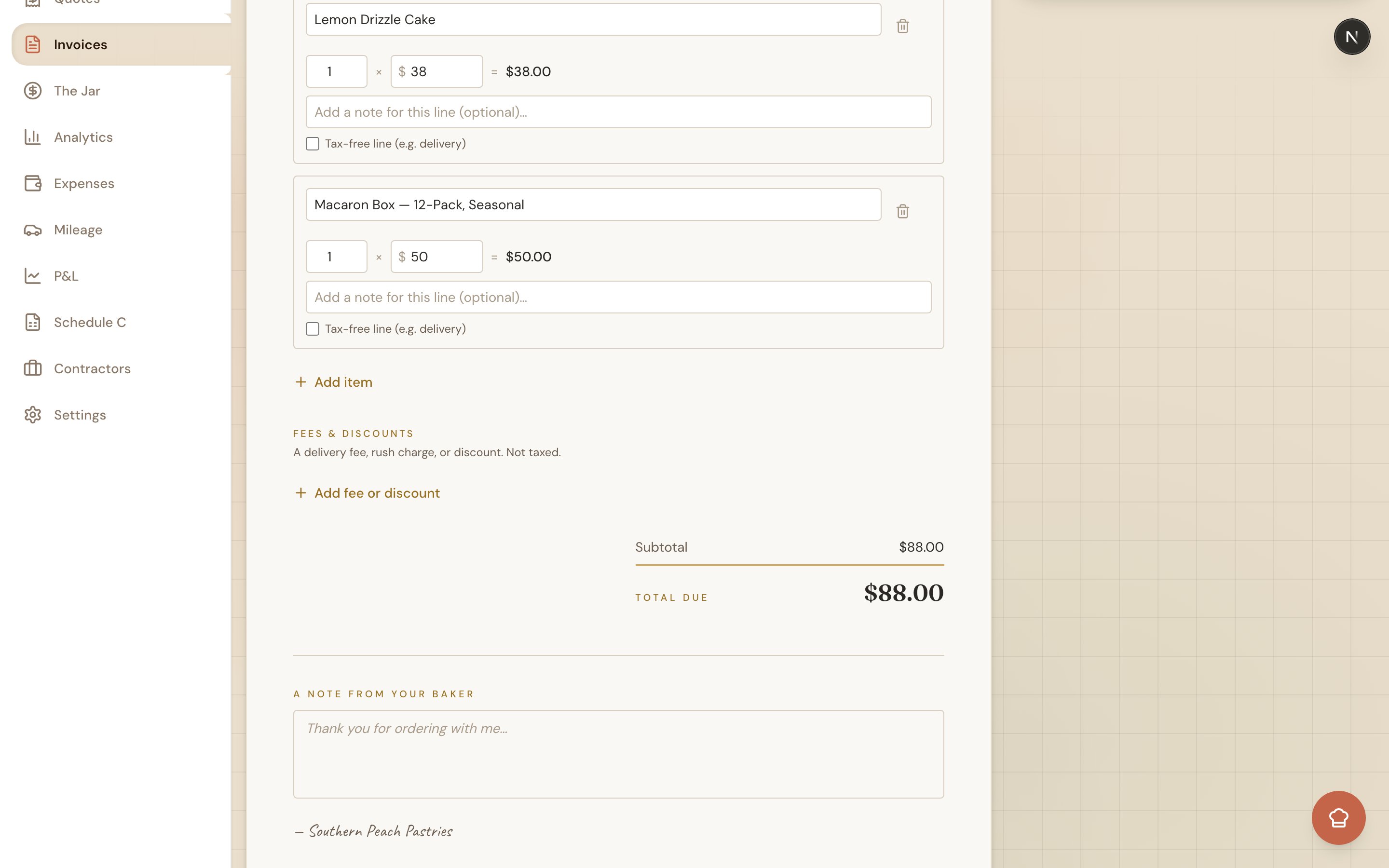
Sending the Invoice
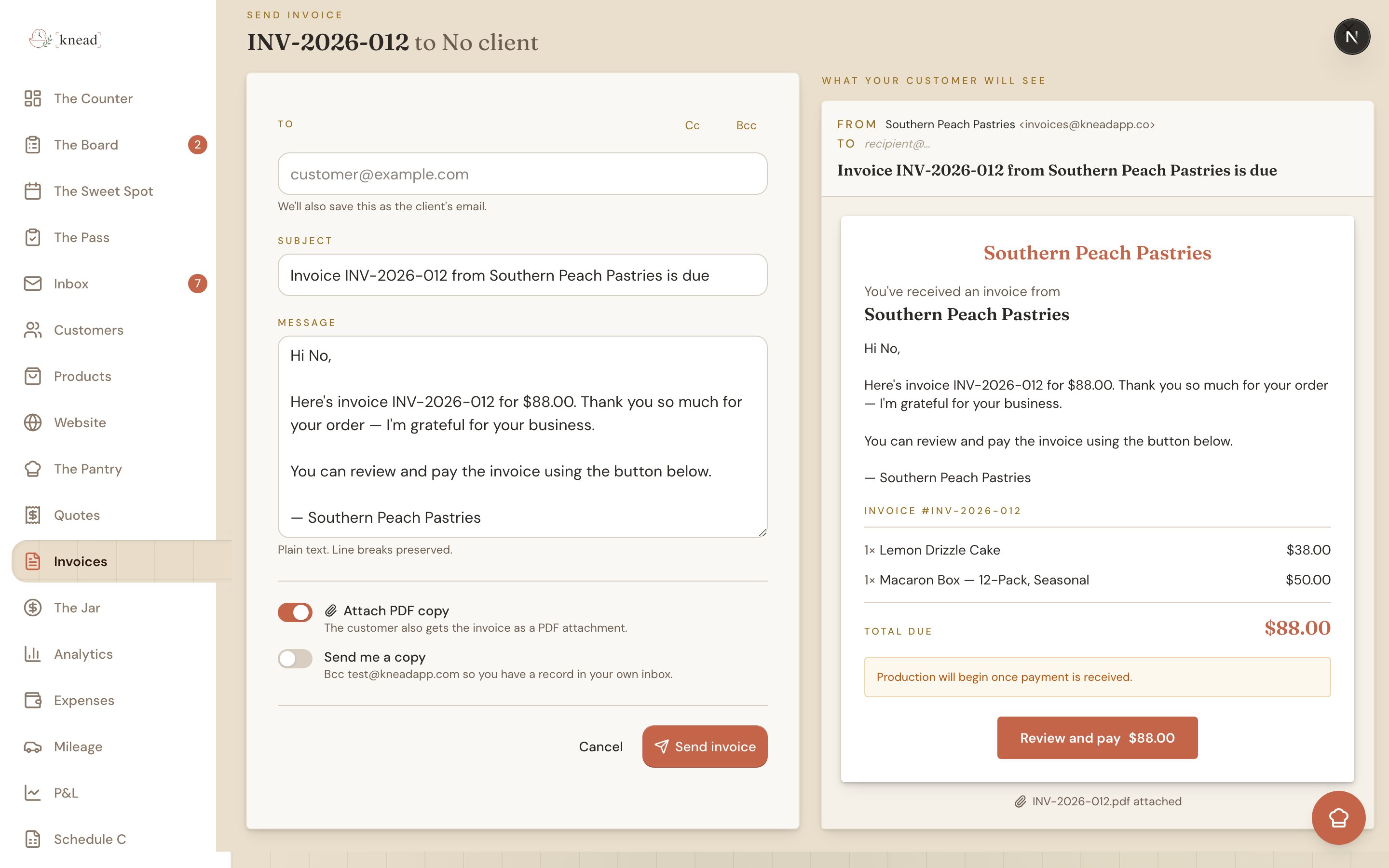
Tapping Send opens a dedicated send page so you can review the email before it goes out. On the send page you can set:- To, Cc, and Bcc — the customer’s address is filled in for you.
- Subject and Message — both editable, so you can add a personal line.
- Attach PDF copy — a toggle that’s on by default, so a PDF of the invoice rides along with the email.
- Send me a copy — toggle this on to email a copy to yourself.
Resending an Invoice
Already sent it? Any sent invoice has a Resend action. Use it to fix a wrong email address or send a fresh copy if the first one got buried. Resending doesn’t change the invoice’s status — it just puts the email back in front of your customer. You can also grab a shareable pay link for text or DM — see Sharing a Customer Pay Link.Recording a Payment
When a customer pays you outside of card checkout — cash, Venmo, check — record it on the invoice:- Open the invoice from The Counter.
- Tap Record Payment.
- Enter the amount received and save.
Good to know: When a customer pays by card, the invoice is marked paid automatically and they get a payment receipt — no manual step needed.
When an Invoice Becomes Overdue
An invoice flips to Overdue the moment its due date passes with a balance still owing. An invoice due today isn’t overdue yet — it only turns over once the date is behind you. To nudge a customer, see Payment Reminders.Where the Money Goes
Card payments go straight to your connected Stripe account — you’re the merchant of record. Stripe’s processing fee comes out of your charge, the receipt shows your business, and payouts follow your own Stripe schedule. Knead takes no cut. For the full breakdown, see Understanding Processing Fees.Related Articles
- Sharing a Customer Pay Link
- Setting Up Stripe (Payment Processing)
- Deposits and Partial Payments
- Recording Manual Payments
- Downloading Invoices and Quotes as PDF
- Understanding Processing Fees
Still need help? Contact us