

Overview
When a customer emails you about a cake for their daughter’s birthday on March 20th, Knead doesn’t just show you the message — it reads it, understands it, and tells you whether you can take the order before you even reply. This is Order Intelligence, and it works automatically on every inbound message in your Inbox.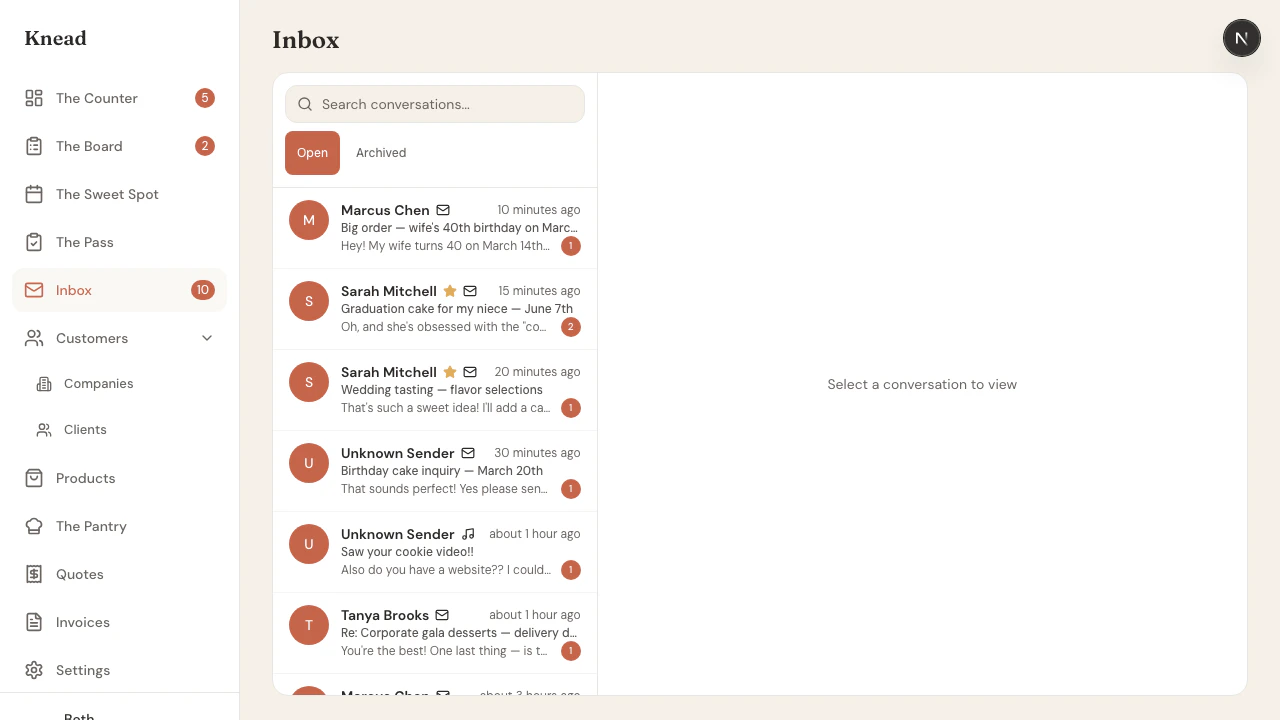
What Gets Detected
When a message arrives, Knead scans the text and extracts four things:
When intent is detected, a card appears at the top of the conversation — right above the messages — so you see it the moment you open the thread.
Capacity Verdicts
The intelligence card doesn’t just tell you what the customer wants — it tells you whether you can realistically take it. Knead checks the requested date against your existing orders and capacity settings, then gives you a clear verdict.”You can take this.”
Your schedule has room. The green accent means go. The Accept & Create Order button pre-fills the order form with the client, delivery date, and the detected products and quantities so you can confirm in seconds.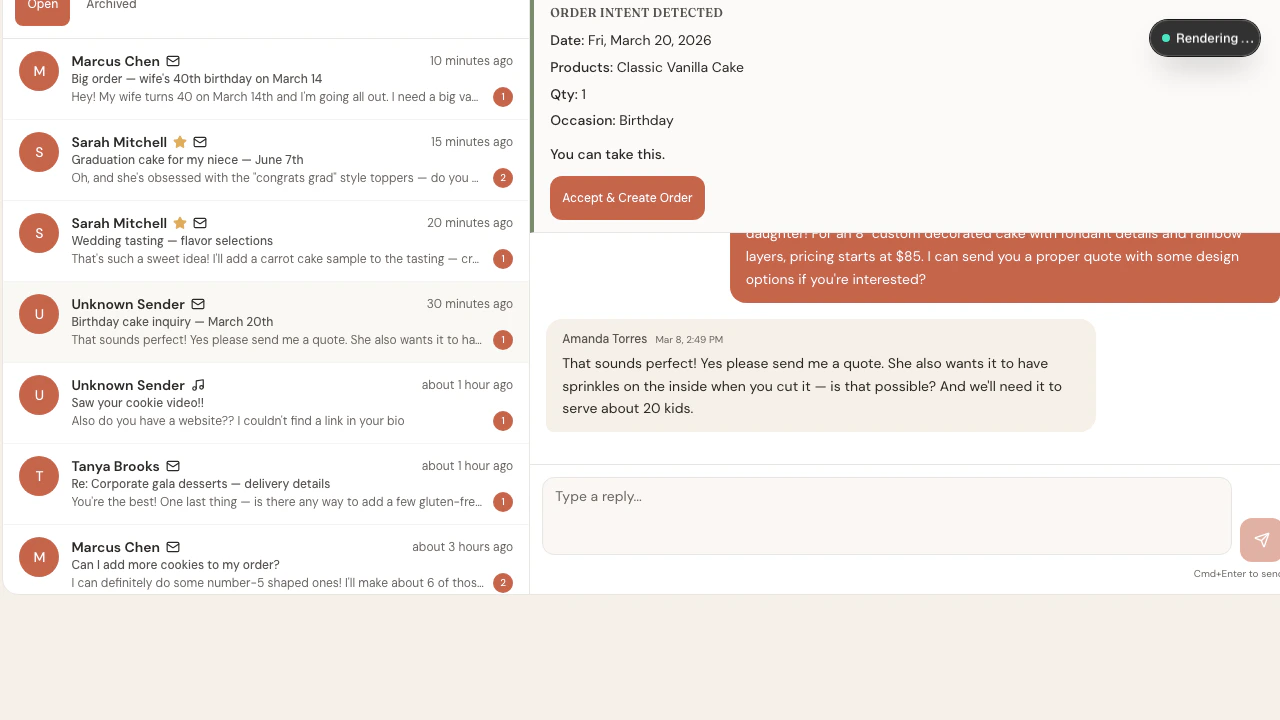
”Tight, but doable.”
You’re getting close to your limit for that date. Knead shows your current utilization and suggests nearby alternative dates in case you want to steer the customer to a less busy day.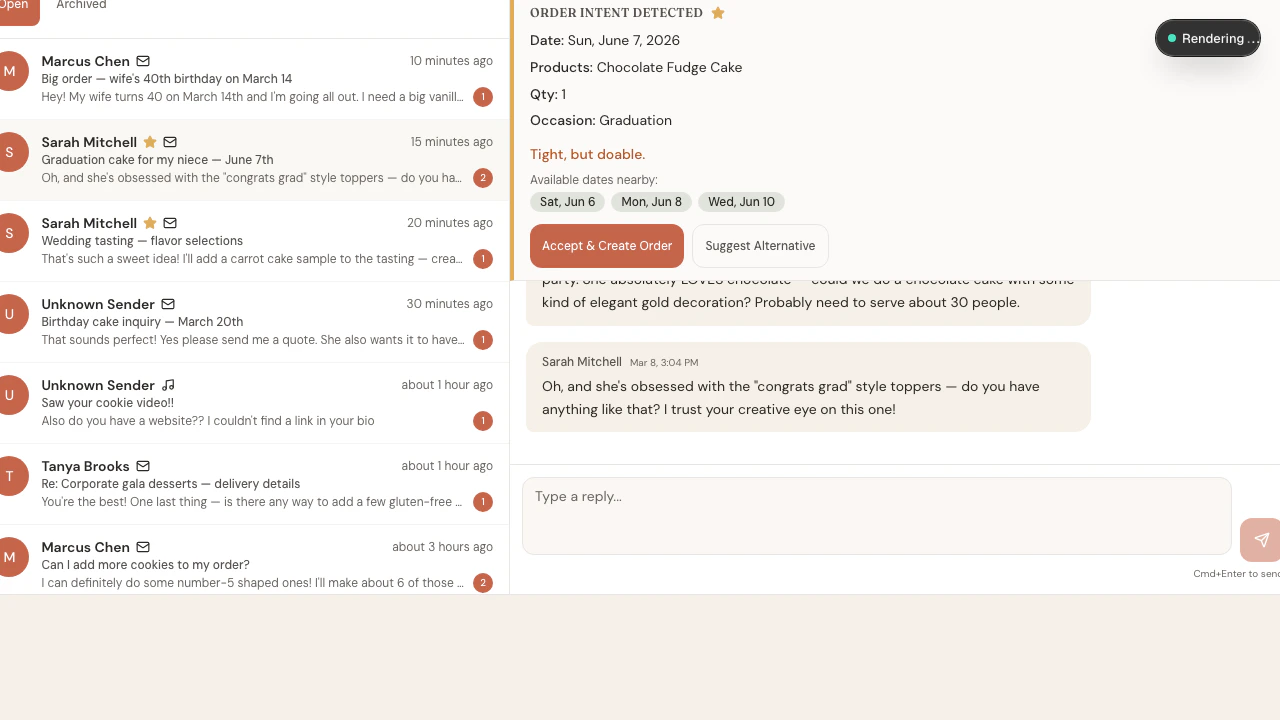
”This would put you over capacity.”
The requested date is already packed. Knead flags it in terracotta and shows alternative dates that have room.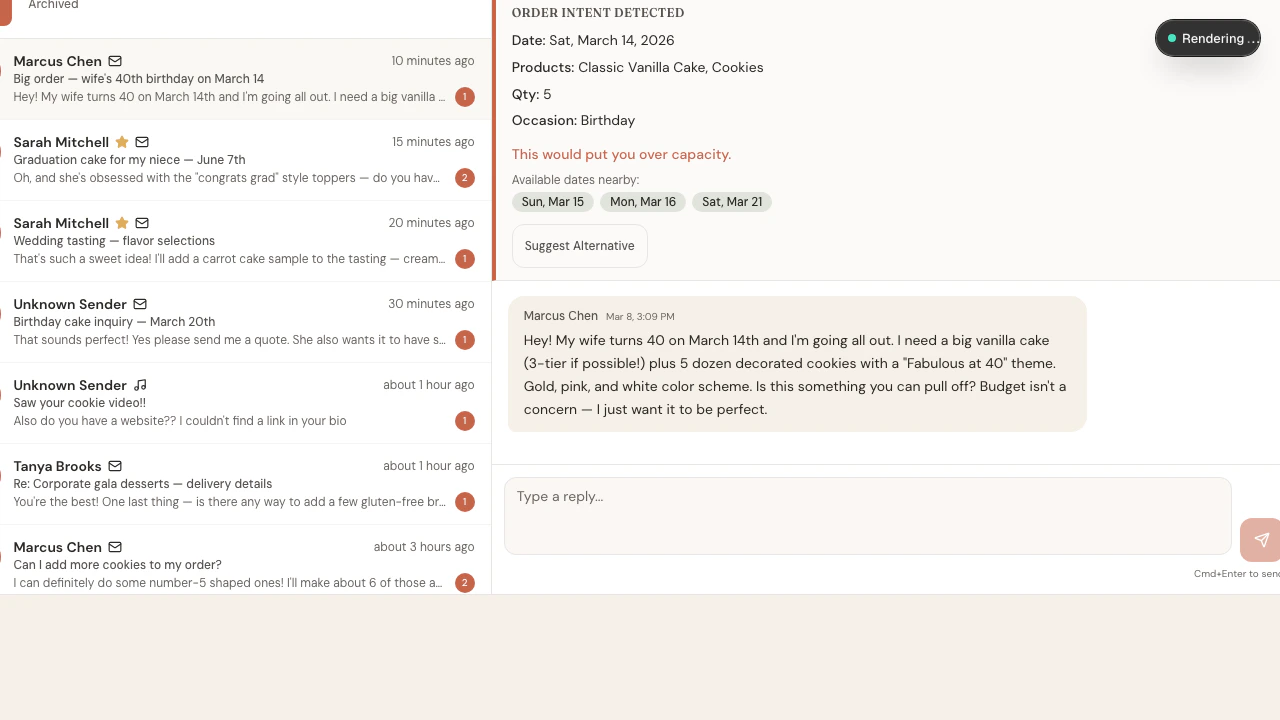
- Suggest Alternative drafts a friendly reply pointing the customer to an open date.
- Take It Anyway is the accept button — the same Accept & Create Order action, just relabeled to remind you you’re going past your limit. It still pre-fills the order form.
- Decline drafts a polite no and tucks the card away (more on that below).
Priority Customers Stand Out
If you’ve marked a client as a Priority Customer (the star icon), Knead flags them right on the card when capacity is tight or full — a visual nudge that this is someone worth squeezing in. The honest verdict still shows, and Take It Anyway lets you accept over your limit for the clients who matter most.Declining from the card
Not every request is a fit. Click Decline on the intent card and Knead drafts a polite decline reply for you to review and send. The card then collapses into a small chip so it’s out of your way — with a “Change your mind?” option if you decide to un-decline and pick the order back up.Ambiguous Dates
Sometimes a customer mentions wanting an order but doesn’t give a specific date — like “I need cookies for my best friend’s baby shower” without saying when. Knead still detects the products, quantity, and occasion, but marks the date as ambiguous with a dashed border.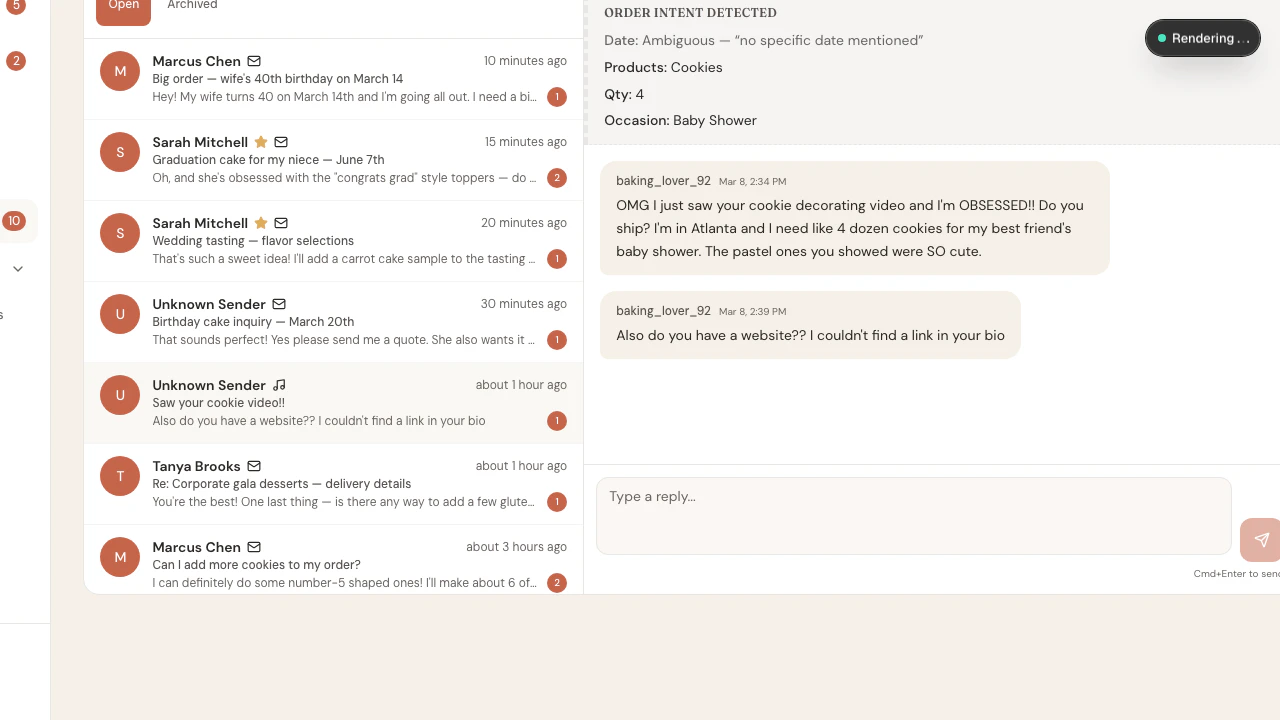
When an Order Is Already Linked
Once you create an order from a conversation (or link one manually), the intelligence card collapses into a single line with a link to the order details. The conversation is still fully usable for follow-up messages.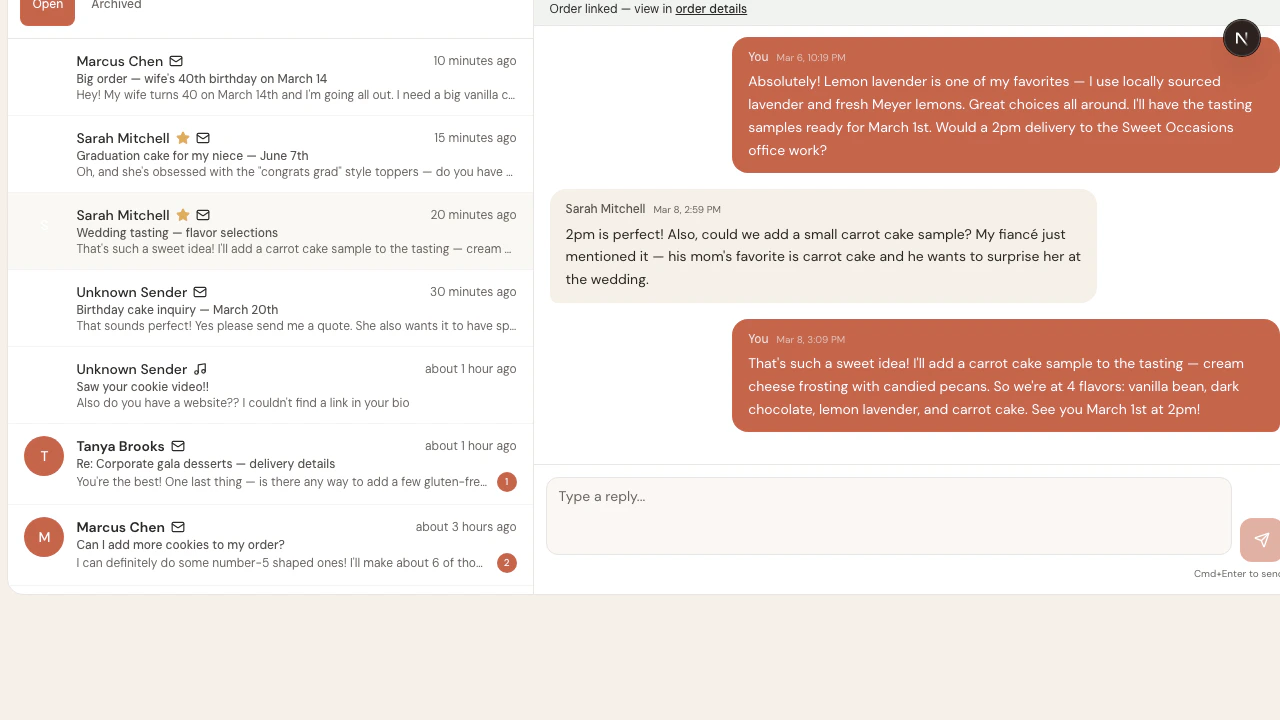
The Full Picture
On desktop, the Inbox shows everything in a three-column layout: conversation list on the left, the active thread in the center, and a client sidebar on the right with contact info, order history, allergens, and linked orders.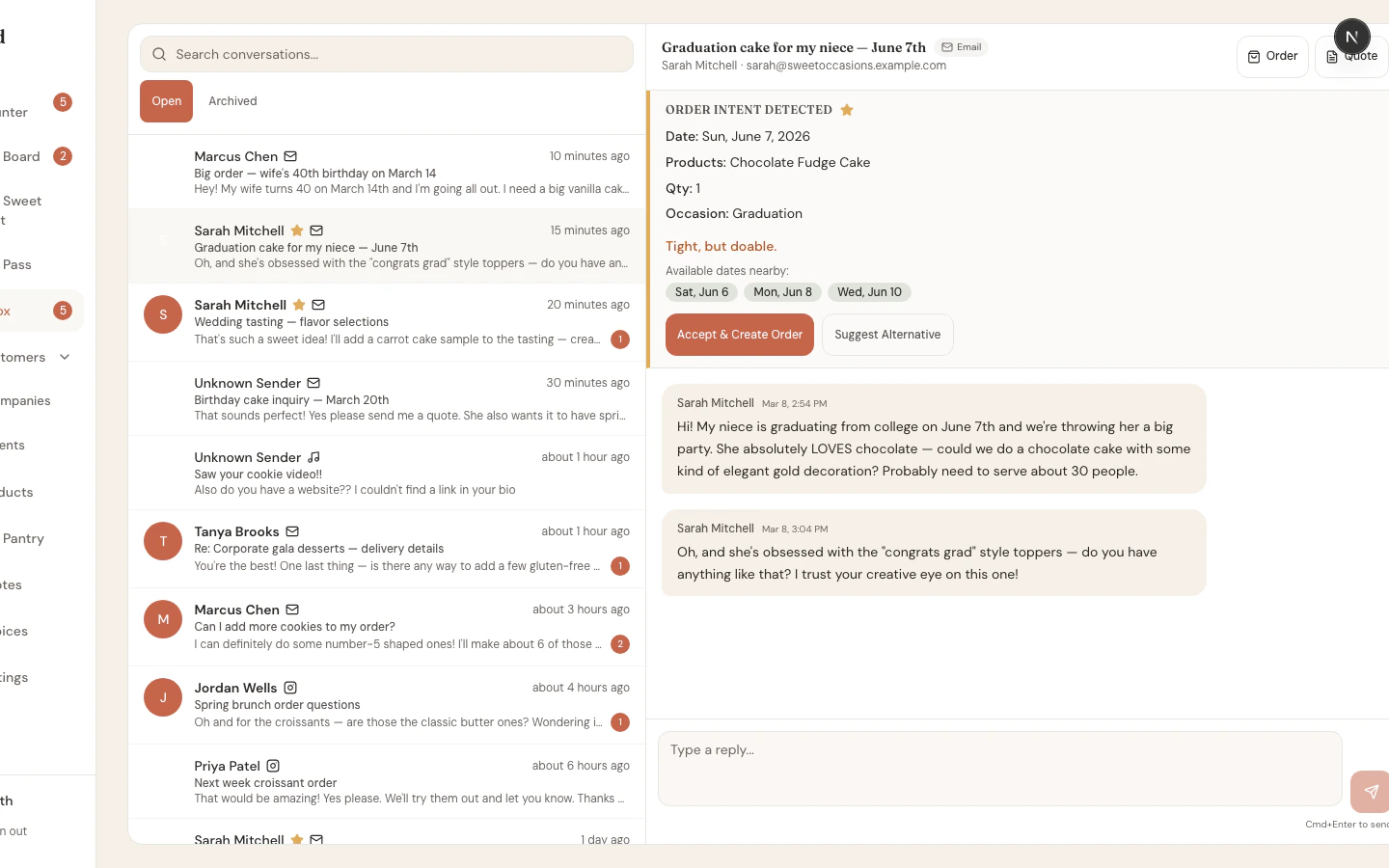
How It Works
Order Intelligence runs automatically when an inbound message arrives:- Message received — A customer emails your Knead inbox address (
yourbakery@inbox.kneadapp.co) - Client matched — Knead checks the sender’s email against your client list. New contacts are saved automatically
- Intent parsed — The message text is scanned for dates, product names (fuzzy-matched against your catalog), quantities, and occasion keywords
- Capacity checked — The detected delivery date is compared against your existing orders and capacity settings
- Card rendered — The intelligence card appears with the verdict, alternative dates, and action buttons
Detection runs on every inbound message automatically. You do not need to enable or configure it.
Tips
- Keep your product catalog up to date. If a customer says “chocolate cake” and you have “Chocolate Fudge Cake”, it matches. Generic names like “Cake #1” won’t match as well.
- Set up your capacity. The verdicts depend on your capacity configuration. Head to Settings > Capacity to set daily order limits.
- Mark your VIPs as Priority. Go to the client profile and toggle the priority flag so they stand out on the card when your schedule is tight.
- Set up quick replies. Save reusable snippets in Settings → Templates for common replies like suggesting alternative dates.
Related Articles
- Setting Up Your Inbox
- Quick Replies
- Message Templates
- Linking Conversations to Orders
- Priority Customers
- Using The Sweet Spot
Still need help? Contact us