

Overview
If you keep your customers in QuickBooks Online, you can bring them into Knead without re-typing names, emails, phone numbers, and addresses. This is a spreadsheet import: you export your customers from QuickBooks to Excel, then upload that file to Knead. There is no account connection or live sync — it is a one-time file upload you can repeat whenever you like.What Gets Imported
Knead reads the columns in your QuickBooks export and maps them to Knead’s client fields:Good to know: This is a one-time import of the file you upload. Knead does not sync ongoing changes with QuickBooks. When you add new customers in QuickBooks later, export again and re-import to bring them in.
Step 1 — Export Your Customers from QuickBooks Online
- In QuickBooks Online, open Customers.
- Tap Export.
- Choose Export to Excel.
- Save the
.xlsxfile somewhere you can find it.
Step 2 — Upload the File to Knead
- Tap Customers in the sidebar.
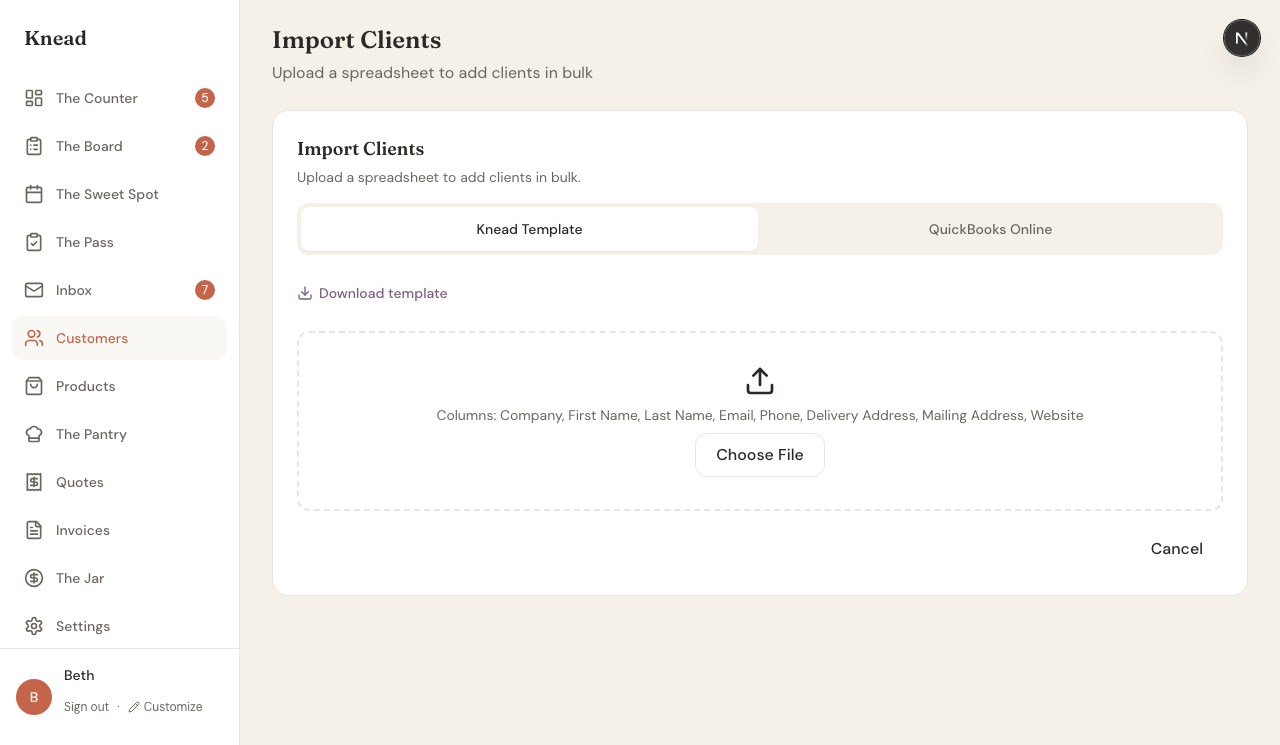
- Tap Import Clients.
- Tap the QuickBooks Online tab.
- Follow the on-screen export steps if you need a reminder of how to get your file.
- Upload the
.xlsxfile you exported. - Review the clients Knead found. Clients with incomplete data are flagged.
- Tap Import to save them to your Knead account.
After Importing
Imported clients appear in your client list immediately. You can then:- Add tags to organize them.
- Add allergy notes for clients with dietary needs.
- Link clients to companies.
- Mark top buyers as priority customers.
Troubleshooting
Import skips some customers — Customers with incomplete addresses may be skipped to prevent validation errors. Add their details manually after import. Some columns did not map — Make sure you exported with Export to Excel so the column headers match what Knead expects. If a field is missing, add it in QuickBooks (or in the spreadsheet) and re-upload.Related Articles
Still need help? Contact us