

Overview
Life happens. Vacations, holidays, appointments, or a day when you just need a break from the oven. Blocking off a date in The Sweet Spot marks it as a day you’re keeping clear, so it’s easy to see at a glance and so Knead can warn you before an order lands on it.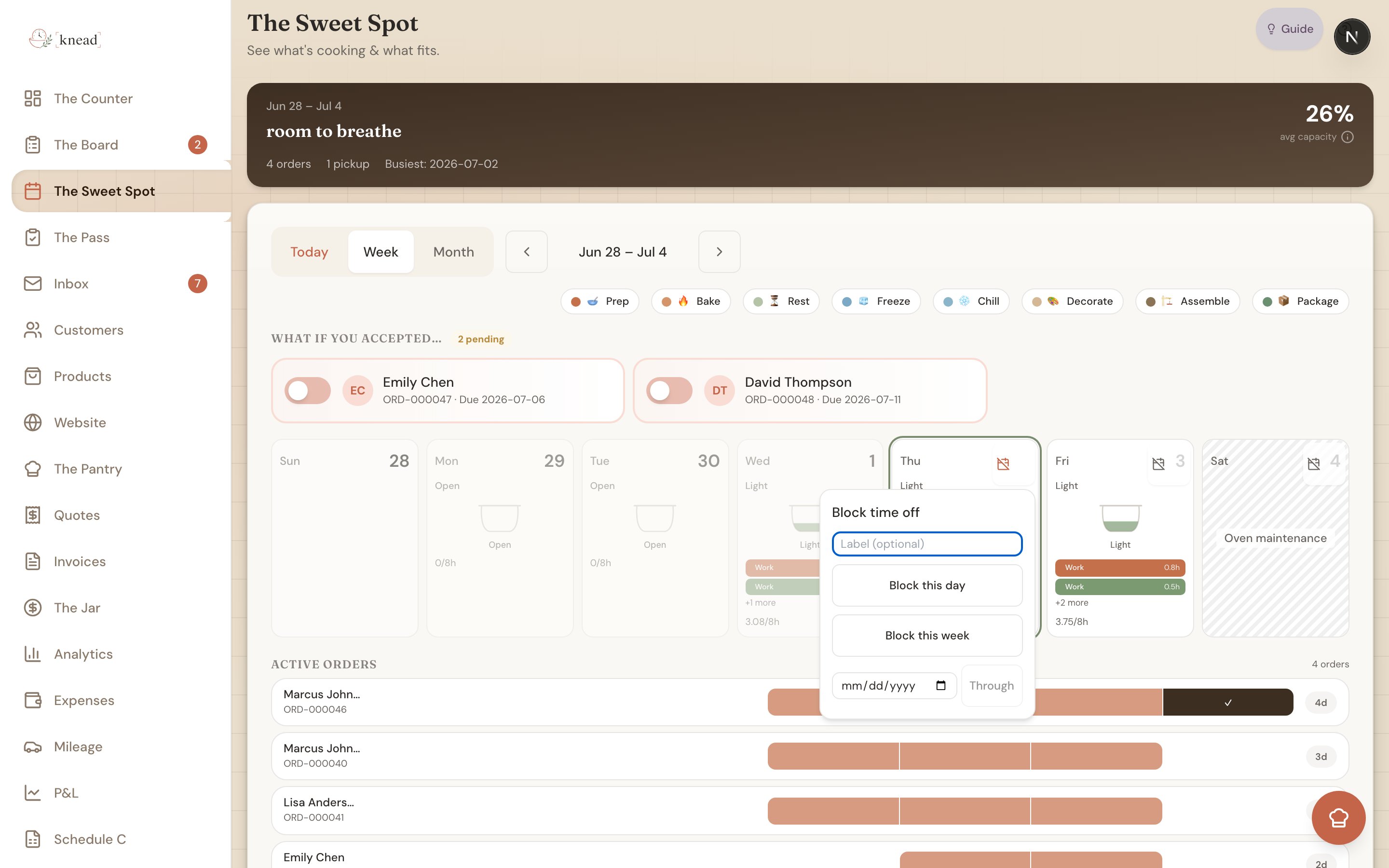
How to Block a Day
Every day card in The Sweet Spot has a small calendar-with-a-slash button in the corner. Tap it to open a Block time off popover:- Open The Sweet Spot and find the day you want to block.
- Tap the calendar-with-a-slash corner button on that day.
- Choose one of:
- Block this day — clears the single day you tapped.
- Block this week — clears the whole week that day sits in.
- Through a date you pick — blocks a range from that day through the end date you choose. Handy for a week-long vacation or a holiday closure.
- Add an optional label (e.g. “Family vacation” or “Holiday”). This note is just for you.
How to Unblock a Day
Changed your mind, or want to squeeze in a special order?- Open The Sweet Spot and find the blocked day.
- Tap the calendar-with-a-slash corner button.
- Choose Unblock this day.
Managing Blocked Dates in Settings
You can also manage blocked dates in bulk from Settings → Capacity, under the Blocked Dates heading. Switch between Single day and Date range:- Single day — pick a date, add an optional Label (optional), and tap Add.
- Date range — set From and To, add a Label (e.g. Vacation), and tap Block days.
Blocked Dates and Existing Orders
Blocking a date is a heads-up, not a hard stop. It doesn’t cancel or move orders you’ve already accepted for that day, and it doesn’t hide the day entirely. If you create or accept an order for a day you’ve blocked, Knead shows you a blocked-date warning with a “Take It Anyway” button — so you’re reminded, but you’re never locked out. See “Can I Take This Order?” for how that warning fits alongside your capacity signals. Before blocking a date that already has orders on it:- Open the day in The Sweet Spot and review what’s scheduled.
- Contact those customers to reschedule if needed.
- Move or cancel the orders.
- Then block the date.
Good to know: For a day you take off every single week, don’t block each one. Turn that weekday off under Working days in Capacity settings instead. Blocking is best for one-time exceptions.
Related Articles
- Using The Sweet Spot (Calendar & Capacity)
- Setting Your Production Hours
- “Can I Take This Order?” — Checking Your Capacity
- Handling Cancellations and Changes
Still need help? Contact us