

Overview
If you use Apple Mail on your Mac or iCloud Mail as your business email, you can set up forwarding so customer messages automatically land in your Knead inbox. This guide covers both approaches: rules in Apple Mail on your Mac and auto-forwarding through iCloud.com.Before You Start
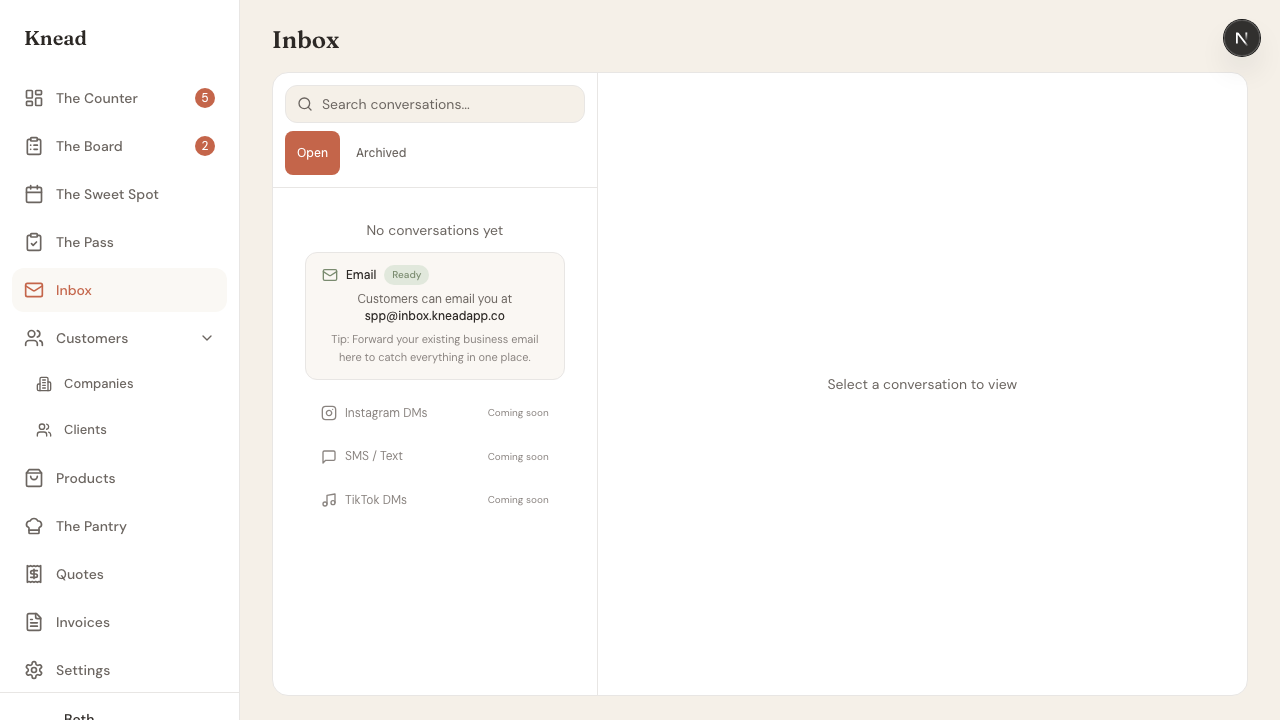
You need your Knead inbox address. It follows this format:Option 1: Apple Mail Rules on Your Mac
Mail rules let you forward specific emails to Knead while keeping everything else in your regular inbox. This is the best option if you only want to forward customer messages, not newsletters and spam.- Open Mail on your Mac.
- In the menu bar, go to Mail > Settings (or Mail > Preferences on older macOS versions).
- Click the Rules tab.
- Click Add Rule.
- Give the rule a name — something like “Forward to Knead.”
- Set the conditions for which emails to forward. Some useful options:
- Any message — forwards everything to Knead.
- From contains a specific domain — forward only emails from a customer’s company.
- Subject contains keywords like “order,” “cake,” “quote,” or “delivery.”
- Sender is in my Contacts — forward emails only from people in your address book.
- Under Perform the following actions, choose Forward Message from the dropdown.
- Enter your Knead inbox address (e.g.,
spp@inbox.kneadapp.co). - Click OK, then Apply.
Important: Your Mac Must Be On
Apple Mail rules run locally on your Mac. If your Mac is asleep, turned off, or Mail is not open, the rule will not forward emails until you open Mail again. If you need forwarding to work 24/7 regardless of whether your computer is on, use Option 2 (iCloud forwarding) instead.Option 2: iCloud Mail Auto-Forwarding
If your email address is an iCloud address (@icloud.com, @me.com, or @mac.com), you can set up forwarding through iCloud.com. This runs on Apple’s servers, so it works even when your Mac is off.
- Open a browser and go to iCloud.com.
- Sign in with your Apple Account.
- Click Mail.
- Click the Settings icon (gear icon) in the bottom-left corner.
- Click Forwarding.
- Check Forward my email to.
- Enter your Knead inbox address (e.g.,
spp@inbox.kneadapp.co). - Choose whether to keep a copy in iCloud — we recommend keeping a copy so you have a backup.
- Click Done.
Good to know: iCloud forwarding sends all incoming email to Knead. Unlike Mac-based rules, you cannot filter by subject or sender. If you want selective forwarding, use Apple Mail rules on your Mac (Option 1) or set up a filtering rule in iCloud Mail’s rules section.
Option 3: iCloud Mail Rules (Selective Server-Side Forwarding)
If you want server-side forwarding but only for certain emails, iCloud Mail rules give you the best of both worlds.- Go to iCloud.com and open Mail.
- Click the Settings icon, then Rules.
- Click Add a Rule.
- Set a condition — for example, “Message is from” a specific customer, or “Subject contains” a keyword.
- Set the action to Forward to and enter your Knead inbox address.
- Click Done.
Testing Your Setup
After setting up forwarding:- Send a test email to your Apple Mail or iCloud address from a different email account.
- Open Knead and check your inbox.
- The test email should appear as a new conversation within a minute or two.
Troubleshooting
Emails are not arriving in Knead- Make sure Mail is open on your Mac (for Option 1).
- Check that the rule is enabled in Mail > Settings > Rules.
- Verify you typed the Knead inbox address correctly — look for typos in the slug.
- Check your rule conditions. If you set “Subject contains order,” emails without “order” in the subject will not be forwarded.
- If you set up both a Mac rule and iCloud forwarding, emails will be forwarded twice. Use one method, not both.
Related Articles
Still need help? Contact us