

Overview
Your subscription settings let you manage your Knead plan, update payment details, and review billing history. Everything is accessible from your account settings.Finding Subscription Settings
- Go to Settings.
- Open the Billing tab in the settings sidebar.
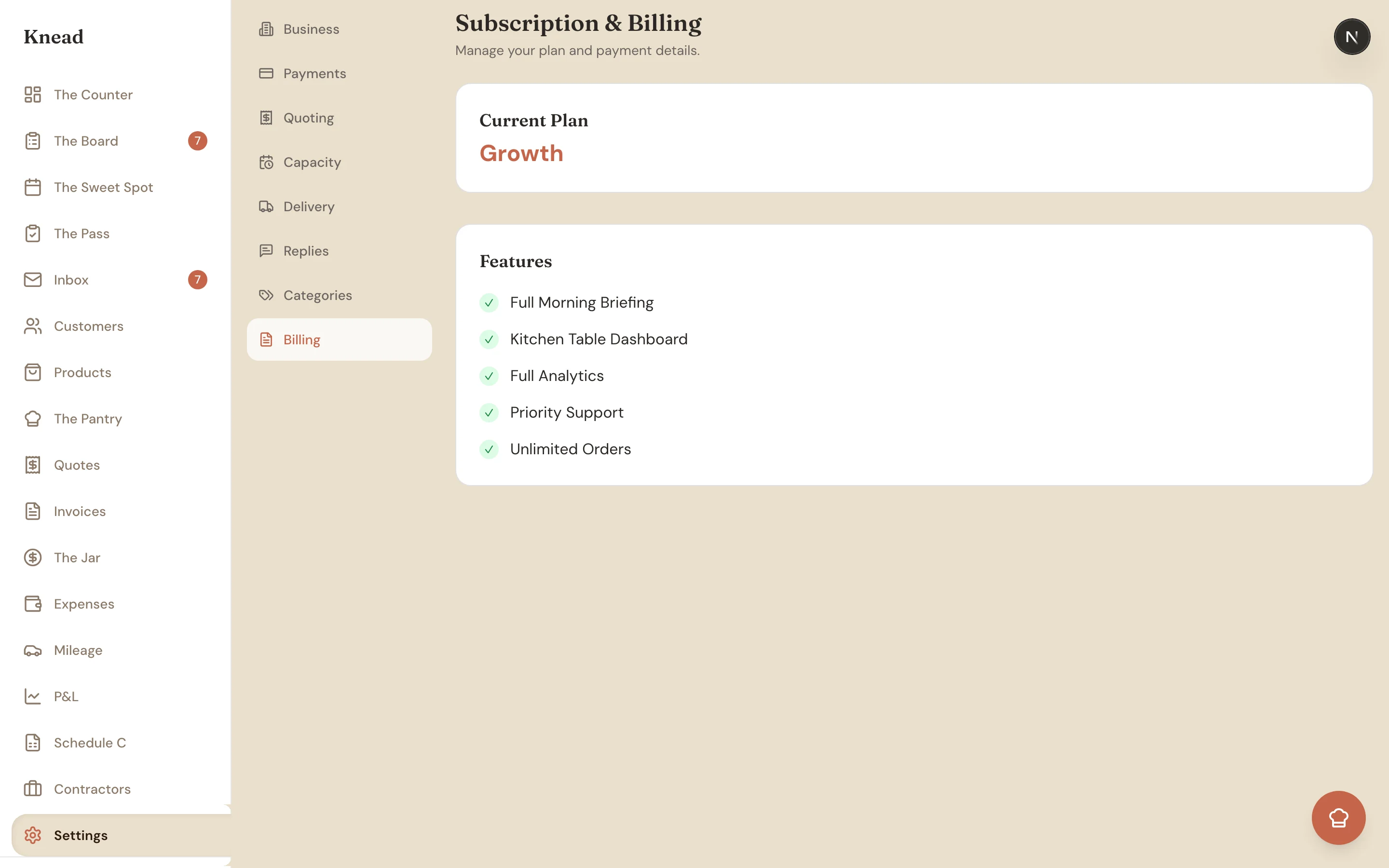
Viewing Your Current Plan
The Billing page opens with a Current Plan card showing the tier you’re on — Free, Starter, or Growth — and a Features card listing what that plan includes, like your Morning Briefing, dashboard, analytics, support level, and order allowance. It’s the quickest way to confirm exactly what you’re paying for. Only the account Owner can make changes here.Changing Your Plan
You can upgrade or downgrade your plan at any time.- Go to Settings > Billing.
- Tap Change Plan.
- Select the plan you want to switch to.
- Confirm the change.
Good to know: Downgrading does not delete any of your data. Your orders, clients, recipes, and settings are all preserved. Features from the higher tier simply become unavailable until you upgrade again.
What Happens When Your Trial Ends
When your free trial’s time is up, you are not locked out. Your account moves automatically to the Free plan, which is $0 forever and covers 5 orders per month plus the essentials. All your data stays exactly where it is, and a self-serve upgrade prompt is there whenever you’re ready for more. See Upgrading Your Plan for the details.Updating Your Payment Method
If your card expires or you want to use a different payment method:- Go to Settings > Billing.
- Find the Payment Method section.
- Tap Update Payment Method.
- Enter your new card details.
- Save.
Viewing Billing History
You can review past invoices and payments.- Go to Settings > Billing.
- Scroll to the Billing History section.
- View past charges with dates and amounts.
Switching Between Monthly and Annual Billing
- Go to Settings > Billing.
- Tap Change Plan or Change Billing Cycle (depending on how the option is presented).
- Select your preferred billing frequency.
- Confirm the change.
Cancelling Your Subscription
If you need to cancel:- Go to Settings > Billing.
- Tap Cancel Subscription.
- Confirm your cancellation.
Good to know: If you are having trouble with Knead or considering cancelling, reach out to us first at hello@kneadapp.co. We may be able to help resolve the issue or find a better plan for your needs.
Receipts and Tax Documentation
For each payment, Knead generates a receipt. You can access receipts from your billing history. These include:- Date of payment
- Amount charged
- Payment method (last four digits)
- Plan description
Related Articles
- Knead Plans and Pricing
- Upgrading Your Plan
- Team Members and Roles
- Cancellation and Data Export
- Connecting Stripe
Still need help? Contact us