> ## Documentation Index
> Fetch the complete documentation index at: https://help.kneadapp.co/llms.txt
> Use this file to discover all available pages before exploring further.
# Managing Your Website Pages — Add, Edit & Publish
> Use the Pages manager to add, edit, publish, and organize the pages on your bakery storefront, with content blocks and per-page SEO.
## Overview
Your website is made of **pages**, and you control all of them from one place. Add a new page, edit any page's content, and publish or unpublish it whenever you like. Your published pages automatically become the links in your site's navigation, so managing pages is how you shape your whole website.
## The Pages Manager
Open **Website** from the navigation (it lives at `/website`). You'll see a list of every page on your site with:
* A **search** box to find a page by name.
* An **All / Published / Draft** filter to narrow the list.
* A **New page** button to create a page.
* A per-row **publish / unpublish toggle**.
* A **delete** option for pages you no longer need.
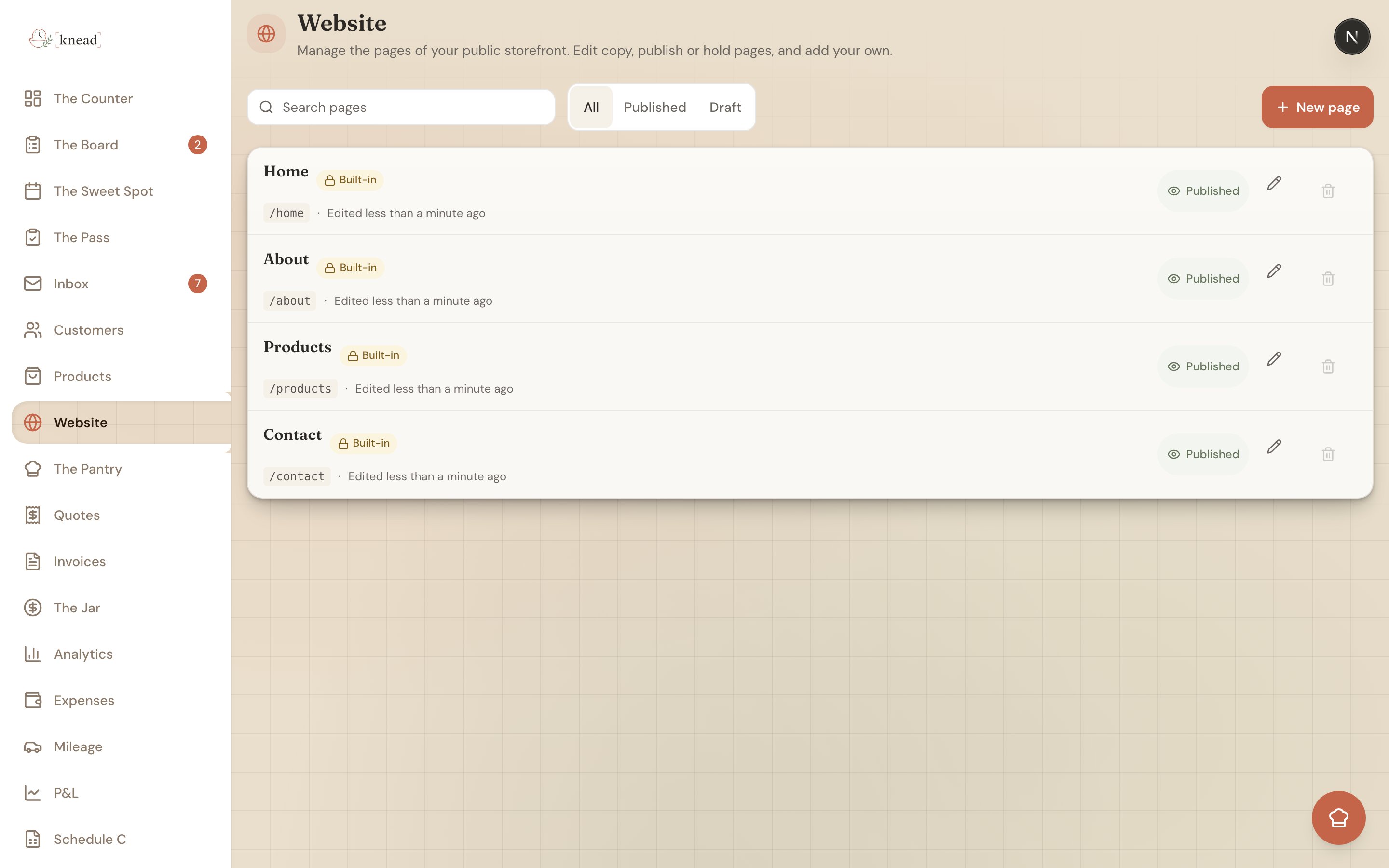 Your four built-in pages — **Home, About, Products, Contact** — appear here too, each with a **lock badge**. You can rename, edit, and unpublish built-in pages, but you can't delete them. Only the pages you create yourself can be deleted.
Good to know: Unpublishing a page (rather than deleting it) is a handy way to hide something temporarily — like a seasonal menu page — without losing your work. Flip it back to published when you're ready.
## Creating a New Page
1. Open **Website** and tap **New page**.
2. Give the page a **title** — this becomes its name in your navigation.
3. Add your **content blocks** (see below).
4. Toggle **Published** on when it's ready to go live.
Try a page for your FAQ, a gallery of past cakes, or your pickup and delivery policies.
## The Page Editor
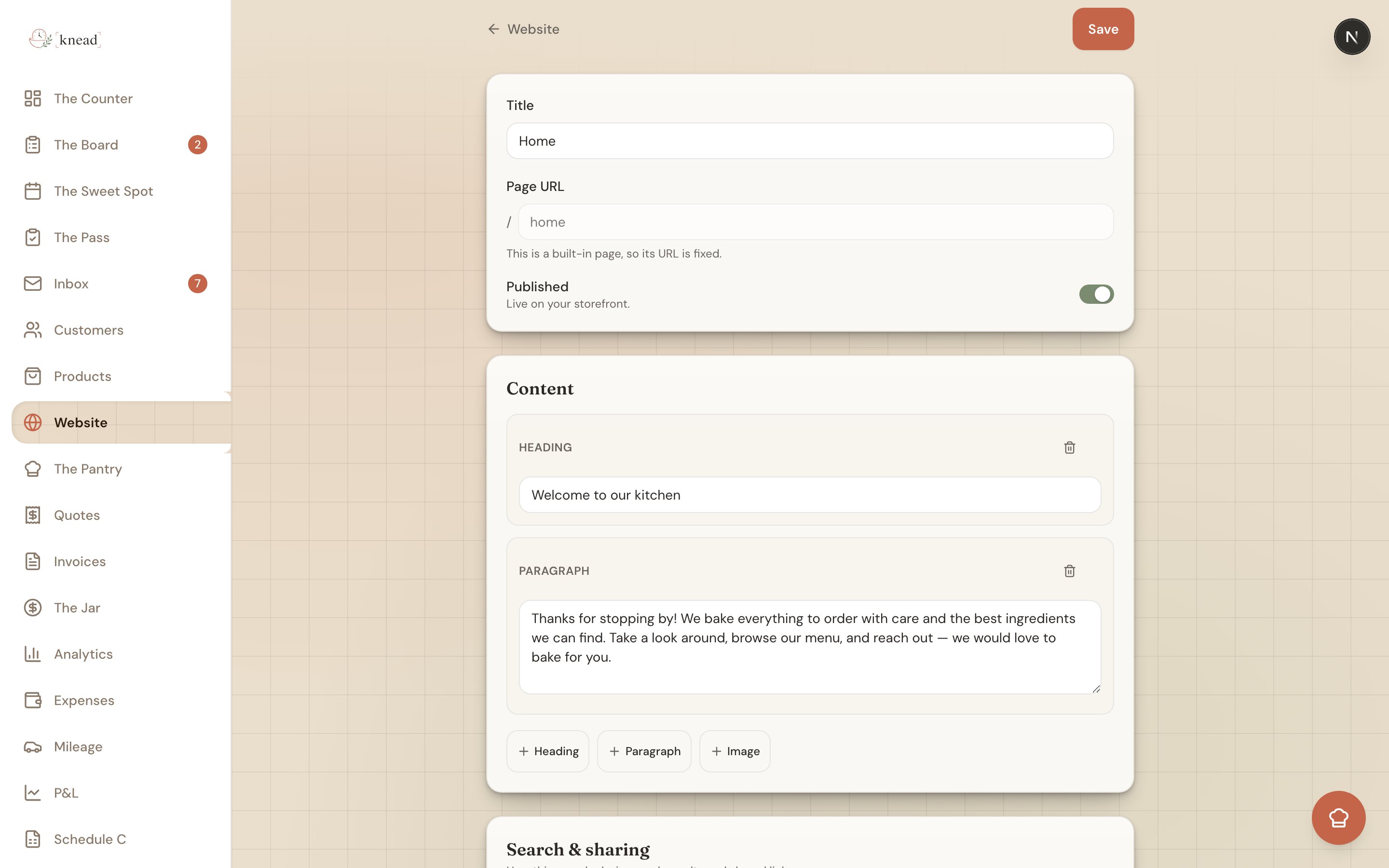
Tap any page to open its editor at `/website/{id}`. Here you can adjust everything about the page:
* **Page title** — the name shown in your navigation.
* **URL / slug** — the page's web address. This is **locked for built-in pages** but editable for pages you create.
* **Published** toggle — controls whether the page is live.
* **Content blocks** — the body of your page.
* **Search & sharing** — per-page SEO settings.
Your four built-in pages — **Home, About, Products, Contact** — appear here too, each with a **lock badge**. You can rename, edit, and unpublish built-in pages, but you can't delete them. Only the pages you create yourself can be deleted.
Good to know: Unpublishing a page (rather than deleting it) is a handy way to hide something temporarily — like a seasonal menu page — without losing your work. Flip it back to published when you're ready.
## Creating a New Page
1. Open **Website** and tap **New page**.
2. Give the page a **title** — this becomes its name in your navigation.
3. Add your **content blocks** (see below).
4. Toggle **Published** on when it's ready to go live.
Try a page for your FAQ, a gallery of past cakes, or your pickup and delivery policies.
## The Page Editor
Tap any page to open its editor at `/website/{id}`. Here you can adjust everything about the page:
* **Page title** — the name shown in your navigation.
* **URL / slug** — the page's web address. This is **locked for built-in pages** but editable for pages you create.
* **Published** toggle — controls whether the page is live.
* **Content blocks** — the body of your page.
* **Search & sharing** — per-page SEO settings.
 ### Working With Content Blocks
You build a page by stacking **content blocks**. There are three kinds:
* **Heading** — a section title.
* **Paragraph** — a block of text.
* **Image** — a photo, with **alt text** so it's described for search engines and screen readers.
Add as many blocks as you need, and remove any you don't. Mix headings, paragraphs, and images to tell your story — for example, a heading like "About Southern Peach Pastries," a paragraph on how you got started, and a photo of your kitchen.
### Search & Sharing (SEO)
Every page has a **Search & sharing** section where you can set an **SEO title** and **SEO description**. These power the page's browser tab title and the summary that shows up in Google results. Write a clear, natural SEO title and a sentence describing the page, and you'll be easier to find.
Pro tip: You don't have to fill in SEO for every page on day one. Start with your Home and Products pages — those are what most customers search for.
Knead also generates a **sitemap** and **robots** file for your site automatically, so search engines can discover all your published pages without any setup from you.
## Related Articles
* [Your Online Storefront](/your-website/your-online-storefront)
* [Customizing Your Look & Feel](/your-website/customizing-your-look-and-feel)
* [Your Online Menu](/your-website/your-online-menu)
* [Your Contact Form](/your-website/your-contact-form)
* [Customizing Your Public URL](/integrations-and-setup/customizing-your-public-url)
***
*Still need help? [Contact us](mailto:hello@kneadapp.co)*
### Working With Content Blocks
You build a page by stacking **content blocks**. There are three kinds:
* **Heading** — a section title.
* **Paragraph** — a block of text.
* **Image** — a photo, with **alt text** so it's described for search engines and screen readers.
Add as many blocks as you need, and remove any you don't. Mix headings, paragraphs, and images to tell your story — for example, a heading like "About Southern Peach Pastries," a paragraph on how you got started, and a photo of your kitchen.
### Search & Sharing (SEO)
Every page has a **Search & sharing** section where you can set an **SEO title** and **SEO description**. These power the page's browser tab title and the summary that shows up in Google results. Write a clear, natural SEO title and a sentence describing the page, and you'll be easier to find.
Pro tip: You don't have to fill in SEO for every page on day one. Start with your Home and Products pages — those are what most customers search for.
Knead also generates a **sitemap** and **robots** file for your site automatically, so search engines can discover all your published pages without any setup from you.
## Related Articles
* [Your Online Storefront](/your-website/your-online-storefront)
* [Customizing Your Look & Feel](/your-website/customizing-your-look-and-feel)
* [Your Online Menu](/your-website/your-online-menu)
* [Your Contact Form](/your-website/your-contact-form)
* [Customizing Your Public URL](/integrations-and-setup/customizing-your-public-url)
***
*Still need help? [Contact us](mailto:hello@kneadapp.co)*