> ## Documentation Index
> Fetch the complete documentation index at: https://help.kneadapp.co/llms.txt
> Use this file to discover all available pages before exploring further.
# Customizing Your Look & Feel — Themes, Fonts & Banner
> Pick a theme, choose your heading font, add a banner image, and set a tagline to give your bakery storefront and order form a matching brand.
## Overview
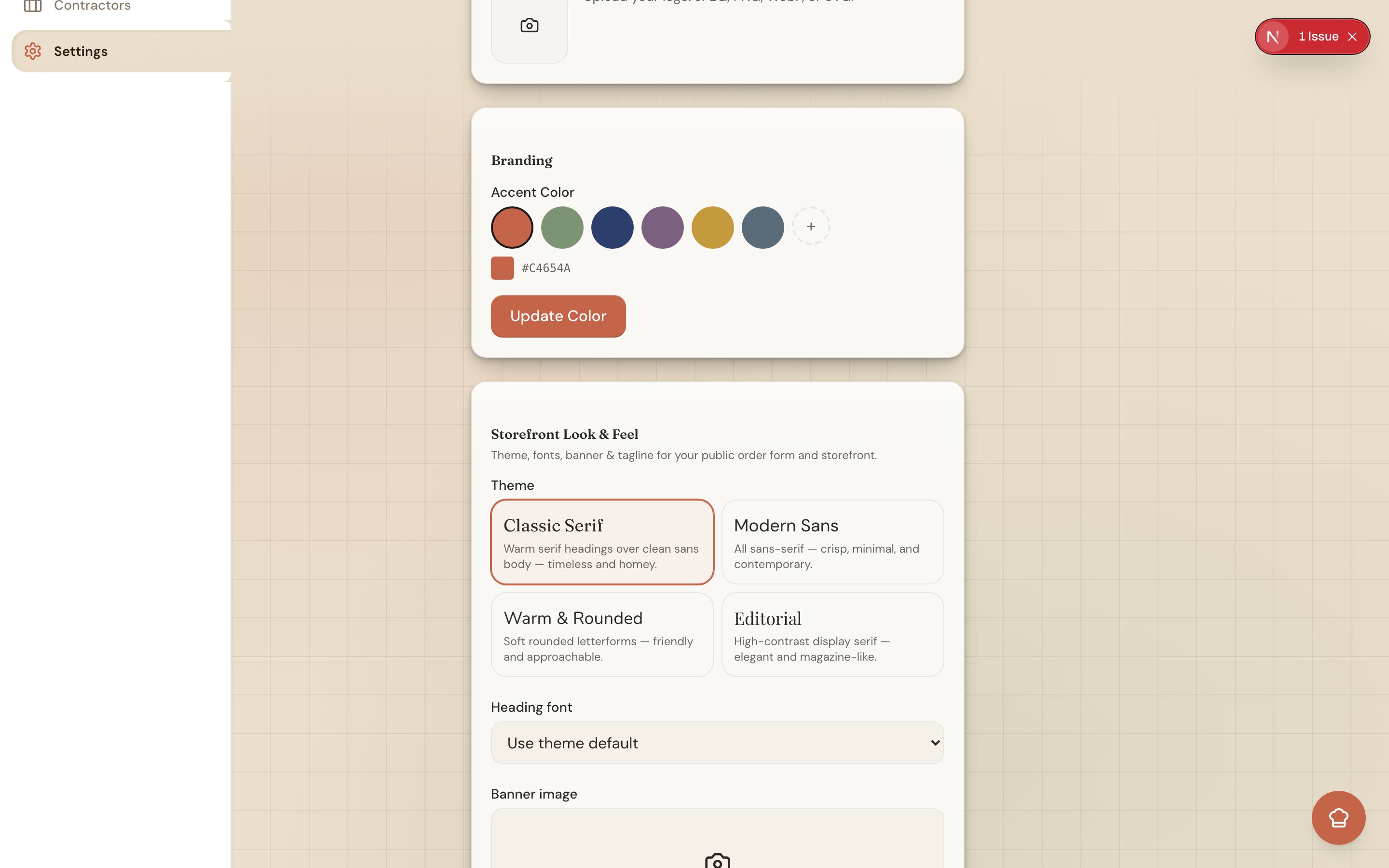
Your **Storefront Look & Feel** settings let you dress up your website and order form to match your bakery's personality — a theme, an optional heading font, a banner image, and a tagline. There's a live preview, so you can see your changes before you save. Everything builds on the accent color and logo you already set.
 ## Where to Find It
Go to **Settings → Business** and open the **Storefront Look & Feel** section. As you make changes, the preview on screen updates so you know exactly what customers will see.
## Choosing a Theme
A **theme** sets the overall style of your site — the type, spacing, and feel. Pick the one that fits your bakery:
* **Classic Serif** — timeless and elegant, great for wedding and custom cakes.
* **Modern Sans** — clean and minimal.
* **Warm & Rounded** — soft and friendly, at home with cookies and comfort bakes.
* **Editorial** — magazine-style, for a polished, storytelling feel.
Pro tip: Try each theme in the live preview before you decide. They're just a click apart, and you can change your mind anytime.
## Overriding the Heading Font
Each theme comes with its own headings, but if you'd like a specific look you can override the **heading font**. Your choices are **Fraunces**, **Playfair Display**, **DM Sans**, and **Nunito**. This is optional — leave it alone to keep the theme's default.
## Adding a Banner Image
Upload a **banner** (also called a hero image) to greet visitors at the top of your home page. Use a wide **3:1** image — roughly three times as wide as it is tall — so it fills the space without cropping awkwardly. A clear photo of your best cake or a shot of your workspace works beautifully.
## Setting a Tagline
Your **tagline** is the short line under your business name — a quick description of what you do. Keep it to a handful of words, like "Small-batch cakes & cookies, baked in Atlanta" or "Custom celebration cakes, made to order."
## One Brand Across Your Site and Order Form
Your theme, banner, and tagline don't stop at your website. Knead also restyles your public **order form** header with the same banner and tagline, so your storefront and your order form feel like one connected brand. A customer who clicks from your menu to your order form never feels like they've left your bakery.
Good to know: Look & Feel builds on your existing brand basics — your accent color and logo. To set those, see [Customizing Your Brand Color](/integrations-and-setup/customizing-your-brand-color).
## Related Articles
* [Your Online Storefront](/your-website/your-online-storefront)
* [Managing Your Website Pages](/your-website/managing-your-website-pages)
* [Your Online Menu](/your-website/your-online-menu)
* [Customizing Your Brand Color](/integrations-and-setup/customizing-your-brand-color)
* [Sharing Your Order Link](/managing-orders/sharing-your-order-link)
***
*Still need help? [Contact us](mailto:hello@kneadapp.co)*
## Where to Find It
Go to **Settings → Business** and open the **Storefront Look & Feel** section. As you make changes, the preview on screen updates so you know exactly what customers will see.
## Choosing a Theme
A **theme** sets the overall style of your site — the type, spacing, and feel. Pick the one that fits your bakery:
* **Classic Serif** — timeless and elegant, great for wedding and custom cakes.
* **Modern Sans** — clean and minimal.
* **Warm & Rounded** — soft and friendly, at home with cookies and comfort bakes.
* **Editorial** — magazine-style, for a polished, storytelling feel.
Pro tip: Try each theme in the live preview before you decide. They're just a click apart, and you can change your mind anytime.
## Overriding the Heading Font
Each theme comes with its own headings, but if you'd like a specific look you can override the **heading font**. Your choices are **Fraunces**, **Playfair Display**, **DM Sans**, and **Nunito**. This is optional — leave it alone to keep the theme's default.
## Adding a Banner Image
Upload a **banner** (also called a hero image) to greet visitors at the top of your home page. Use a wide **3:1** image — roughly three times as wide as it is tall — so it fills the space without cropping awkwardly. A clear photo of your best cake or a shot of your workspace works beautifully.
## Setting a Tagline
Your **tagline** is the short line under your business name — a quick description of what you do. Keep it to a handful of words, like "Small-batch cakes & cookies, baked in Atlanta" or "Custom celebration cakes, made to order."
## One Brand Across Your Site and Order Form
Your theme, banner, and tagline don't stop at your website. Knead also restyles your public **order form** header with the same banner and tagline, so your storefront and your order form feel like one connected brand. A customer who clicks from your menu to your order form never feels like they've left your bakery.
Good to know: Look & Feel builds on your existing brand basics — your accent color and logo. To set those, see [Customizing Your Brand Color](/integrations-and-setup/customizing-your-brand-color).
## Related Articles
* [Your Online Storefront](/your-website/your-online-storefront)
* [Managing Your Website Pages](/your-website/managing-your-website-pages)
* [Your Online Menu](/your-website/your-online-menu)
* [Customizing Your Brand Color](/integrations-and-setup/customizing-your-brand-color)
* [Sharing Your Order Link](/managing-orders/sharing-your-order-link)
***
*Still need help? [Contact us](mailto:hello@kneadapp.co)*