> ## Documentation Index
> Fetch the complete documentation index at: https://help.kneadapp.co/llms.txt
> Use this file to discover all available pages before exploring further.
# Understanding The Counter — Your Bakery Dashboard
> Navigate your dashboard to see what's coming up, what's new, and what needs your attention — your home bakery command center.
## Overview
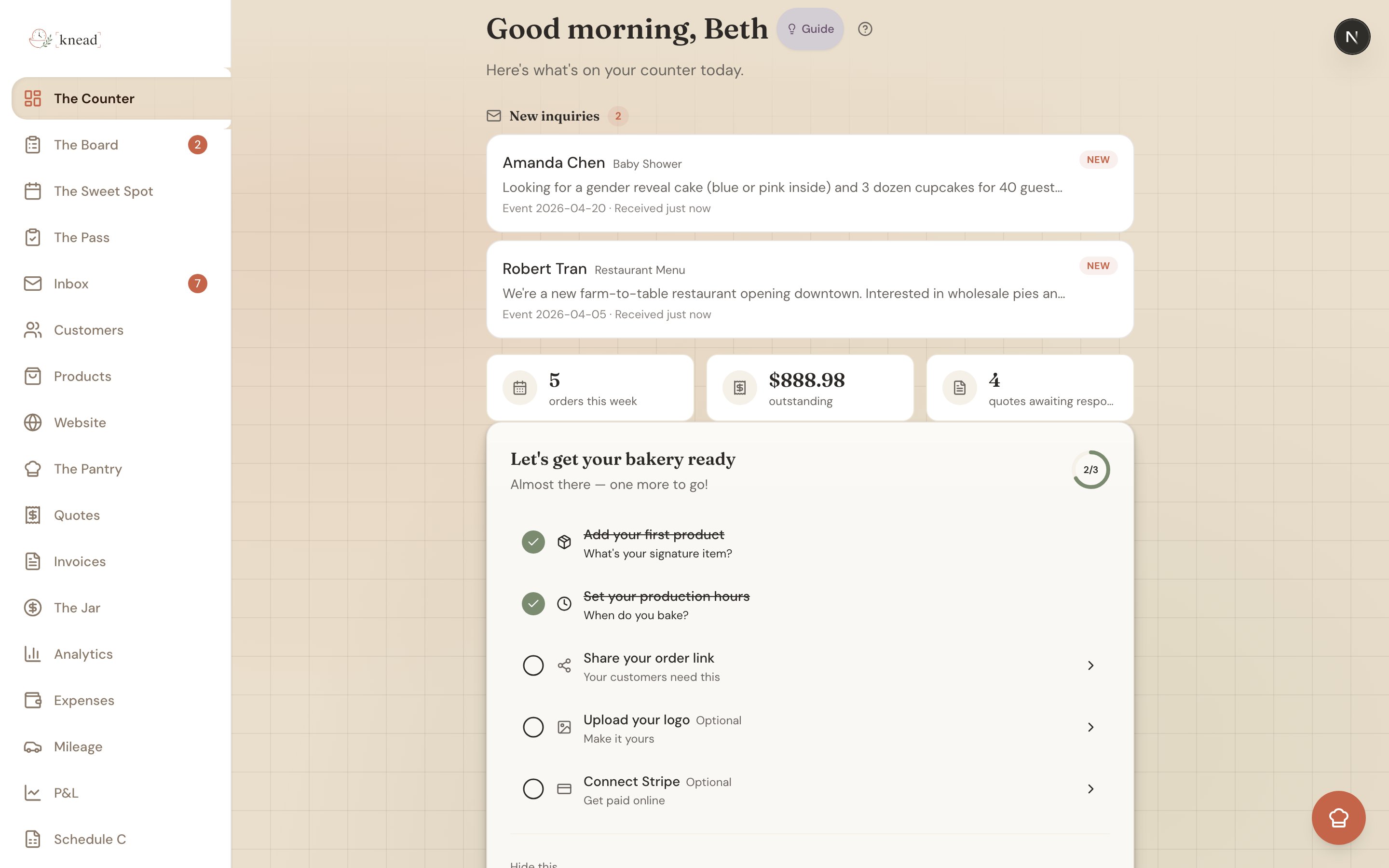
The Counter is your home screen in Knead. It opens with a greeting — "Good evening, Beth" — and gives you a snapshot of your business right now: fresh inquiries up top, a quick pulse on the week, what's coming up, and anything that's new. Start every day here. Top to bottom, The Counter runs: the greeting, a **Fresh Inquiries** row, a three-stat **Pulse**, **Coming up**, and the **What's new** briefing feed.
 ## Let's Get Your Bakery Ready
When your bakery is new, the top of The Counter shows a setup checklist — "Let's get your bakery ready" — that walks you through the essentials: add your first product, set your production hours, share your order link, upload your logo, and connect Stripe. A progress ring tracks how far along you are.
Steps marked **Optional** (like your logo) won't hold you back. Once you've finished the required steps, you can tap **Hide this** to clear the checklist and reclaim the space.
Pro tip: Knock out the checklist on day one. Sharing your order link and connecting Stripe are what turn Knead from a setup screen into a working storefront.
## Fresh Inquiries
Right below the greeting, **Fresh Inquiries** surfaces brand-new order-form inquiries so you see them the moment you open The Counter. These are the leads that need the fastest response — a quick reply is what turns an inquiry into a booked order. Tap any one to open it and respond.
## Pulse
Next comes **Pulse**, a three-stat row that gives you the state of the business in one glance:
* **Orders this week** — How many orders are on your plate for the current week.
* **Outstanding balance** — How much money is still owed to you across open invoices.
* **Quotes awaiting** — Quotes you've sent that are waiting on a customer response.
Think of Pulse as your dashboard's vital signs. If the outstanding balance climbs or quotes pile up, you'll spot it here first.
## Coming Up
The **Coming up** section lists your orders for the next 7 days, sorted by fulfillment date. Each row shows the day (Today, a weekday name), the customer, the product, the amount, and a status pill like **Quoted** or **Needs Review**.
This is your at-a-glance view of what's on deck for the week. Tap any row to open the full order. If your schedule is clear, you'll see "Nothing on the schedule for the next 7 days."
Good to know: Coming up looks 7 days ahead. For the longer view of your whole calendar and how full each day is, use [The Sweet Spot](/calendar-and-capacity/using-the-sweet-spot).
## What's New
At the bottom is **What's new** — a smart feed that surfaces what matters most right now: new orders and inquiries, payments, capacity warnings, customer milestones, low-stock alerts, and unanswered messages. Instead of checking every section of Knead, let What's new tell you what needs attention.
Cards are ranked by urgency and recency, and each one links straight to the order, invoice, quote, or conversation it's about. When there's nothing pressing, you'll see **"Nothing new to flag."** with a nudge to "Check below for what's coming up."
For the full breakdown of every card type and how to act on them, see [Your Morning Briefing](/your-daily-briefing). For a quick reference of every alert The Counter can raise, see [What The Counter Watches For](/what-the-counter-watches-for).
## How to Use The Counter to Start Your Day
Here's a simple daily routine built around The Counter:
1. **Open Knead.** The Counter loads by default.
2. **Answer Fresh Inquiries.** New leads at the very top deserve the fastest reply.
3. **Read your Pulse.** A three-second check on orders, outstanding balance, and open quotes.
4. **Scan What's new.** Handle anything urgent — accept inquiries, send invoices, follow up on overdue payments.
5. **Check Coming up.** See what's due today and across the next week so you know what to bake.
This takes two to three minutes and sets you up for a focused bake day.
Pro tip: If you use Knead on your phone, The Counter works as a mobile-friendly view. Check it while your oven preheats.
## Related Articles
* [Quickstart](/knead-help)
* [Your Morning Briefing](/your-daily-briefing)
* [What The Counter Watches For](/what-the-counter-watches-for)
* [Understanding Your Analytics](/understanding-your-analytics)
* [Your First Order — End to End](/your-first-order-end-to-end)
* [Using The Sweet Spot](/calendar-and-capacity/using-the-sweet-spot)
***
*Still need help? [Contact us](mailto:hello@kneadapp.co)*
## Let's Get Your Bakery Ready
When your bakery is new, the top of The Counter shows a setup checklist — "Let's get your bakery ready" — that walks you through the essentials: add your first product, set your production hours, share your order link, upload your logo, and connect Stripe. A progress ring tracks how far along you are.
Steps marked **Optional** (like your logo) won't hold you back. Once you've finished the required steps, you can tap **Hide this** to clear the checklist and reclaim the space.
Pro tip: Knock out the checklist on day one. Sharing your order link and connecting Stripe are what turn Knead from a setup screen into a working storefront.
## Fresh Inquiries
Right below the greeting, **Fresh Inquiries** surfaces brand-new order-form inquiries so you see them the moment you open The Counter. These are the leads that need the fastest response — a quick reply is what turns an inquiry into a booked order. Tap any one to open it and respond.
## Pulse
Next comes **Pulse**, a three-stat row that gives you the state of the business in one glance:
* **Orders this week** — How many orders are on your plate for the current week.
* **Outstanding balance** — How much money is still owed to you across open invoices.
* **Quotes awaiting** — Quotes you've sent that are waiting on a customer response.
Think of Pulse as your dashboard's vital signs. If the outstanding balance climbs or quotes pile up, you'll spot it here first.
## Coming Up
The **Coming up** section lists your orders for the next 7 days, sorted by fulfillment date. Each row shows the day (Today, a weekday name), the customer, the product, the amount, and a status pill like **Quoted** or **Needs Review**.
This is your at-a-glance view of what's on deck for the week. Tap any row to open the full order. If your schedule is clear, you'll see "Nothing on the schedule for the next 7 days."
Good to know: Coming up looks 7 days ahead. For the longer view of your whole calendar and how full each day is, use [The Sweet Spot](/calendar-and-capacity/using-the-sweet-spot).
## What's New
At the bottom is **What's new** — a smart feed that surfaces what matters most right now: new orders and inquiries, payments, capacity warnings, customer milestones, low-stock alerts, and unanswered messages. Instead of checking every section of Knead, let What's new tell you what needs attention.
Cards are ranked by urgency and recency, and each one links straight to the order, invoice, quote, or conversation it's about. When there's nothing pressing, you'll see **"Nothing new to flag."** with a nudge to "Check below for what's coming up."
For the full breakdown of every card type and how to act on them, see [Your Morning Briefing](/your-daily-briefing). For a quick reference of every alert The Counter can raise, see [What The Counter Watches For](/what-the-counter-watches-for).
## How to Use The Counter to Start Your Day
Here's a simple daily routine built around The Counter:
1. **Open Knead.** The Counter loads by default.
2. **Answer Fresh Inquiries.** New leads at the very top deserve the fastest reply.
3. **Read your Pulse.** A three-second check on orders, outstanding balance, and open quotes.
4. **Scan What's new.** Handle anything urgent — accept inquiries, send invoices, follow up on overdue payments.
5. **Check Coming up.** See what's due today and across the next week so you know what to bake.
This takes two to three minutes and sets you up for a focused bake day.
Pro tip: If you use Knead on your phone, The Counter works as a mobile-friendly view. Check it while your oven preheats.
## Related Articles
* [Quickstart](/knead-help)
* [Your Morning Briefing](/your-daily-briefing)
* [What The Counter Watches For](/what-the-counter-watches-for)
* [Understanding Your Analytics](/understanding-your-analytics)
* [Your First Order — End to End](/your-first-order-end-to-end)
* [Using The Sweet Spot](/calendar-and-capacity/using-the-sweet-spot)
***
*Still need help? [Contact us](mailto:hello@kneadapp.co)*