> ## Documentation Index
> Fetch the complete documentation index at: https://help.kneadapp.co/llms.txt
> Use this file to discover all available pages before exploring further.
# Options, Sizes, and Add-Ons
> Set up product options like sizes and flavors, and offer extras like custom writing and fondant flowers.
## Overview
Knead gives you two ways to offer choices on a product: **Options** and **Add-ons**. Options are things a customer picks one of — like a cake size or cookie flavor. Add-ons are extras a customer can stack on top — like fondant flowers or custom writing. Together, they let you sell one product with many variations without cluttering your catalog.
## Options vs. Add-ons
| | Options | Add-ons |
| ------------- | -------------------------------------------------- | ---------------------------------------------- |
| **Selection** | Pick one per group | Select as many as you want |
| **Pricing** | Full price — replaces the base price | Additive — stacks on top of the option price |
| **Required?** | Can be required or optional | Always optional |
| **Example** | Size: 6-inch (\$45), 8-inch (\$60), 10-inch (\$75) | Fondant Flowers (+\$15), Custom Writing (+\$5) |
## Setting Up Options
Options are organized into groups. A "Size" group might have choices like "6 inch," "8 inch," and "10 inch." A "Flavor" group might have "Classic Sugar," "Chocolate Chip," and "Lemon Shortbread." You can have as many groups as you need.
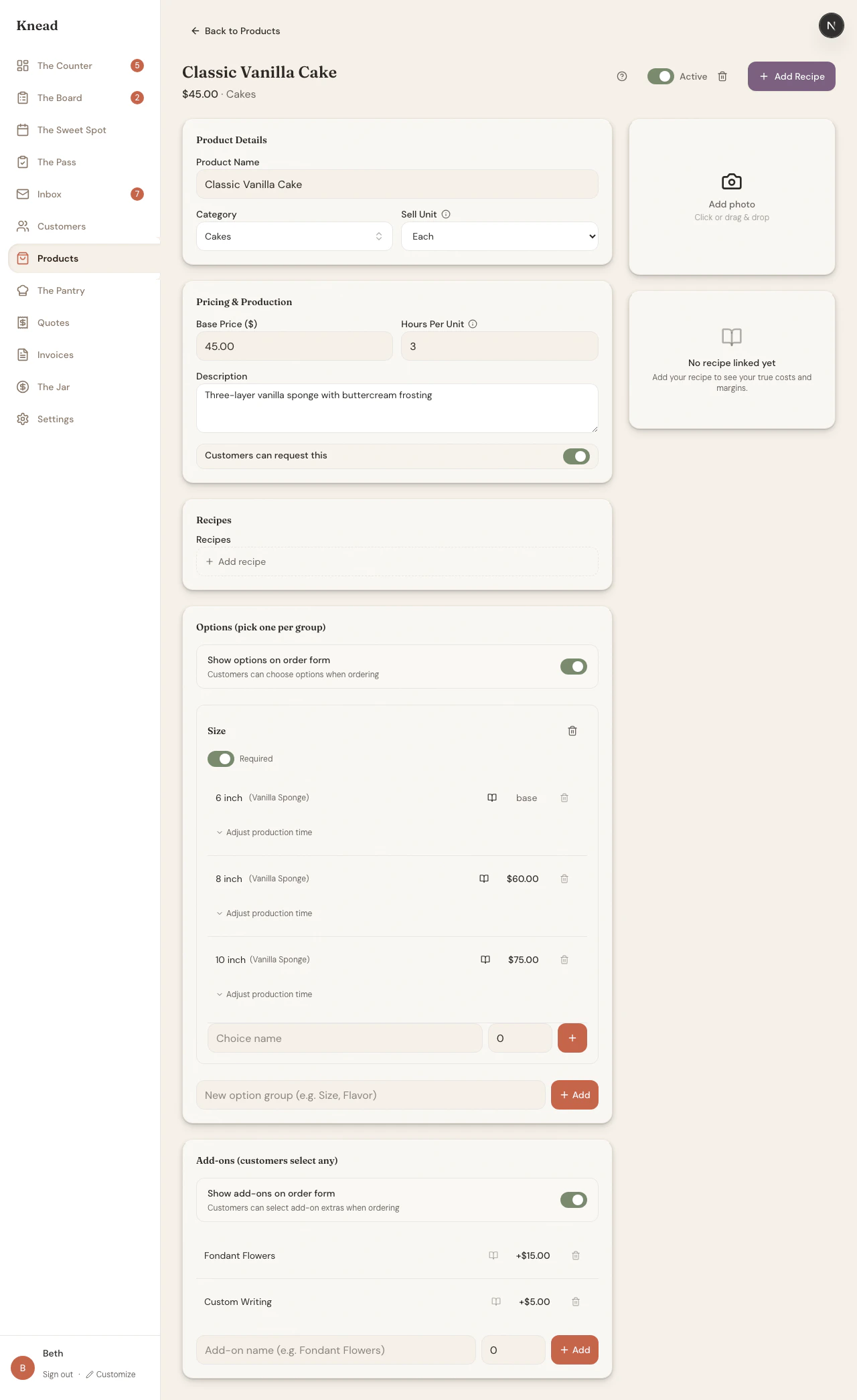 ### Adding an Option Group
1. Open the product from your catalog.
2. Scroll to the **Options** section.
3. Type a group name (e.g., "Size" or "Flavor") in the input at the bottom and tap the add button.
4. The new group appears with a **Required** toggle — leave it on if customers must pick one, turn it off if the option is optional.
### Adding Choices to a Group
1. Inside the option group, type a choice name (e.g., "8 inch").
2. Set the price. This is the **full price** for the product when this choice is selected — not an adjustment. If your 8-inch cake costs \$60, enter \$60.
3. Tap the add button.
4. Repeat for each choice.
A price of \$0 means "use the product's base price." This is useful when one choice is the default and others cost more.
Pro tip: Order your choices logically — smallest to largest, or most popular first. Customers see them in the order you set.
### Linking Recipes to Choices
Each choice can link to a different recipe for production costing. Tap the recipe icon next to a choice and search for the recipe. This lets Knead calculate accurate costs per variation — a 10-inch cake uses more ingredients than a 6-inch.
## Setting Up Add-ons
Add-ons are simpler than options — there are no groups. Each add-on is a standalone extra with a name and a price.
1. Scroll to the **Add-ons** section below Options.
2. Type the add-on name (e.g., "Fondant Flowers").
3. Set the price. This is always **additive** — it gets added on top of whatever the option price is.
4. Tap the add button.
Common add-ons:
* Fondant Flowers — +\$15.00
* Custom Writing — +\$5.00
* Gift Box Packaging — +\$8.00
* Edible Image Topper — +\$12.00
Good to know: Add-on prices always show with a "+" to make it clear they are extras on top of the base or option price.
## How Pricing Works
Options and add-ons work together to calculate the final price:
1. **Start with the base price** — the price you set on the product.
2. **Apply the selected option** — if a customer picks "8 inch" at \$60, the price becomes \$60 (replaces the base).
3. **Add selected add-ons** — Fondant Flowers (+\$15) and Custom Writing (+\$5) stack on top.
4. **Final price** — \$60 + \$15 + \$5 = \$80.
For products with multiple option groups (like Cookies with Size and Flavor), the last option with a non-zero price determines the base. If "2 Dozen" is \$44 and "Chocolate Chip" is \$0, the effective price is \$44.
## Multiple Option Groups
A single product can have several option groups. Cookies, for example, might have both a Size group and a Flavor group.
### Adding an Option Group
1. Open the product from your catalog.
2. Scroll to the **Options** section.
3. Type a group name (e.g., "Size" or "Flavor") in the input at the bottom and tap the add button.
4. The new group appears with a **Required** toggle — leave it on if customers must pick one, turn it off if the option is optional.
### Adding Choices to a Group
1. Inside the option group, type a choice name (e.g., "8 inch").
2. Set the price. This is the **full price** for the product when this choice is selected — not an adjustment. If your 8-inch cake costs \$60, enter \$60.
3. Tap the add button.
4. Repeat for each choice.
A price of \$0 means "use the product's base price." This is useful when one choice is the default and others cost more.
Pro tip: Order your choices logically — smallest to largest, or most popular first. Customers see them in the order you set.
### Linking Recipes to Choices
Each choice can link to a different recipe for production costing. Tap the recipe icon next to a choice and search for the recipe. This lets Knead calculate accurate costs per variation — a 10-inch cake uses more ingredients than a 6-inch.
## Setting Up Add-ons
Add-ons are simpler than options — there are no groups. Each add-on is a standalone extra with a name and a price.
1. Scroll to the **Add-ons** section below Options.
2. Type the add-on name (e.g., "Fondant Flowers").
3. Set the price. This is always **additive** — it gets added on top of whatever the option price is.
4. Tap the add button.
Common add-ons:
* Fondant Flowers — +\$15.00
* Custom Writing — +\$5.00
* Gift Box Packaging — +\$8.00
* Edible Image Topper — +\$12.00
Good to know: Add-on prices always show with a "+" to make it clear they are extras on top of the base or option price.
## How Pricing Works
Options and add-ons work together to calculate the final price:
1. **Start with the base price** — the price you set on the product.
2. **Apply the selected option** — if a customer picks "8 inch" at \$60, the price becomes \$60 (replaces the base).
3. **Add selected add-ons** — Fondant Flowers (+\$15) and Custom Writing (+\$5) stack on top.
4. **Final price** — \$60 + \$15 + \$5 = \$80.
For products with multiple option groups (like Cookies with Size and Flavor), the last option with a non-zero price determines the base. If "2 Dozen" is \$44 and "Chocolate Chip" is \$0, the effective price is \$44.
## Multiple Option Groups
A single product can have several option groups. Cookies, for example, might have both a Size group and a Flavor group.
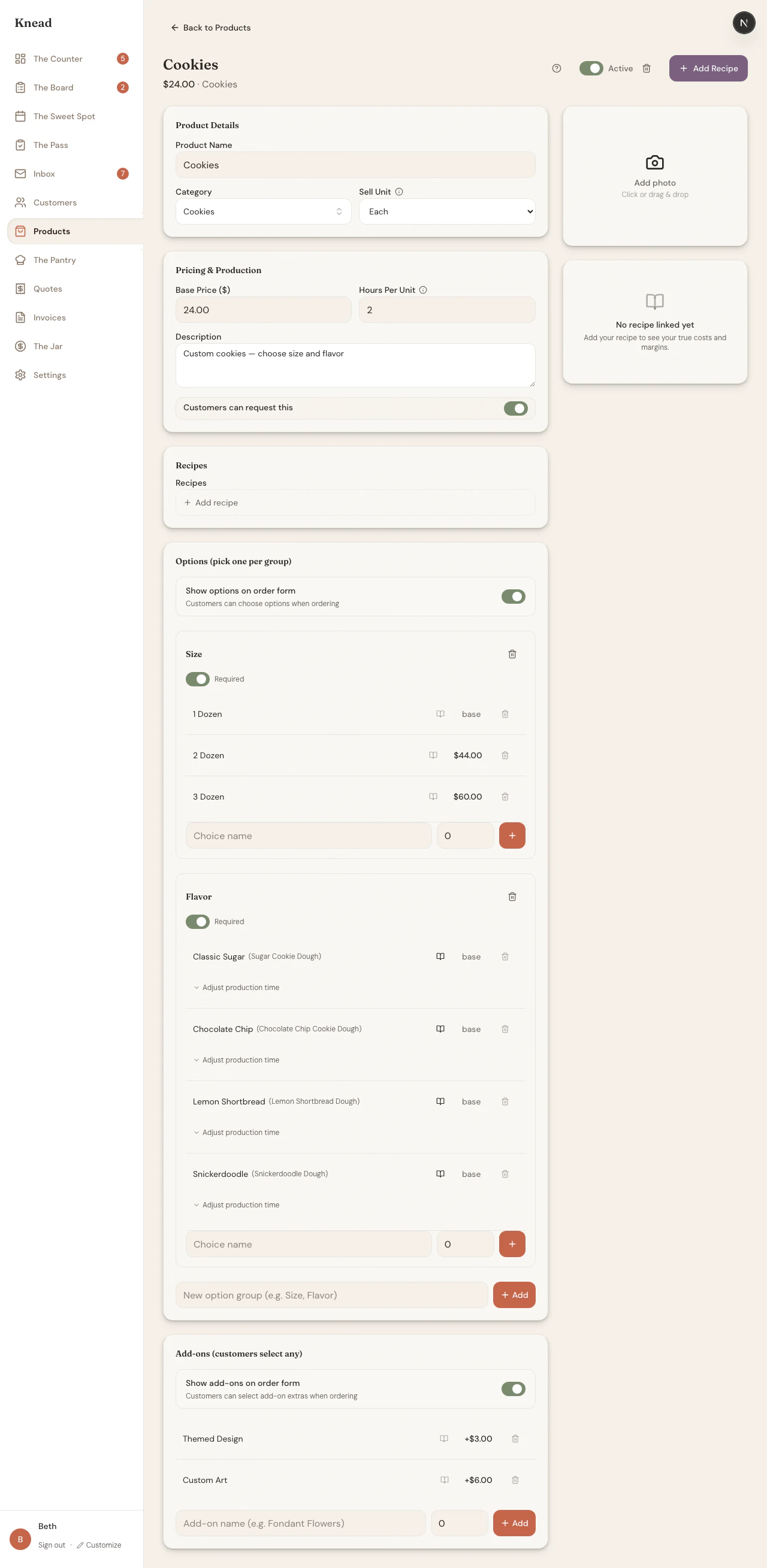 Customers pick one choice from each group. The order form shows each group as a row of selectable pills.
## Controlling Visibility
You can control whether customers see options and add-ons on The Board separately.
* **Show options on order form** — when off, customers see the base price and cannot choose options. Use this when you track sizes internally but quote prices manually.
* **Show add-ons on order form** — when off, extras are hidden. Use this when you offer add-ons only by request.
When options are hidden but the product has them, the order form shows "options available" next to the price so customers know to ask.
## How Customers See Options and Add-ons
On The Board, products with options show the base price and an "options available" label. When a customer taps **+ Add**, they see:
Customers pick one choice from each group. The order form shows each group as a row of selectable pills.
## Controlling Visibility
You can control whether customers see options and add-ons on The Board separately.
* **Show options on order form** — when off, customers see the base price and cannot choose options. Use this when you track sizes internally but quote prices manually.
* **Show add-ons on order form** — when off, extras are hidden. Use this when you offer add-ons only by request.
When options are hidden but the product has them, the order form shows "options available" next to the price so customers know to ask.
## How Customers See Options and Add-ons
On The Board, products with options show the base price and an "options available" label. When a customer taps **+ Add**, they see:
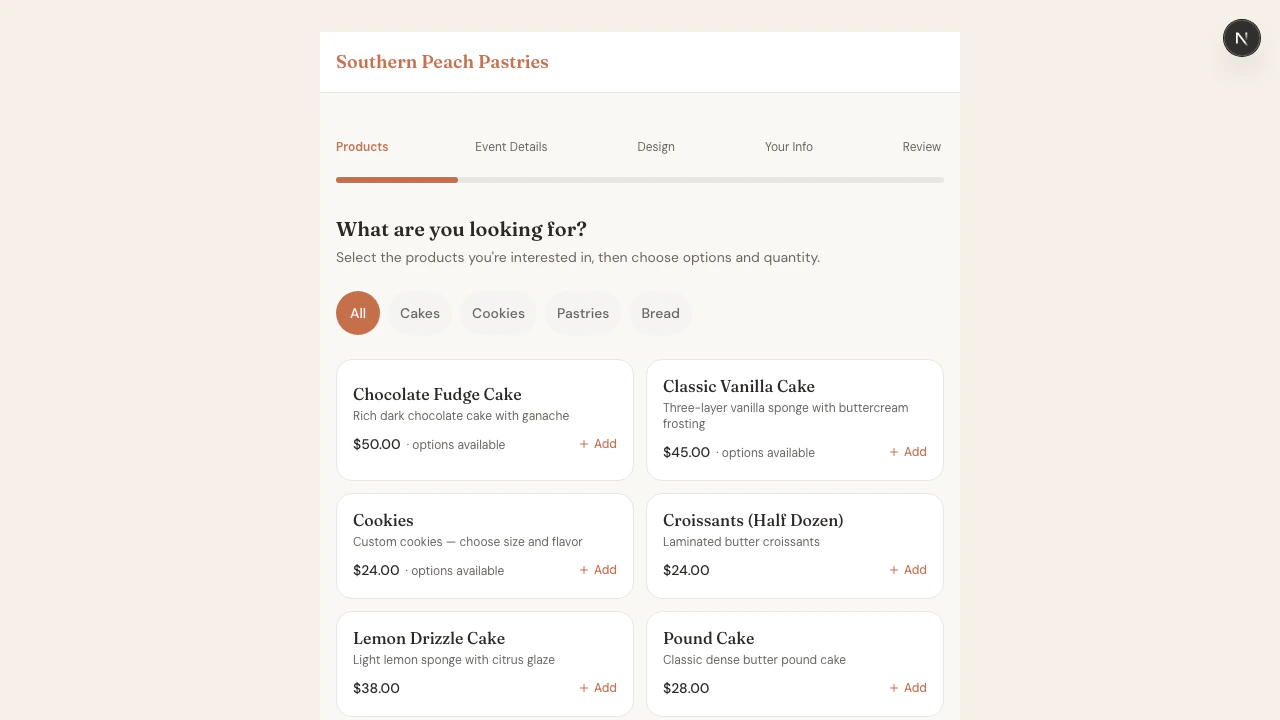 * **Option groups** appear as pill buttons — tap to select one per group. The selected pill fills with your brand color.
* **Add-ons** appear below as "Extras (select any)" — tap to toggle on. Each shows its "+\$X.XX" price.
* The price updates live as customers make selections.
## Related Articles
* [Building Your Product Catalog](/products-and-pricing/building-your-product-catalog)
* [Setting Prices and Understanding Margins](/products-and-pricing/setting-prices-and-understanding-margins)
* [Understanding Sell Units](/products-and-pricing/understanding-sell-units)
***
*Still need help? [Contact us](mailto:hello@kneadapp.co)*
* **Option groups** appear as pill buttons — tap to select one per group. The selected pill fills with your brand color.
* **Add-ons** appear below as "Extras (select any)" — tap to toggle on. Each shows its "+\$X.XX" price.
* The price updates live as customers make selections.
## Related Articles
* [Building Your Product Catalog](/products-and-pricing/building-your-product-catalog)
* [Setting Prices and Understanding Margins](/products-and-pricing/setting-prices-and-understanding-margins)
* [Understanding Sell Units](/products-and-pricing/understanding-sell-units)
***
*Still need help? [Contact us](mailto:hello@kneadapp.co)*