> ## Documentation Index
> Fetch the complete documentation index at: https://help.kneadapp.co/llms.txt
> Use this file to discover all available pages before exploring further.
# Help Me Price This — The Built-In Pricing Calculator
> Use Knead's Help me price this calculator to turn ingredient, labor, and overhead costs into a suggested price that protects your margin.
## Overview
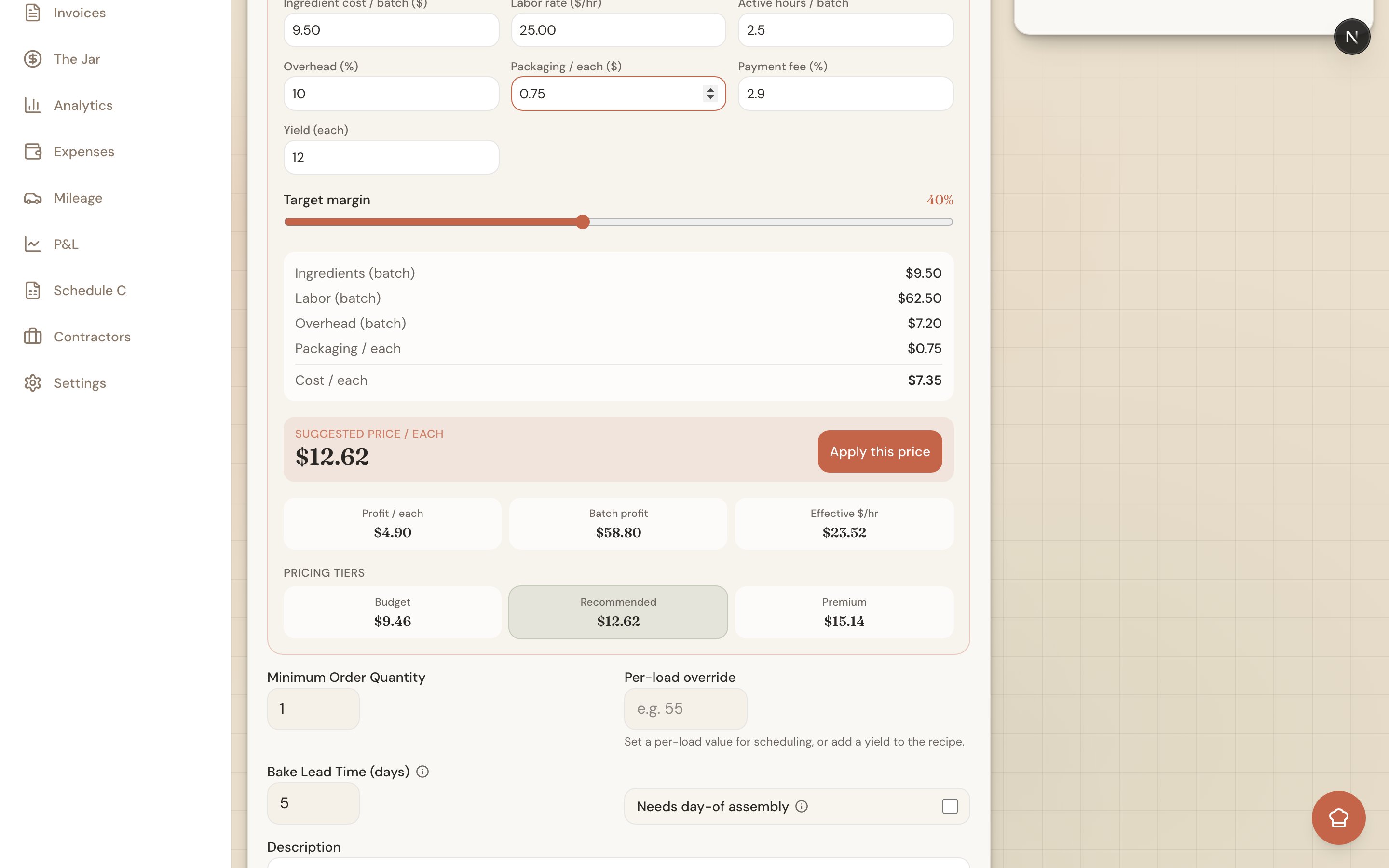
Pricing is the hardest part of running a bakery, so Knead does the math for you. Every product form has a **Help me price this** calculator that turns your real costs — ingredients, time, overhead, packaging, and card fees — into a suggested price with a healthy margin baked in. It is available on every plan, and one tap drops the number straight into your price field.
 ## Opening the Calculator
The calculator lives right on the product form.
1. Open a product from your catalog, or start a new one.
2. Expand the **Help me price this** section.
3. Fill in your costs (below), then read off the **Suggested price**.
It is a collapsible panel, so it stays out of your way until you need it.
## What You Enter
The calculator asks for the numbers that actually make up your cost per item:
* **Ingredient cost per batch** — What the ingredients for one batch cost you.
* **Labor rate** — Your pay in dollars per hour.
* **Active hours per batch** — Hands-on time for one batch (mixing, decorating, packing).
* **Overhead %** — A percentage added to cover rent, utilities, and other fixed costs.
* **Packaging cost per unit** — Boxes, ribbon, and labels for one unit.
* **Payment fee %** — The card processing fee you pay (for example, \~2.9%).
* **Units per batch** — How many sell units one batch yields.
Then set the **Target margin** slider, anywhere from 0% to 90%. That is the profit margin you want the suggested price to hit.
Good to know: If the product is linked to a recipe, Knead **prefills** your ingredient cost, units per batch, and active hours straight from that recipe — so you often only need to check the numbers and set your target margin. See [Linking Recipes to Products](/products-and-pricing/linking-recipes-to-products).
## What the Calculator Shows You
As you type, Knead updates a full breakdown:
* **Suggested price** — Your recommended price, **grossed up** so the card fee comes out of the customer's payment instead of your margin.
* **Cost breakdown** — Ingredients, labor, overhead, and packaging, line by line.
* **Profit per unit** — What you keep on each item after all costs.
* **Batch profit** — What you keep on a full batch.
* **Effective \$/hour** — What you are really earning per hour of hands-on work at this price. This is the number that tells you whether a product is worth your time.
### Three price tiers
Knead also offers three ready-made price points so you can position a product:
| Tier | Margin |
| --------------- | ------------------ |
| **Budget** | 20% |
| **Recommended** | Your target margin |
| **Premium** | 50% |
When the price looks right, tap **Apply this price** and Knead drops the suggested price into the product's **Price** field. You can still edit it by hand afterward.
Pro tip: Watch the **Effective \$/hour** more than the sticker price. A \$45 cake that takes three hours to decorate may pay you less per hour than a \$28 dozen cookies — the calculator makes that trade-off visible.
## Setting Your Pricing Defaults
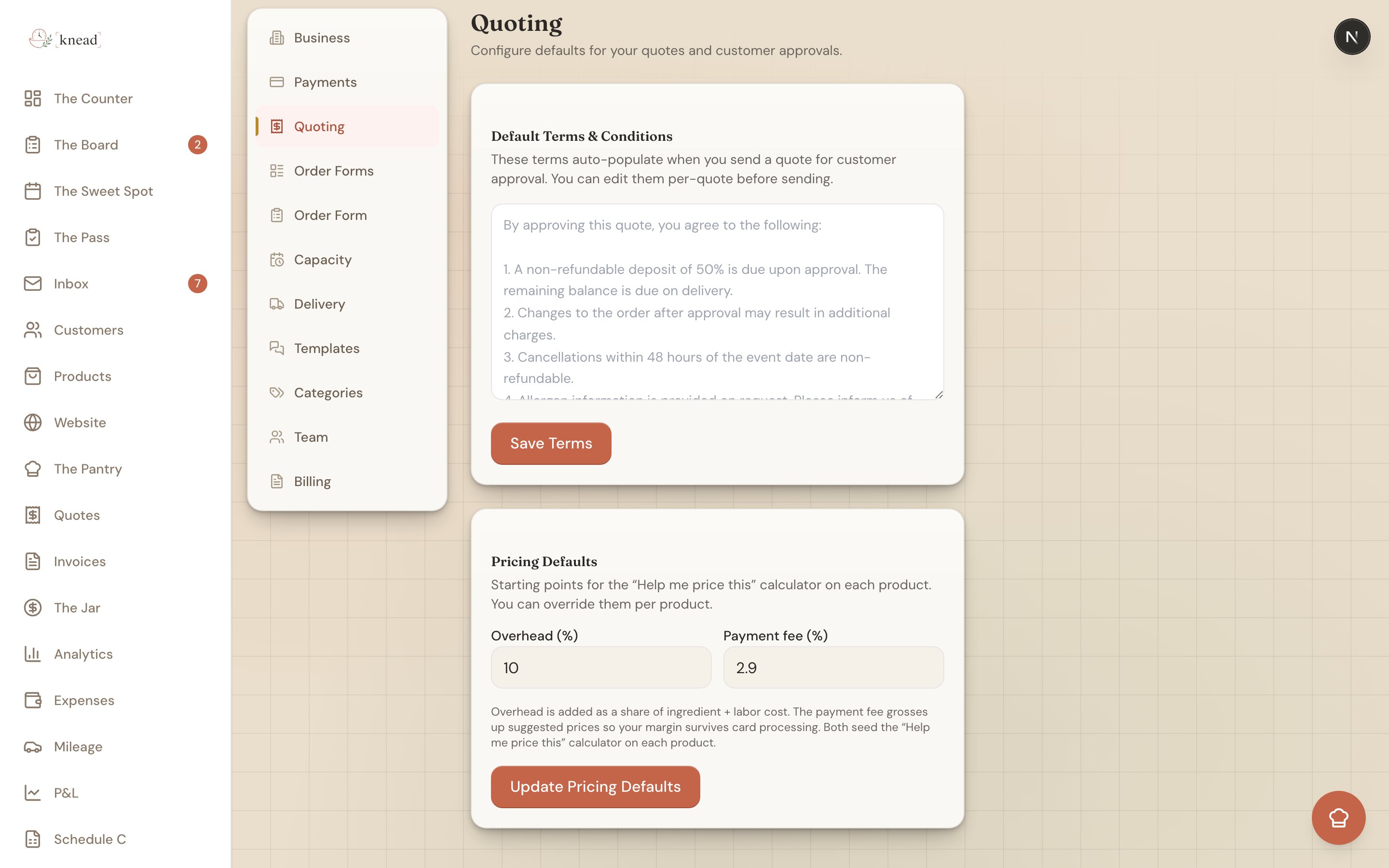
So you are not re-typing the same numbers on every product, Knead fills in a few fields from your business settings.
1. Go to **Settings** then **Quoting**.
2. Open **Pricing Defaults**.
3. Set your default **overhead %** and **payment fee %**.
## Opening the Calculator
The calculator lives right on the product form.
1. Open a product from your catalog, or start a new one.
2. Expand the **Help me price this** section.
3. Fill in your costs (below), then read off the **Suggested price**.
It is a collapsible panel, so it stays out of your way until you need it.
## What You Enter
The calculator asks for the numbers that actually make up your cost per item:
* **Ingredient cost per batch** — What the ingredients for one batch cost you.
* **Labor rate** — Your pay in dollars per hour.
* **Active hours per batch** — Hands-on time for one batch (mixing, decorating, packing).
* **Overhead %** — A percentage added to cover rent, utilities, and other fixed costs.
* **Packaging cost per unit** — Boxes, ribbon, and labels for one unit.
* **Payment fee %** — The card processing fee you pay (for example, \~2.9%).
* **Units per batch** — How many sell units one batch yields.
Then set the **Target margin** slider, anywhere from 0% to 90%. That is the profit margin you want the suggested price to hit.
Good to know: If the product is linked to a recipe, Knead **prefills** your ingredient cost, units per batch, and active hours straight from that recipe — so you often only need to check the numbers and set your target margin. See [Linking Recipes to Products](/products-and-pricing/linking-recipes-to-products).
## What the Calculator Shows You
As you type, Knead updates a full breakdown:
* **Suggested price** — Your recommended price, **grossed up** so the card fee comes out of the customer's payment instead of your margin.
* **Cost breakdown** — Ingredients, labor, overhead, and packaging, line by line.
* **Profit per unit** — What you keep on each item after all costs.
* **Batch profit** — What you keep on a full batch.
* **Effective \$/hour** — What you are really earning per hour of hands-on work at this price. This is the number that tells you whether a product is worth your time.
### Three price tiers
Knead also offers three ready-made price points so you can position a product:
| Tier | Margin |
| --------------- | ------------------ |
| **Budget** | 20% |
| **Recommended** | Your target margin |
| **Premium** | 50% |
When the price looks right, tap **Apply this price** and Knead drops the suggested price into the product's **Price** field. You can still edit it by hand afterward.
Pro tip: Watch the **Effective \$/hour** more than the sticker price. A \$45 cake that takes three hours to decorate may pay you less per hour than a \$28 dozen cookies — the calculator makes that trade-off visible.
## Setting Your Pricing Defaults
So you are not re-typing the same numbers on every product, Knead fills in a few fields from your business settings.
1. Go to **Settings** then **Quoting**.
2. Open **Pricing Defaults**.
3. Set your default **overhead %** and **payment fee %**.
 Your **labor rate** default comes from your labor-rate setting — see [Setting Your Labor Rate](/integrations-and-setup/labor-rate). Any default can be overridden on a single product without changing the setting.
## How Knead Reads Your Margin
Once a product has a price and a cost, Knead flags its margin so you can spot the weak ones at a glance:
| Margin | Flag |
| ------------ | ------------ |
| 40% and up | **Healthy** |
| \~20% to 40% | **Warning** |
| Under 20% | **Critical** |
If a product lands in the warning or critical range, that is Knead's cue to raise the price, trim a cost, or reserve it for higher-volume orders.
## Related Articles
* [Setting Prices and Understanding Margins](/products-and-pricing/setting-prices-and-understanding-margins)
* [Recipe Costing with The Pantry](/products-and-pricing/recipe-costing-with-the-pantry)
* [Linking Recipes to Products](/products-and-pricing/linking-recipes-to-products)
* [Setting Your Labor Rate](/integrations-and-setup/labor-rate)
* [Understanding Sell Units](/products-and-pricing/understanding-sell-units)
***
*Still need help? [Contact us](mailto:hello@kneadapp.co)*
Your **labor rate** default comes from your labor-rate setting — see [Setting Your Labor Rate](/integrations-and-setup/labor-rate). Any default can be overridden on a single product without changing the setting.
## How Knead Reads Your Margin
Once a product has a price and a cost, Knead flags its margin so you can spot the weak ones at a glance:
| Margin | Flag |
| ------------ | ------------ |
| 40% and up | **Healthy** |
| \~20% to 40% | **Warning** |
| Under 20% | **Critical** |
If a product lands in the warning or critical range, that is Knead's cue to raise the price, trim a cost, or reserve it for higher-volume orders.
## Related Articles
* [Setting Prices and Understanding Margins](/products-and-pricing/setting-prices-and-understanding-margins)
* [Recipe Costing with The Pantry](/products-and-pricing/recipe-costing-with-the-pantry)
* [Linking Recipes to Products](/products-and-pricing/linking-recipes-to-products)
* [Setting Your Labor Rate](/integrations-and-setup/labor-rate)
* [Understanding Sell Units](/products-and-pricing/understanding-sell-units)
***
*Still need help? [Contact us](mailto:hello@kneadapp.co)*