> ## Documentation Index
> Fetch the complete documentation index at: https://help.kneadapp.co/llms.txt
> Use this file to discover all available pages before exploring further.
# Editing Order Line Items
> Change quantities, prices, descriptions, and even which product a line is for — the total recomputes automatically.
## Overview
Plans change. A customer adds a dozen cookies, swaps a flavor, or bumps the date. You can edit an order's line items directly, and Knead recalculates the **Total** for you and updates it on The Board.
You get the full editor on active orders. Once an order is **completed**, you can still fix its header details — the line items lock so your finished record stays intact.
## Open the editor
1. Open the order from **The Board** (`/orders`) to reach its detail page (`/orders/[id]`).
2. Click **Edit** (the pencil icon) in the header.
You'll land on the **Edit Order** section, with an auto-save badge that confirms your changes are stored.
## Edit the order details
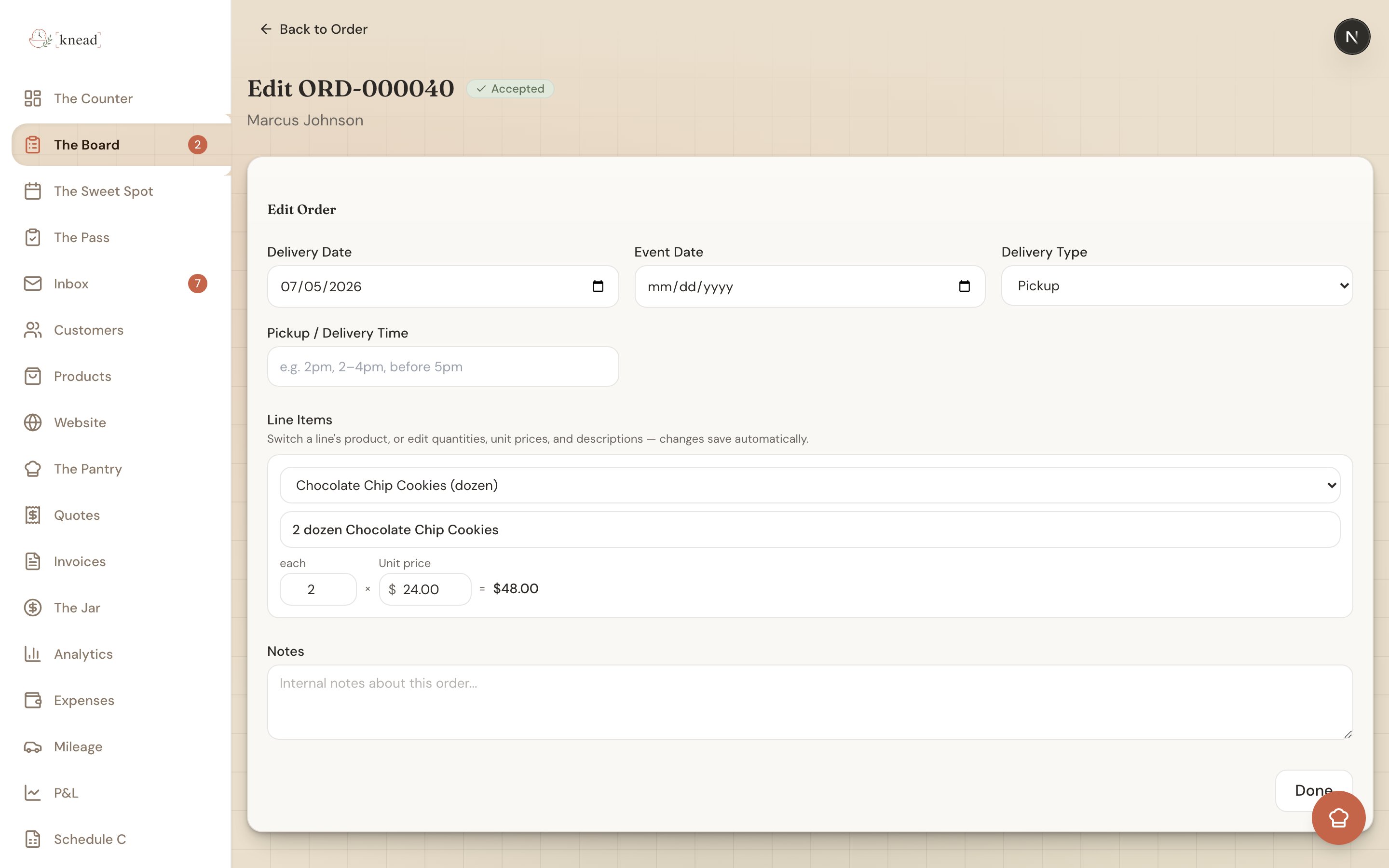
At the top of the **Edit Order** section you can update the header:
* **Delivery Date**
* **Event Date**
* **Delivery Type** — **Pickup** or **Delivery**
* **Pickup / Delivery Time** — a free-text field (placeholder "e.g. 2pm, 2–4pm, before 5pm")
* **Notes**
### Pickup / Delivery Time shows up on your Sweet Spot
The **Pickup / Delivery Time** field is free text on purpose — type it however you say it: "2pm," "2–4pm," or "before 5pm." Whatever you enter shows on that order's card in [The Sweet Spot](/calendar-and-capacity/using-the-sweet-spot), so on the day itself you can see at a glance when each order needs to be out the door. For more on coordinating handoffs, see [Delivery and Pickup Coordination](/production/delivery-and-pickup-coordination).
## Edit the line items
On an active order, the helper text above the list reads: "Switch a line's product, or edit quantities, unit prices, and descriptions — changes save automatically."
Each line item row has:
1. A **Product** dropdown (see below)
2. A **description** input
3. A quantity input (showing the unit, or "Qty") — minimum of 1
4. A **Unit price** input with a `\$` prefix
5. The computed line total — shown as `qty × unit price = total`
Edits commit automatically when you tab out of or click away from a field. There's no separate Save button — the auto-save badge confirms it's stored, and the order **Total** recomputes from the line items.
 ### Swap which product a line is for
Every line item has a **Product** dropdown so you can change which product the line points to:
* Choose **Custom (no product)** for a one-off that isn't in your catalog.
* Or pick another product from your catalog.
Swapping the product **resets that line's name, price, and cost** to the newly chosen product's defaults. If you'd already customized the description or price, you'll need to re-enter it after the swap.
## Add notes
Use the **Notes** field ("Internal notes about this order...") for anything you want to remember — substitutions, allergy reminders, or delivery instructions. These notes are internal and not shown to your customer.
## Finish up
Click **Done** to return to the order. The recalculated **Total** is already reflected on the order and on The Board.
## Editing a completed order
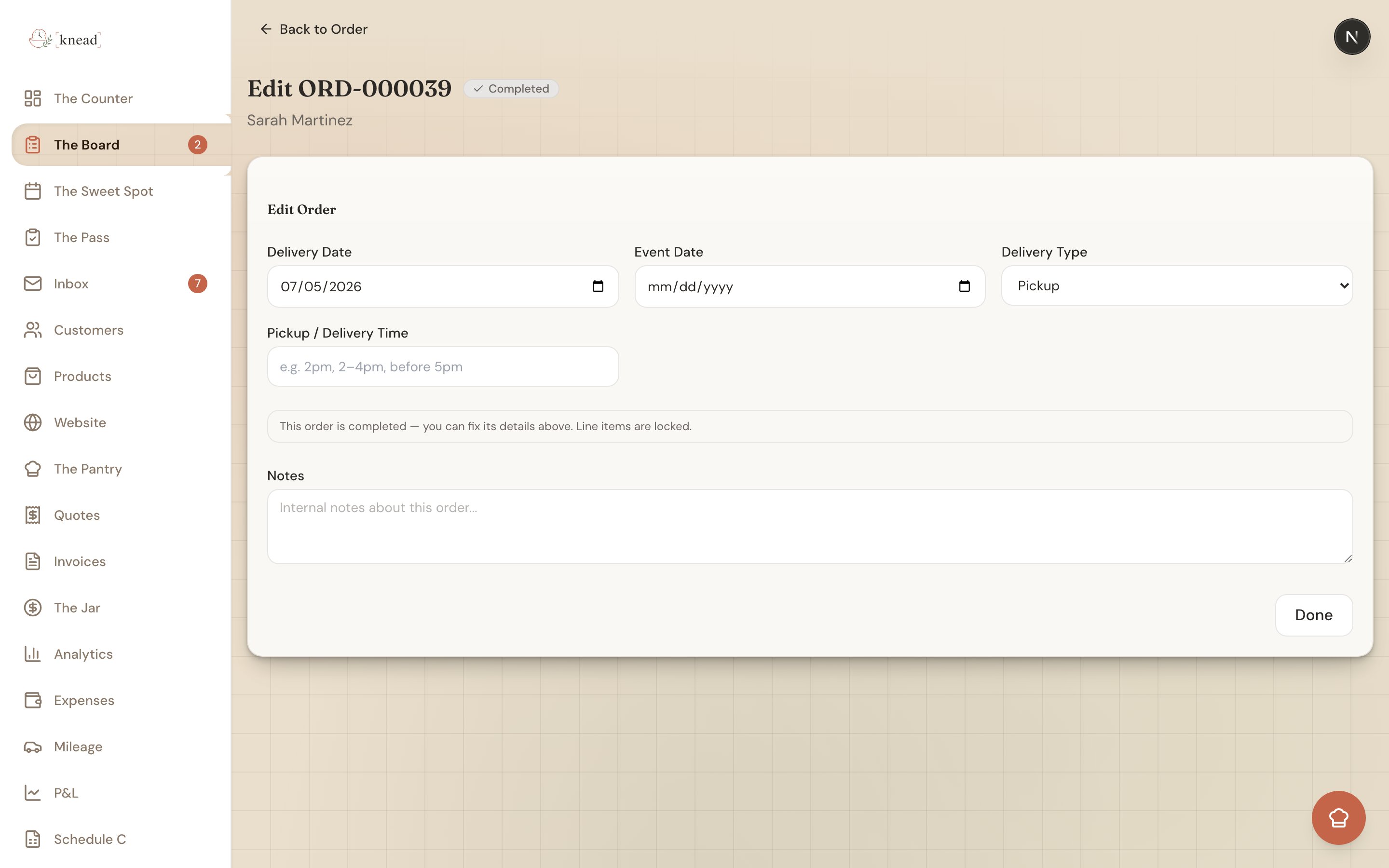
Marking an order complete doesn't lock you out of it. On a **completed** order you can still fix the header details — **Delivery Date**, **Event Date**, **Delivery Type**, **Pickup / Delivery Time**, and **Notes** — which is handy when a date or handoff time needs a correction after the fact.
The **line items** are read-only on a completed order. In place of the editor you'll see a note: "This order is completed — you can fix its details above. Line items are locked." This keeps your finished sales record accurate while still letting you tidy up the details.
### Swap which product a line is for
Every line item has a **Product** dropdown so you can change which product the line points to:
* Choose **Custom (no product)** for a one-off that isn't in your catalog.
* Or pick another product from your catalog.
Swapping the product **resets that line's name, price, and cost** to the newly chosen product's defaults. If you'd already customized the description or price, you'll need to re-enter it after the swap.
## Add notes
Use the **Notes** field ("Internal notes about this order...") for anything you want to remember — substitutions, allergy reminders, or delivery instructions. These notes are internal and not shown to your customer.
## Finish up
Click **Done** to return to the order. The recalculated **Total** is already reflected on the order and on The Board.
## Editing a completed order
Marking an order complete doesn't lock you out of it. On a **completed** order you can still fix the header details — **Delivery Date**, **Event Date**, **Delivery Type**, **Pickup / Delivery Time**, and **Notes** — which is handy when a date or handoff time needs a correction after the fact.
The **line items** are read-only on a completed order. In place of the editor you'll see a note: "This order is completed — you can fix its details above. Line items are locked." This keeps your finished sales record accurate while still letting you tidy up the details.
 Good to know: If you genuinely need to change what was made or charged after completion, create an adjustment or a new order rather than reopening the finished record.
## Related Articles
* [Creating Orders Manually](/managing-orders/creating-orders-manually)
* [Order Statuses Explained](/managing-orders/order-statuses-explained)
* [Delivery and Pickup Coordination](/production/delivery-and-pickup-coordination)
* [Handling Cancellations and Changes](/managing-orders/handling-cancellations-and-changes)
***
*Still need help? [Contact us](mailto:hello@kneadapp.co)*
Good to know: If you genuinely need to change what was made or charged after completion, create an adjustment or a new order rather than reopening the finished record.
## Related Articles
* [Creating Orders Manually](/managing-orders/creating-orders-manually)
* [Order Statuses Explained](/managing-orders/order-statuses-explained)
* [Delivery and Pickup Coordination](/production/delivery-and-pickup-coordination)
* [Handling Cancellations and Changes](/managing-orders/handling-cancellations-and-changes)
***
*Still need help? [Contact us](mailto:hello@kneadapp.co)*