> ## Documentation Index
> Fetch the complete documentation index at: https://help.kneadapp.co/llms.txt
> Use this file to discover all available pages before exploring further.
# Sharing a Customer Pay Link
> Copy a permanent pay link from any invoice and share it by text, DM, or email so your customer can pay by card anytime.
## Overview
Every invoice you send carries a **permanent pay link** — a single web address your customer can open to pay by card. It's the same link behind the **Review and pay** button in the invoice email, but you can also copy it and share it however you like: a text, a DM, an email, wherever your customer actually reads their messages. This article shows how to grab it and what your customer sees when they tap it.
## Opening or Copying the Link
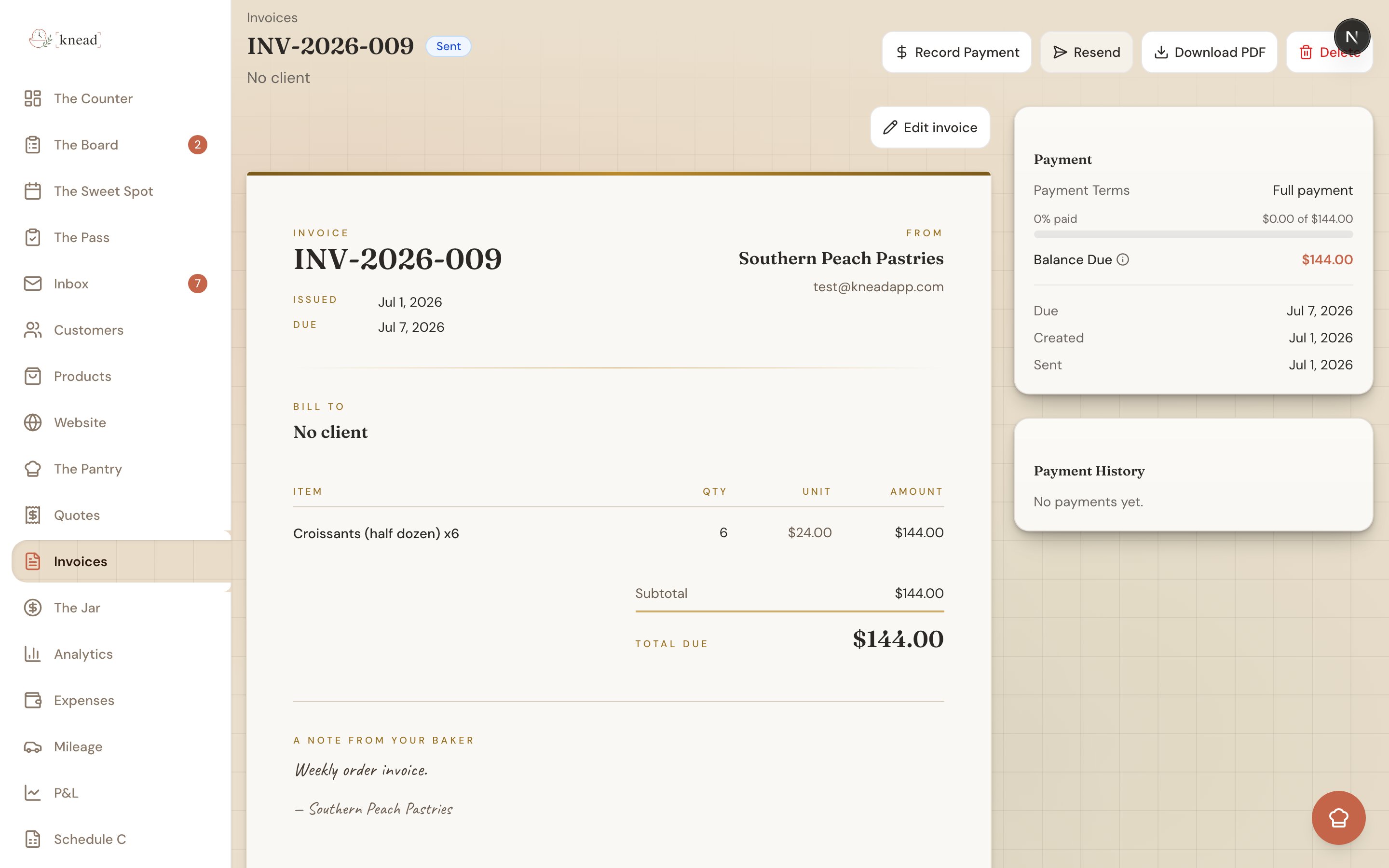
From any sent invoice you have two options:
* **Pay online** — opens the pay page yourself (handy for showing a customer at pickup or checking that everything looks right).
* **Copy payment link** — copies the link to your clipboard so you can paste it into a text, DM, or email.
 Pro tip: For customers who never open email, paste the pay link into a text message. It's the fastest way to get paid without chasing them down.
## The Link Never Expires
You don't have to worry about a link going stale. Each time your customer opens it, Knead spins up a **fresh secure Stripe checkout** — so the same link still works days or weeks later. Send it once and it keeps working until the invoice is paid.
## What Your Customer Sees
When your customer taps the link:
* **If there's a balance owing**, a secure Stripe checkout opens so they can pay by card. If you take Venmo, that option is offered too.
* **If they've already paid**, they land on a friendly **"Payment received!"** page — no confusion, no accidental double payment.
Good to know: Card payment needs Stripe connected on your account. If you haven't set that up yet, see [Setting Up Stripe (Payment Processing)](/invoicing-and-payments/connecting-stripe).
## Related Articles
* [Creating and Sending Invoices](/invoicing-and-payments/creating-and-sending-invoices)
* [Setting Up Stripe (Payment Processing)](/invoicing-and-payments/connecting-stripe)
* [Recording Manual Payments](/invoicing-and-payments/recording-manual-payments)
* [Understanding Processing Fees](/invoicing-and-payments/understanding-processing-fees)
* [Payment Reminders](/invoicing-and-payments/payment-reminders)
***
*Still need help? [Contact us](mailto:hello@kneadapp.co)*
Pro tip: For customers who never open email, paste the pay link into a text message. It's the fastest way to get paid without chasing them down.
## The Link Never Expires
You don't have to worry about a link going stale. Each time your customer opens it, Knead spins up a **fresh secure Stripe checkout** — so the same link still works days or weeks later. Send it once and it keeps working until the invoice is paid.
## What Your Customer Sees
When your customer taps the link:
* **If there's a balance owing**, a secure Stripe checkout opens so they can pay by card. If you take Venmo, that option is offered too.
* **If they've already paid**, they land on a friendly **"Payment received!"** page — no confusion, no accidental double payment.
Good to know: Card payment needs Stripe connected on your account. If you haven't set that up yet, see [Setting Up Stripe (Payment Processing)](/invoicing-and-payments/connecting-stripe).
## Related Articles
* [Creating and Sending Invoices](/invoicing-and-payments/creating-and-sending-invoices)
* [Setting Up Stripe (Payment Processing)](/invoicing-and-payments/connecting-stripe)
* [Recording Manual Payments](/invoicing-and-payments/recording-manual-payments)
* [Understanding Processing Fees](/invoicing-and-payments/understanding-processing-fees)
* [Payment Reminders](/invoicing-and-payments/payment-reminders)
***
*Still need help? [Contact us](mailto:hello@kneadapp.co)*