> ## Documentation Index
> Fetch the complete documentation index at: https://help.kneadapp.co/llms.txt
> Use this file to discover all available pages before exploring further.
# Creating and Sending Invoices — Bakery Invoicing
> Create a clean, professional invoice for your home bakery order, edit line items and fees, and email it to your customer with a pay link.
## Overview
A Knead invoice is one clean piece of paper — a letterpress-style statement that pulls in your order automatically, adds up the total, and gives your customer a way to pay. You create it in a tap from the order, tidy up the line items and fees if you need to, then send it with a friendly email and a **Review and pay** button. This article walks through the whole flow.
## Creating an Invoice from an Order
Invoices don't appear on their own — you decide when to bill. When an order is ready to invoice:
1. Open the order from [The Counter](/understanding-the-counter).
2. Tap **Create Invoice**.
3. Knead pulls in the order details automatically — items, quantities, sell units, and prices — and drops them onto a fresh invoice.
 Good to know: If you already collected a deposit on this order, Knead credits it automatically. The deposit shows up as a recorded payment and the invoice bills only the remaining balance — so you never double-charge. See [Deposits and Partial Payments](/invoicing-and-payments/deposits-and-partial-payments).
## What the Invoice Looks Like
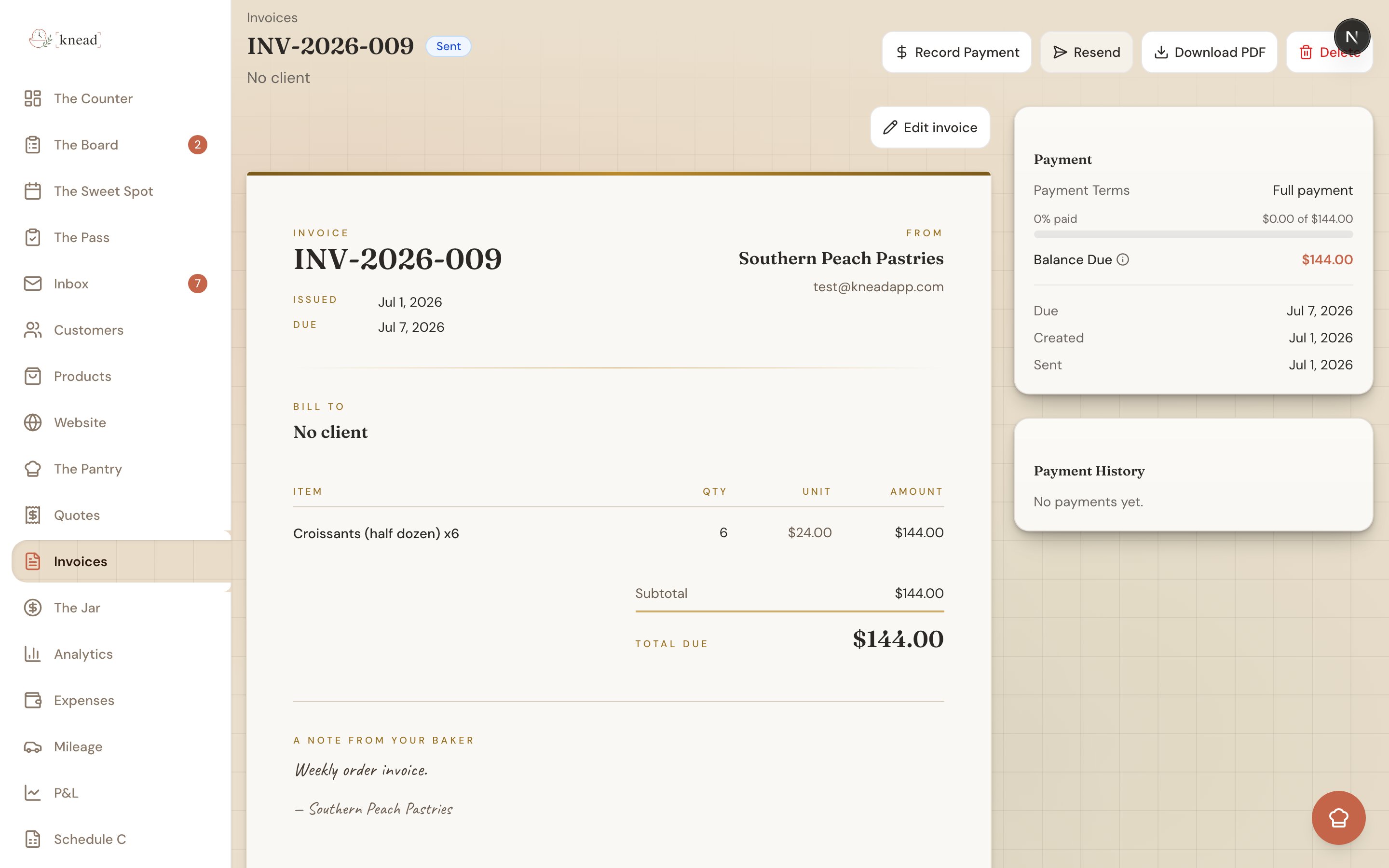
Everything sits on one page, designed to feel handmade rather than corporate:
* A large **INVOICE** label with the **invoice number**.
* Your **From** block — your business name, email, and phone. (Your name prints as text; the invoice doesn't print your logo.)
* A **Bill to** block with your customer's name and email.
* An **items table** with four columns — **Item**, **Qty**, **Unit**, and **Amount** — where each line can carry a short note.
* The totals: **Subtotal**, **Tax** (using your tax label, when tax applies), and **Total Due**.
* A handwritten **"A note from your baker"** signoff at the bottom.
* A green **PAID** stamp once the invoice is settled.
There's also a private **"For your eyes only"** card for your own internal notes. This one is yours alone — **your customer never sees it**. Use it for reminders like "double-height tier, needs a dowel" or "she prefers pickup after 2."
Customers don't need a Knead account to view or pay an invoice.
## Editing an Invoice
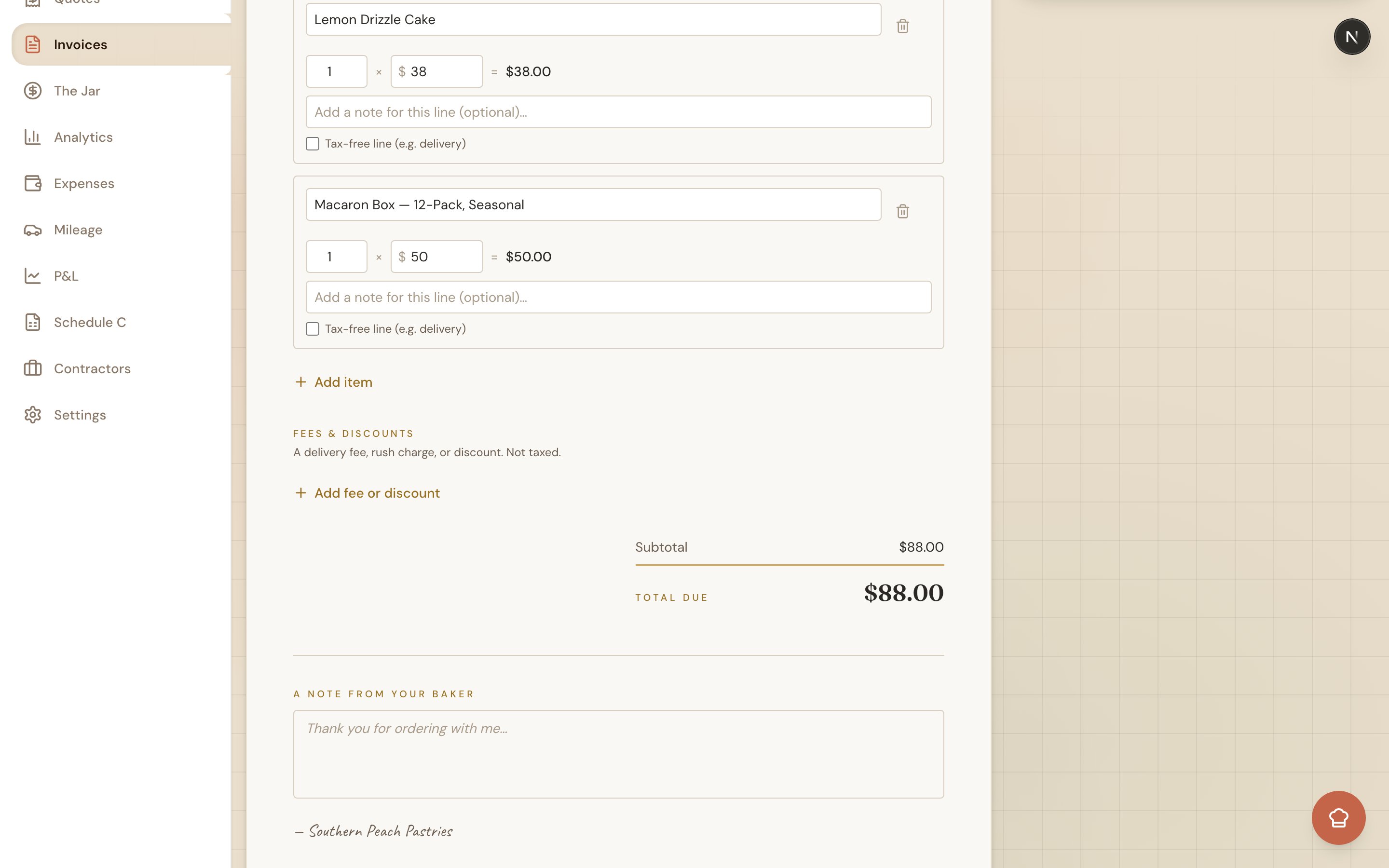
You can fine-tune any **unpaid** invoice. Tap **Edit invoice** to open edit mode, where totals update live as you type.
### Line items
* **Change a line** — Adjust the quantity or unit price; the line's amount recalculates.
* **Add a line** — Include something that wasn't on the original order.
* **Remove a line** — Delete anything you don't need.
* **Add a per-line note** — A short note under any item (flavor, filling, a special request).
### Fees & discounts
Open the **Fees & discounts** section to add:
* A **delivery fee** for drop-offs.
* A **rush charge** for a tight turnaround.
* A **discount** — discounts show in green so they're easy to spot.
### Tax-free lines
While editing a line, tick **"Tax-free line (e.g. delivery)"** and it picks up a green **Tax-free** badge. That line is left out of the tax calculation — handy for delivery charges. For customers who are fully tax-exempt on everything, see [Tax-Exempt Clients](/customers/tax-exempt-clients).
Good to know: If you already collected a deposit on this order, Knead credits it automatically. The deposit shows up as a recorded payment and the invoice bills only the remaining balance — so you never double-charge. See [Deposits and Partial Payments](/invoicing-and-payments/deposits-and-partial-payments).
## What the Invoice Looks Like
Everything sits on one page, designed to feel handmade rather than corporate:
* A large **INVOICE** label with the **invoice number**.
* Your **From** block — your business name, email, and phone. (Your name prints as text; the invoice doesn't print your logo.)
* A **Bill to** block with your customer's name and email.
* An **items table** with four columns — **Item**, **Qty**, **Unit**, and **Amount** — where each line can carry a short note.
* The totals: **Subtotal**, **Tax** (using your tax label, when tax applies), and **Total Due**.
* A handwritten **"A note from your baker"** signoff at the bottom.
* A green **PAID** stamp once the invoice is settled.
There's also a private **"For your eyes only"** card for your own internal notes. This one is yours alone — **your customer never sees it**. Use it for reminders like "double-height tier, needs a dowel" or "she prefers pickup after 2."
Customers don't need a Knead account to view or pay an invoice.
## Editing an Invoice
You can fine-tune any **unpaid** invoice. Tap **Edit invoice** to open edit mode, where totals update live as you type.
### Line items
* **Change a line** — Adjust the quantity or unit price; the line's amount recalculates.
* **Add a line** — Include something that wasn't on the original order.
* **Remove a line** — Delete anything you don't need.
* **Add a per-line note** — A short note under any item (flavor, filling, a special request).
### Fees & discounts
Open the **Fees & discounts** section to add:
* A **delivery fee** for drop-offs.
* A **rush charge** for a tight turnaround.
* A **discount** — discounts show in green so they're easy to spot.
### Tax-free lines
While editing a line, tick **"Tax-free line (e.g. delivery)"** and it picks up a green **Tax-free** badge. That line is left out of the tax calculation — handy for delivery charges. For customers who are fully tax-exempt on everything, see [Tax-Exempt Clients](/customers/tax-exempt-clients).
 Once any payment is recorded on an invoice, it locks and you can no longer edit it. Make your changes before you collect a deposit or payment.
## Sending the Invoice
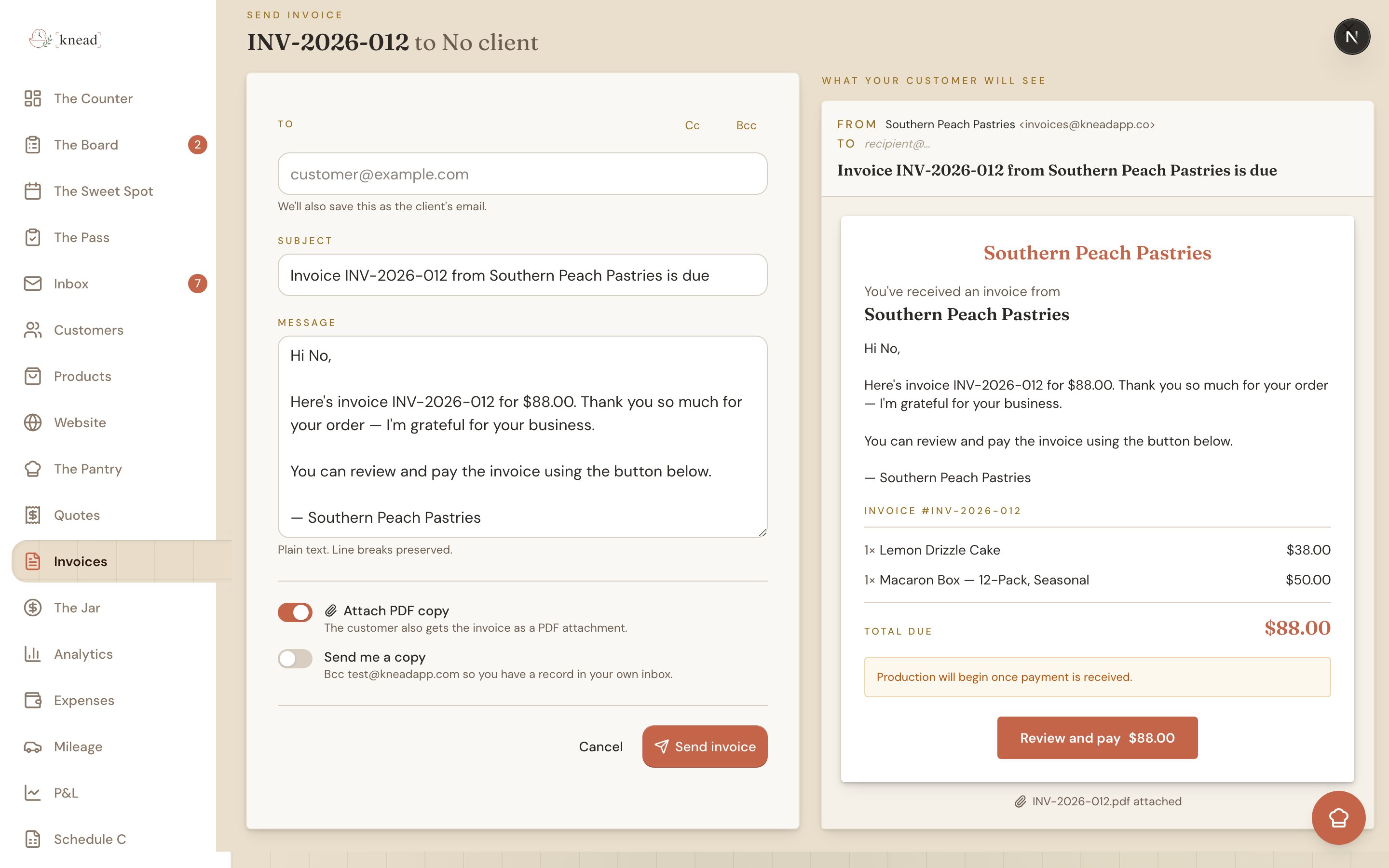
Tapping **Send** opens a dedicated send page so you can review the email before it goes out.
On the send page you can set:
* **To**, **Cc**, and **Bcc** — the customer's address is filled in for you.
* **Subject** and **Message** — both editable, so you can add a personal line.
* **Attach PDF copy** — a toggle that's **on by default**, so a PDF of the invoice rides along with the email.
* **Send me a copy** — toggle this on to email a copy to yourself.
A **live preview** shows exactly what your customer will receive, including the **Review and pay** button and a Venmo line (if you've added your Venmo username). Nothing sends until you confirm on this review step.
Once any payment is recorded on an invoice, it locks and you can no longer edit it. Make your changes before you collect a deposit or payment.
## Sending the Invoice
Tapping **Send** opens a dedicated send page so you can review the email before it goes out.
On the send page you can set:
* **To**, **Cc**, and **Bcc** — the customer's address is filled in for you.
* **Subject** and **Message** — both editable, so you can add a personal line.
* **Attach PDF copy** — a toggle that's **on by default**, so a PDF of the invoice rides along with the email.
* **Send me a copy** — toggle this on to email a copy to yourself.
A **live preview** shows exactly what your customer will receive, including the **Review and pay** button and a Venmo line (if you've added your Venmo username). Nothing sends until you confirm on this review step.
 Pro tip: Use the **Message** field for pickup details like "Ready after 2 PM Saturday" so your customer has everything in one place — no separate text needed.
## Resending an Invoice
Already sent it? Any sent invoice has a **Resend** action. Use it to fix a wrong email address or send a fresh copy if the first one got buried. Resending doesn't change the invoice's status — it just puts the email back in front of your customer.
You can also grab a shareable pay link for text or DM — see [Sharing a Customer Pay Link](/invoicing-and-payments/customer-pay-link).
## Recording a Payment
When a customer pays you outside of card checkout — cash, Venmo, check — record it on the invoice:
1. Open the invoice from The Counter.
2. Tap **Record Payment**.
3. Enter the amount received and save.
The invoice updates to **Paid** (or **Partially Paid**) and the order reflects it. Recording a payment also emails your customer a receipt. Full details in [Recording Manual Payments](/invoicing-and-payments/recording-manual-payments).
Good to know: When a customer pays by card, the invoice is marked paid automatically and they get a payment receipt — no manual step needed.
## When an Invoice Becomes Overdue
An invoice flips to **Overdue** the moment its due date passes with a balance still owing. An invoice due *today* isn't overdue yet — it only turns over once the date is behind you. To nudge a customer, see [Payment Reminders](/invoicing-and-payments/payment-reminders).
## Where the Money Goes
Card payments go **straight to your connected Stripe account** — you're the merchant of record. Stripe's processing fee comes out of your charge, the receipt shows *your* business, and payouts follow your own Stripe schedule. Knead takes no cut. For the full breakdown, see [Understanding Processing Fees](/invoicing-and-payments/understanding-processing-fees).
## Related Articles
* [Sharing a Customer Pay Link](/invoicing-and-payments/customer-pay-link)
* [Setting Up Stripe (Payment Processing)](/invoicing-and-payments/connecting-stripe)
* [Deposits and Partial Payments](/invoicing-and-payments/deposits-and-partial-payments)
* [Recording Manual Payments](/invoicing-and-payments/recording-manual-payments)
* [Downloading Invoices and Quotes as PDF](/invoicing-and-payments/downloading-invoices-and-quotes)
* [Understanding Processing Fees](/invoicing-and-payments/understanding-processing-fees)
***
*Still need help? [Contact us](mailto:hello@kneadapp.co)*
Pro tip: Use the **Message** field for pickup details like "Ready after 2 PM Saturday" so your customer has everything in one place — no separate text needed.
## Resending an Invoice
Already sent it? Any sent invoice has a **Resend** action. Use it to fix a wrong email address or send a fresh copy if the first one got buried. Resending doesn't change the invoice's status — it just puts the email back in front of your customer.
You can also grab a shareable pay link for text or DM — see [Sharing a Customer Pay Link](/invoicing-and-payments/customer-pay-link).
## Recording a Payment
When a customer pays you outside of card checkout — cash, Venmo, check — record it on the invoice:
1. Open the invoice from The Counter.
2. Tap **Record Payment**.
3. Enter the amount received and save.
The invoice updates to **Paid** (or **Partially Paid**) and the order reflects it. Recording a payment also emails your customer a receipt. Full details in [Recording Manual Payments](/invoicing-and-payments/recording-manual-payments).
Good to know: When a customer pays by card, the invoice is marked paid automatically and they get a payment receipt — no manual step needed.
## When an Invoice Becomes Overdue
An invoice flips to **Overdue** the moment its due date passes with a balance still owing. An invoice due *today* isn't overdue yet — it only turns over once the date is behind you. To nudge a customer, see [Payment Reminders](/invoicing-and-payments/payment-reminders).
## Where the Money Goes
Card payments go **straight to your connected Stripe account** — you're the merchant of record. Stripe's processing fee comes out of your charge, the receipt shows *your* business, and payouts follow your own Stripe schedule. Knead takes no cut. For the full breakdown, see [Understanding Processing Fees](/invoicing-and-payments/understanding-processing-fees).
## Related Articles
* [Sharing a Customer Pay Link](/invoicing-and-payments/customer-pay-link)
* [Setting Up Stripe (Payment Processing)](/invoicing-and-payments/connecting-stripe)
* [Deposits and Partial Payments](/invoicing-and-payments/deposits-and-partial-payments)
* [Recording Manual Payments](/invoicing-and-payments/recording-manual-payments)
* [Downloading Invoices and Quotes as PDF](/invoicing-and-payments/downloading-invoices-and-quotes)
* [Understanding Processing Fees](/invoicing-and-payments/understanding-processing-fees)
***
*Still need help? [Contact us](mailto:hello@kneadapp.co)*