> ## Documentation Index
> Fetch the complete documentation index at: https://help.kneadapp.co/llms.txt
> Use this file to discover all available pages before exploring further.
# Per-Location Delivery Fees — Charge by Delivery Area
> Set up named delivery areas with their own fees so the right delivery charge is added automatically on every delivery order.
## Overview
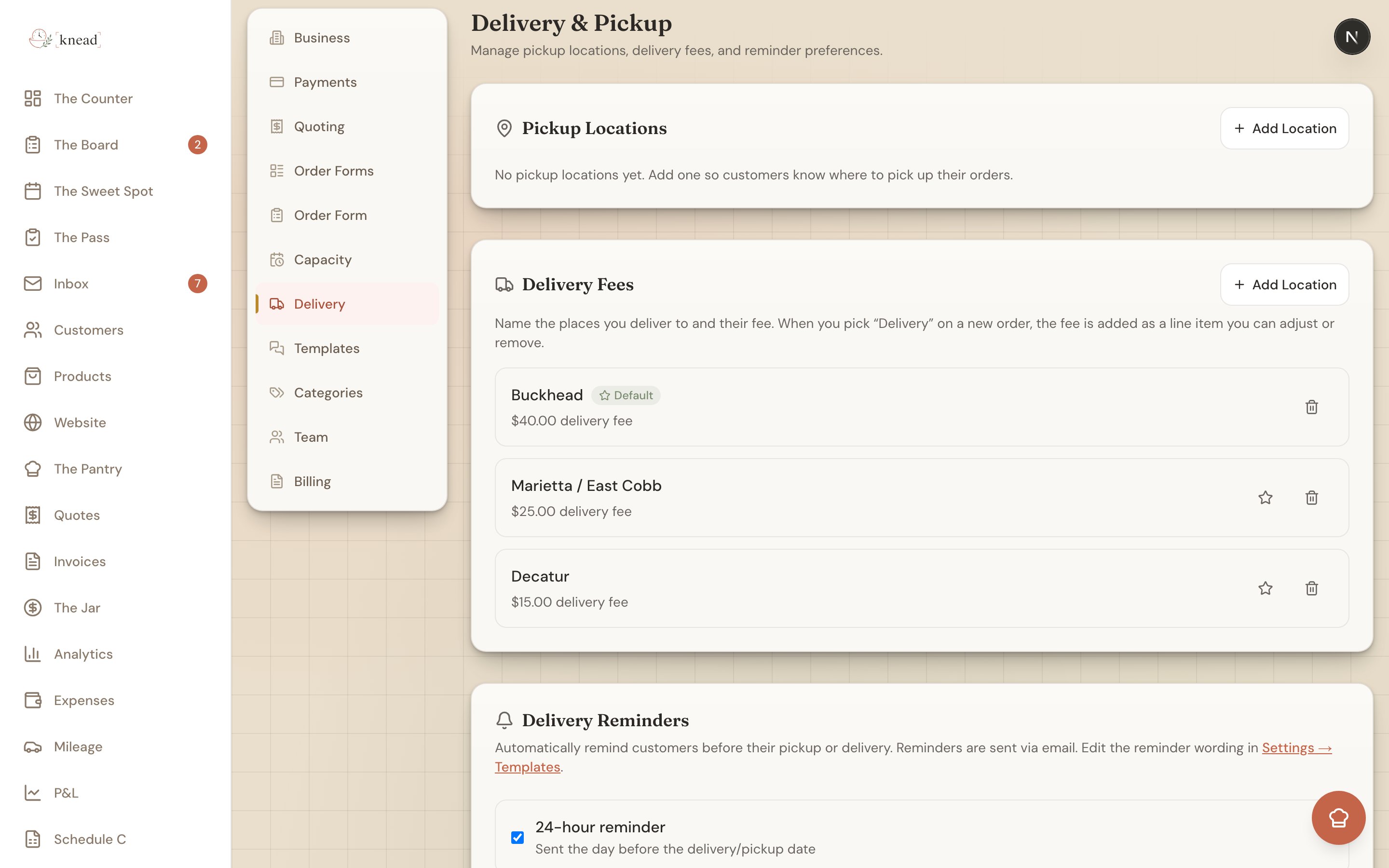
If you charge different amounts to deliver to different neighborhoods, Knead can handle it for you. Set up named delivery areas — each with its own fee — and when you mark an order for delivery, Knead adds the right charge automatically as an editable line item. No more looking up your rate for Buckhead versus Decatur every time.
 ## Setting Up Your Delivery Areas
1. Tap **Settings** in the main navigation.
2. Tap **Delivery**.
3. Scroll to the **Delivery Fees** section.
4. Add a delivery area: give it a **name** (for example, "Buckhead") and a **fee** (for example, \$40).
5. Repeat for each area you serve — "Decatur — \$15", "Midtown — \$25", and so on.
You can add as many areas as you need, and edit or remove them any time.
### Setting a default area
Tap the **star icon** next to the area you deliver to most often to mark it as your **Default**. That area's fee is pre-selected when you create a delivery order, and you can change it per order.
Pro tip: Name your areas the way you think about them — neighborhoods, zip codes, or distance bands like "Within 5 miles" and "5–15 miles." Clear names make picking the right one on an order effortless.
## How the Fee Gets Added to an Order
The fees apply automatically when you build a delivery order.
1. Create or open an order.
2. Set the fulfillment type to **Delivery**. A **Delivery location** dropdown appears.
3. Choose the delivery area. Knead adds that area's fee as an editable **"Delivery — {name}"** line item — for example, **"Delivery — Buckhead"** at \$40.
You stay in control of the charge:
* **Edit the amount** right on the line item if a particular trip is different.
* Choose **No delivery fee** from the dropdown to remove the charge entirely (great for a free-delivery promotion or a nearby regular).
Good to know: The delivery fee is a normal line item, so it shows on the quote and invoice and is included in the order total the customer pays.
## Related Articles
* [Managing Pickup Locations](/integrations-and-setup/pickup-locations)
* [Delivery and Pickup Coordination](/production/delivery-and-pickup-coordination)
* [Creating Orders Manually](/managing-orders/creating-orders-manually)
* [Editing Order Line Items](/managing-orders/editing-order-line-items)
***
*Still need help? [Contact us](mailto:hello@kneadapp.co)*
## Setting Up Your Delivery Areas
1. Tap **Settings** in the main navigation.
2. Tap **Delivery**.
3. Scroll to the **Delivery Fees** section.
4. Add a delivery area: give it a **name** (for example, "Buckhead") and a **fee** (for example, \$40).
5. Repeat for each area you serve — "Decatur — \$15", "Midtown — \$25", and so on.
You can add as many areas as you need, and edit or remove them any time.
### Setting a default area
Tap the **star icon** next to the area you deliver to most often to mark it as your **Default**. That area's fee is pre-selected when you create a delivery order, and you can change it per order.
Pro tip: Name your areas the way you think about them — neighborhoods, zip codes, or distance bands like "Within 5 miles" and "5–15 miles." Clear names make picking the right one on an order effortless.
## How the Fee Gets Added to an Order
The fees apply automatically when you build a delivery order.
1. Create or open an order.
2. Set the fulfillment type to **Delivery**. A **Delivery location** dropdown appears.
3. Choose the delivery area. Knead adds that area's fee as an editable **"Delivery — {name}"** line item — for example, **"Delivery — Buckhead"** at \$40.
You stay in control of the charge:
* **Edit the amount** right on the line item if a particular trip is different.
* Choose **No delivery fee** from the dropdown to remove the charge entirely (great for a free-delivery promotion or a nearby regular).
Good to know: The delivery fee is a normal line item, so it shows on the quote and invoice and is included in the order total the customer pays.
## Related Articles
* [Managing Pickup Locations](/integrations-and-setup/pickup-locations)
* [Delivery and Pickup Coordination](/production/delivery-and-pickup-coordination)
* [Creating Orders Manually](/managing-orders/creating-orders-manually)
* [Editing Order Line Items](/managing-orders/editing-order-line-items)
***
*Still need help? [Contact us](mailto:hello@kneadapp.co)*