> ## Documentation Index
> Fetch the complete documentation index at: https://help.kneadapp.co/llms.txt
> Use this file to discover all available pages before exploring further.
# Importing Clients — Bulk Import from CSV or QuickBooks
> Import your client list from a spreadsheet or QuickBooks Online.
## Overview
If you already have a client list in a spreadsheet or QuickBooks Online, you can import them into Knead in bulk instead of adding them one by one. The import tool maps your data to Knead's client fields and lets you review everything before saving.
## Importing from a Spreadsheet
Knead accepts `.csv` and `.xlsx` files for bulk client import.
### Preparing Your File
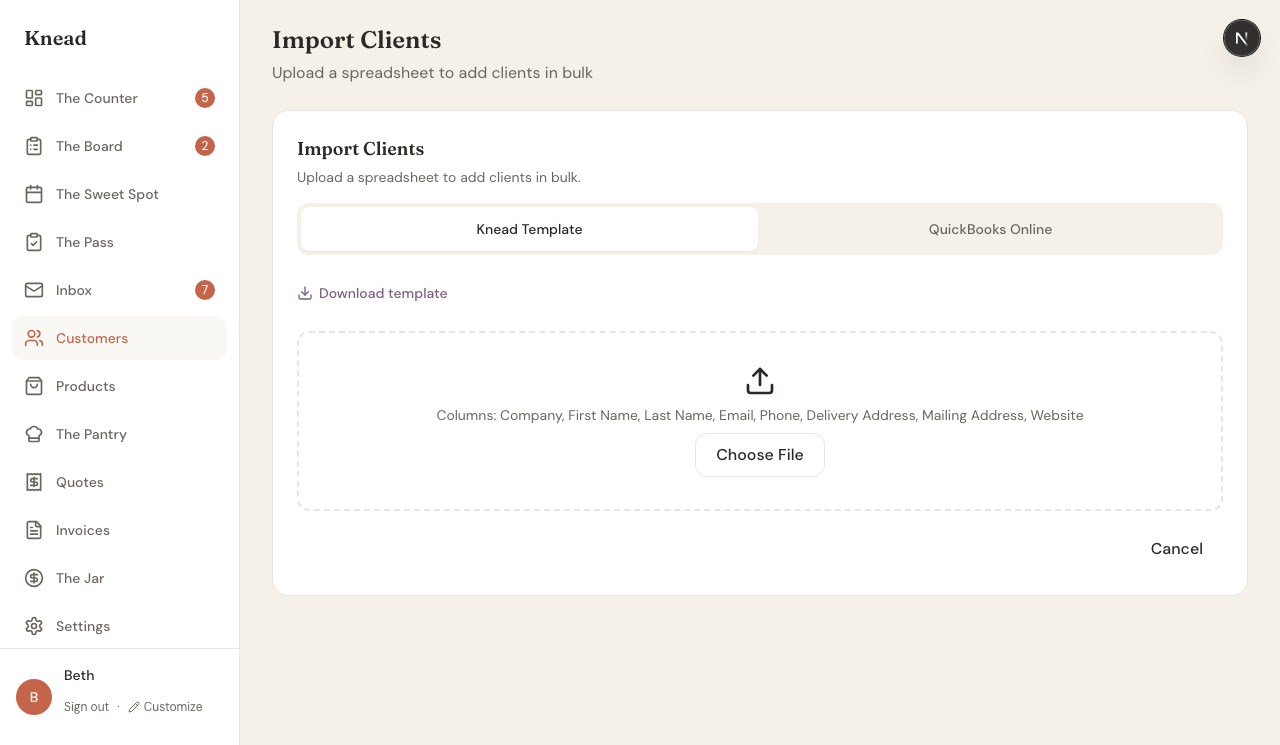
Your spreadsheet should include columns for client information. Knead recognizes these columns:
| Column | Required? | Notes |
| -------------------- | --------- | -------------------------------------------------------- |
| **First Name** | Yes | Client's first name |
| **Last Name** | Yes | Client's last name |
| **Email** | No | Used for invoices and notifications |
| **Phone** | No | Phone number |
| **Company** | No | Links client to an existing company or creates a new one |
| **Delivery Address** | No | Full delivery address |
| **Mailing Address** | No | Mailing address if different from delivery |
| **Website** | No | Client's website URL |
Pro tip: Tap **Download template** on the import page to get a pre-formatted spreadsheet with the exact column headers Knead expects.
### Uploading and Reviewing
1. Tap **Customers** in the sidebar.
2. Tap **Import Clients** (or navigate to the import page from your client list).
3. Make sure the **Knead Template** tab is selected.
4. Tap **Choose File** and select your `.csv` or `.xlsx` file.
 5. Knead parses your file and shows a review list of all clients found. Each card shows the client's name, email, and any other fields from your file.
6. Review the list. Clients with incomplete or invalid data (for example, missing addresses) are flagged so you can fix them before importing.
7. Tap **Import** to save all clients to your Knead account.
Good to know: Knead skips rows with incomplete addresses to prevent validation errors. You can add addresses manually after import.
## Importing from QuickBooks Online
If you use QuickBooks Online, you can import your customer list directly without exporting a spreadsheet first.
1. On the Import Clients page, tap the **QuickBooks Online** tab.
2. Sign in to your QuickBooks account when prompted.
3. Knead pulls your customer list from QuickBooks.
4. Review the imported clients and tap **Import**.
Client names, emails, phone numbers, and addresses are mapped automatically from your QuickBooks data.
## After Importing
Imported clients appear in your client list immediately. From there you can:
* Add [tags](/customers/client-tags) to organize them.
* Add [allergy notes](/customers/client-notes-and-allergy-tracking) for clients with dietary restrictions.
* Link clients to [companies](/customers/company-and-corporate-clients) if they belong to a business.
* Mark frequent buyers as [priority customers](/customers/priority-customers).
## Related Articles
* [Your Client List](/customers/your-client-list)
* [Company and Corporate Clients](/customers/company-and-corporate-clients)
* [Client Tags](/customers/client-tags)
* [Client Notes and Allergy Tracking](/customers/client-notes-and-allergy-tracking)
***
*Still need help? [Contact us](mailto:hello@kneadapp.co)*
5. Knead parses your file and shows a review list of all clients found. Each card shows the client's name, email, and any other fields from your file.
6. Review the list. Clients with incomplete or invalid data (for example, missing addresses) are flagged so you can fix them before importing.
7. Tap **Import** to save all clients to your Knead account.
Good to know: Knead skips rows with incomplete addresses to prevent validation errors. You can add addresses manually after import.
## Importing from QuickBooks Online
If you use QuickBooks Online, you can import your customer list directly without exporting a spreadsheet first.
1. On the Import Clients page, tap the **QuickBooks Online** tab.
2. Sign in to your QuickBooks account when prompted.
3. Knead pulls your customer list from QuickBooks.
4. Review the imported clients and tap **Import**.
Client names, emails, phone numbers, and addresses are mapped automatically from your QuickBooks data.
## After Importing
Imported clients appear in your client list immediately. From there you can:
* Add [tags](/customers/client-tags) to organize them.
* Add [allergy notes](/customers/client-notes-and-allergy-tracking) for clients with dietary restrictions.
* Link clients to [companies](/customers/company-and-corporate-clients) if they belong to a business.
* Mark frequent buyers as [priority customers](/customers/priority-customers).
## Related Articles
* [Your Client List](/customers/your-client-list)
* [Company and Corporate Clients](/customers/company-and-corporate-clients)
* [Client Tags](/customers/client-tags)
* [Client Notes and Allergy Tracking](/customers/client-notes-and-allergy-tracking)
***
*Still need help? [Contact us](mailto:hello@kneadapp.co)*