> ## Documentation Index
> Fetch the complete documentation index at: https://help.kneadapp.co/llms.txt
> Use this file to discover all available pages before exploring further.
# Setting Up Your Inbox — Customer Communication Hub
> Your Knead inbox is ready to go the moment you sign up. Here's how to start receiving customer messages and make the most of it.
## Overview
Every Knead business gets a dedicated inbox email address — ready to use the moment you create your account. No DNS records, no configuration, no waiting. Customers email you, messages appear in Knead, and you reply without leaving the app.
## Your Inbox Email Address
Your inbox address follows a simple pattern:
```
{your-slug}@inbox.kneadapp.co
```
Your **slug** is the short URL identifier for your business. You can find it in **Settings > Business Profile**. Some examples:
| Business Name | Slug | Inbox Address |
| ----------------------- | ----------------- | ----------------------------------------------------------------------------- |
| Jimmy's Donuts | `jimmy-donuts` | [jimmy-donuts@inbox.kneadapp.co](mailto:jimmy-donuts@inbox.kneadapp.co) |
| Southern Peach Pastries | `spp` | [spp@inbox.kneadapp.co](mailto:spp@inbox.kneadapp.co) |
| Sweet Rose Bakery | `sweet-rose` | [sweet-rose@inbox.kneadapp.co](mailto:sweet-rose@inbox.kneadapp.co) |
| Maria's Catering Co | `marias-catering` | [marias-catering@inbox.kneadapp.co](mailto:marias-catering@inbox.kneadapp.co) |
Your inbox address is live as soon as your account is created. There's nothing to enable — just start sharing it.
## What It Looks Like Before Your First Message
When you first open the Inbox, you'll see an empty state showing your email address with a green **Ready** badge. This confirms your inbox is active and waiting for messages.
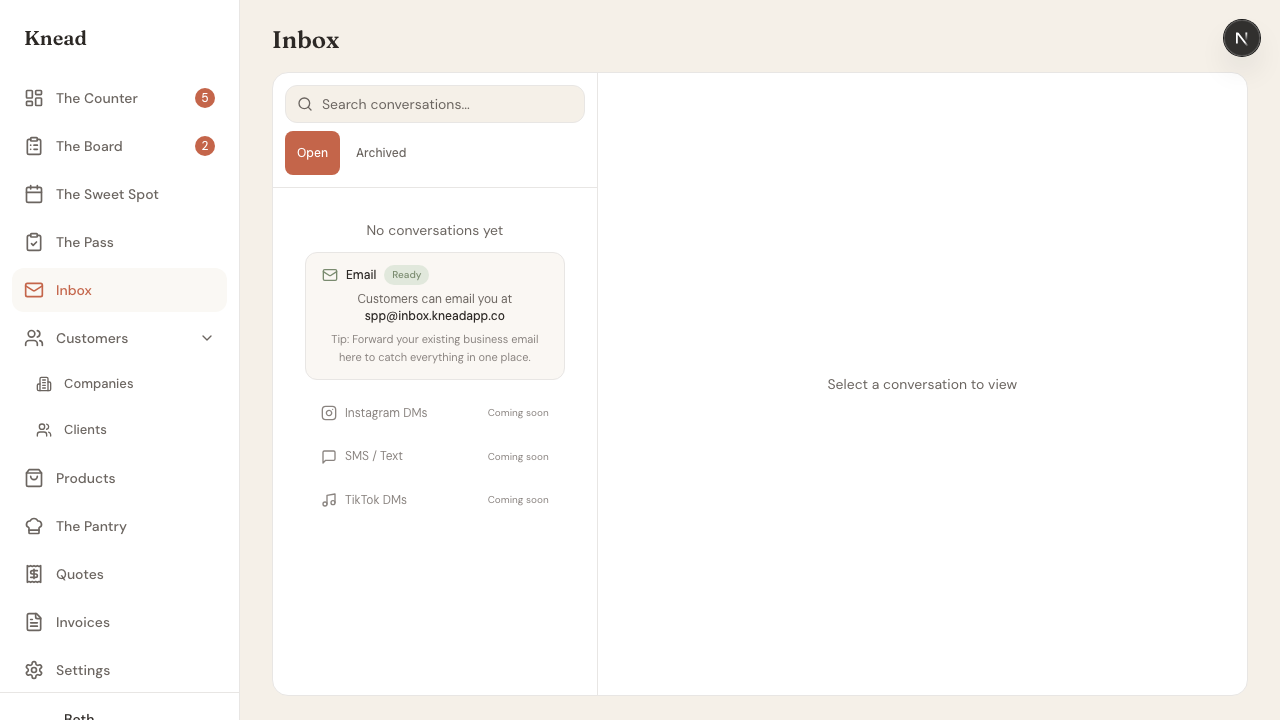 The empty state also shows upcoming channels (Instagram DMs, SMS, TikTok) that will be available in the future.
## Three Ways to Start Receiving Messages
### 1. Share your inbox address directly
The simplest way: give customers your inbox email address. Put it on your website, social media bio, business cards, or order confirmation emails.
> "Questions about your order? Email us at **[jimmy-donuts@inbox.kneadapp.co](mailto:jimmy-donuts@inbox.kneadapp.co)**"
When a customer sends an email to that address, it lands in your Knead inbox. You reply from Knead, and your response arrives in their regular email.
### 2. Forward your existing business email
Already have a business email like `orders@jimmysdonuts.com`? Set up email forwarding so messages sent to your existing address automatically land in Knead too.
**In Gmail:**
1. Go to **Settings > Forwarding and POP/IMAP**
2. Click **Add a forwarding address**
3. Enter your Knead inbox address (e.g. `jimmy-donuts@inbox.kneadapp.co`)
4. Confirm the verification email
5. Select **Forward a copy of incoming mail**
**In Outlook:**
1. Go to **Settings > Mail > Forwarding**
2. Check **Enable forwarding**
3. Enter your Knead inbox address
4. Check **Keep a copy of forwarded messages** (recommended)
**In Apple Mail / iCloud:**
1. Go to **iCloud.com > Mail > Settings**
2. Click **Forwarding**
3. Enter your Knead inbox address
[Full Apple Mail setup guide →](/communication/forwarding-from-apple-mail)
Forwarding is the best option if you already give out a business email. Customers keep emailing the address they know, and you manage everything inside Knead.
### 3. Customers reply to Knead notification emails
When Knead sends your customers emails — order confirmations, ready-for-pickup notifications, invoice receipts — those emails come from your inbox address. If a customer hits reply, their message lands in your Knead inbox automatically.
This means you don't need to do anything extra. As you use Knead to send invoices and order updates, your inbox starts filling with customer replies naturally.
## What Happens When a Message Arrives
When someone emails your inbox address:
1. **Knead matches the sender** — If the sender's email matches an existing client, the conversation is linked to their profile. You'll see their name, order history, and allergens right in the sidebar.
2. **New senders are saved automatically** — If the email is from someone new, Knead creates a client record using their name and email from the message.
3. **Messages are threaded** — Multiple emails from the same client about the same topic are grouped into a single conversation thread.
4. **Order intelligence runs** — Knead scans the message for order intent (dates, products, quantities) and shows you a capacity verdict. [Learn more about Order Intelligence](/communication/order-intent-detection).
## Once Messages Start Flowing
After your first few conversations arrive, your inbox looks like this — conversations sorted by most recent, with unread badges, client names, and message previews:
The empty state also shows upcoming channels (Instagram DMs, SMS, TikTok) that will be available in the future.
## Three Ways to Start Receiving Messages
### 1. Share your inbox address directly
The simplest way: give customers your inbox email address. Put it on your website, social media bio, business cards, or order confirmation emails.
> "Questions about your order? Email us at **[jimmy-donuts@inbox.kneadapp.co](mailto:jimmy-donuts@inbox.kneadapp.co)**"
When a customer sends an email to that address, it lands in your Knead inbox. You reply from Knead, and your response arrives in their regular email.
### 2. Forward your existing business email
Already have a business email like `orders@jimmysdonuts.com`? Set up email forwarding so messages sent to your existing address automatically land in Knead too.
**In Gmail:**
1. Go to **Settings > Forwarding and POP/IMAP**
2. Click **Add a forwarding address**
3. Enter your Knead inbox address (e.g. `jimmy-donuts@inbox.kneadapp.co`)
4. Confirm the verification email
5. Select **Forward a copy of incoming mail**
**In Outlook:**
1. Go to **Settings > Mail > Forwarding**
2. Check **Enable forwarding**
3. Enter your Knead inbox address
4. Check **Keep a copy of forwarded messages** (recommended)
**In Apple Mail / iCloud:**
1. Go to **iCloud.com > Mail > Settings**
2. Click **Forwarding**
3. Enter your Knead inbox address
[Full Apple Mail setup guide →](/communication/forwarding-from-apple-mail)
Forwarding is the best option if you already give out a business email. Customers keep emailing the address they know, and you manage everything inside Knead.
### 3. Customers reply to Knead notification emails
When Knead sends your customers emails — order confirmations, ready-for-pickup notifications, invoice receipts — those emails come from your inbox address. If a customer hits reply, their message lands in your Knead inbox automatically.
This means you don't need to do anything extra. As you use Knead to send invoices and order updates, your inbox starts filling with customer replies naturally.
## What Happens When a Message Arrives
When someone emails your inbox address:
1. **Knead matches the sender** — If the sender's email matches an existing client, the conversation is linked to their profile. You'll see their name, order history, and allergens right in the sidebar.
2. **New senders are saved automatically** — If the email is from someone new, Knead creates a client record using their name and email from the message.
3. **Messages are threaded** — Multiple emails from the same client about the same topic are grouped into a single conversation thread.
4. **Order intelligence runs** — Knead scans the message for order intent (dates, products, quantities) and shows you a capacity verdict. [Learn more about Order Intelligence](/communication/order-intent-detection).
## Once Messages Start Flowing
After your first few conversations arrive, your inbox looks like this — conversations sorted by most recent, with unread badges, client names, and message previews:
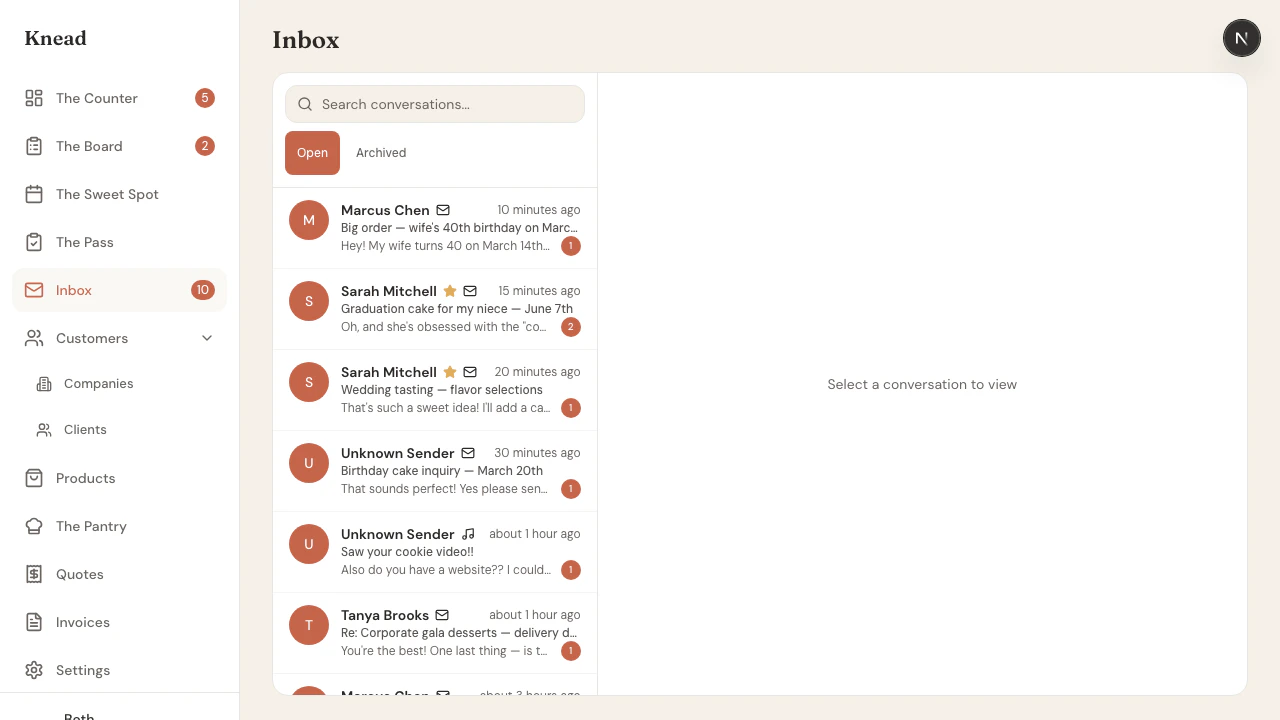 Each conversation shows:
* **Client name** and avatar
* **Channel icon** (email, Instagram, etc.)
* **Subject line** and message preview
* **Unread count** badge
* **Priority star** for VIP clients
* **Timestamp** of the last message
## Folders and Search
Your inbox is split into folders so customer questions never get buried under newsletters and receipts. Tabs across the top let you switch between:
* **Primary** — real conversations with customers and leads. This is where order questions and enquiries land, and it carries the unread count.
* **Promotions** — marketing and promotional email.
* **Updates** — automated notifications and receipts.
* **Archived** — conversations you've cleared out of Primary but want to keep.
A **Search conversations** bar sits above the folders so you can jump to a client or topic by name.
Each conversation shows:
* **Client name** and avatar
* **Channel icon** (email, Instagram, etc.)
* **Subject line** and message preview
* **Unread count** badge
* **Priority star** for VIP clients
* **Timestamp** of the last message
## Folders and Search
Your inbox is split into folders so customer questions never get buried under newsletters and receipts. Tabs across the top let you switch between:
* **Primary** — real conversations with customers and leads. This is where order questions and enquiries land, and it carries the unread count.
* **Promotions** — marketing and promotional email.
* **Updates** — automated notifications and receipts.
* **Archived** — conversations you've cleared out of Primary but want to keep.
A **Search conversations** bar sits above the folders so you can jump to a client or topic by name.
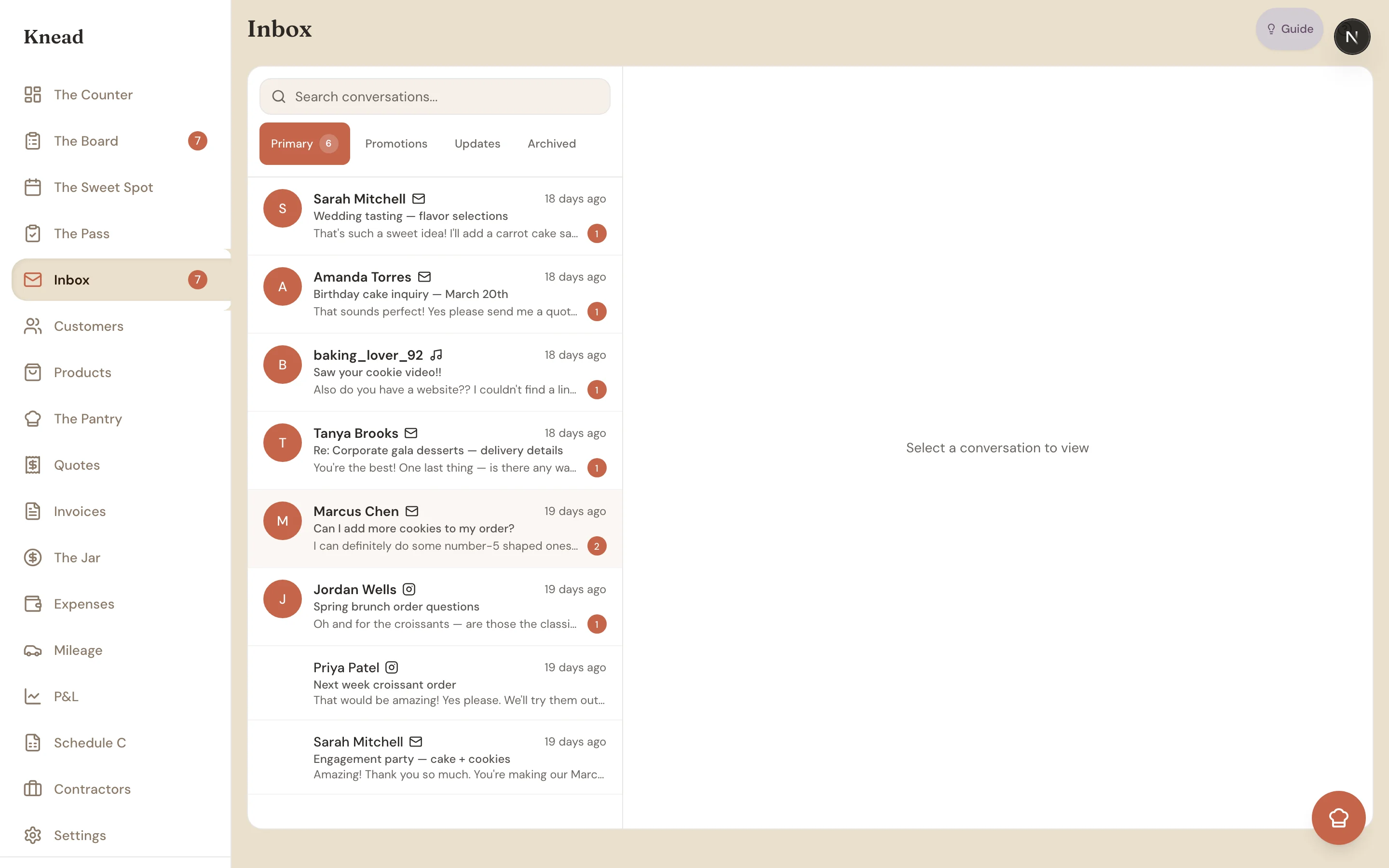 Good to know: Knead sorts incoming mail into these folders automatically. If something lands in the wrong place, you can move it — and Primary is always the folder to watch.
## Clearing out your inbox
When Primary gets busy, you don't have to open messages one at a time. Select all the conversations you're done with, then **Archive** them to tuck them into the Archived folder, or **Mark read** to clear the unread badges. Archiving also clears anything unread — so a quick select-all-and-archive is the fastest way back to a clean, zero-unread Primary.
## Training the Promotions filter
Knead sorts marketing email into **Promotions** so it never buries a real customer. It isn't always perfect, and you can teach it:
* Something in Promotions that isn't marketing? Mark it **Not promotional** to move it back to Primary.
* A newsletter slipping into Primary? Choose **Move to Promotions**.
* Done with a sender for good? **Block** them, and Knead auto-archives their mail from then on.
Every correction sharpens where future mail from that sender lands.
## Start an order from a conversation
When a message is clearly an order, you don't have to retype anything. Start a new order right from the conversation and Knead pre-fills the **date, products, and quantity** it detected — and keeps the **original email** attached to the new-order form, so the customer's exact words stay in front of you as you build the order. [Learn more about linking conversations to orders](/communication/linking-conversations-to-orders).
## Tips for Getting Started
* **Add your inbox address to your website and social media.** The more places customers see it, the faster your inbox fills up.
* **Set up email forwarding early.** If you already have a business email, forwarding takes 2 minutes and means you never miss a message.
* **Reply from Knead, not from your personal email.** Keeping conversations in Knead means order history, client notes, and allergen flags are always visible.
* **Set up [quick replies](/communication/canned-responses)** for replies you send often — pricing inquiries, availability questions, pickup instructions.
## Related Articles
* [Order Intelligence](/communication/order-intent-detection)
* [Quick Replies](/communication/canned-responses)
* [Message Templates](/communication/message-templates)
* [Linking Conversations to Orders](/communication/linking-conversations-to-orders)
* [Connecting Gmail](/communication/connecting-gmail)
* [Setting Up Email Forwarding](/integrations-and-setup/setting-up-email-forwarding)
* [Forwarding from Apple Mail](/communication/forwarding-from-apple-mail)
***
*Still need help? [Contact us](mailto:hello@kneadapp.co)*
Good to know: Knead sorts incoming mail into these folders automatically. If something lands in the wrong place, you can move it — and Primary is always the folder to watch.
## Clearing out your inbox
When Primary gets busy, you don't have to open messages one at a time. Select all the conversations you're done with, then **Archive** them to tuck them into the Archived folder, or **Mark read** to clear the unread badges. Archiving also clears anything unread — so a quick select-all-and-archive is the fastest way back to a clean, zero-unread Primary.
## Training the Promotions filter
Knead sorts marketing email into **Promotions** so it never buries a real customer. It isn't always perfect, and you can teach it:
* Something in Promotions that isn't marketing? Mark it **Not promotional** to move it back to Primary.
* A newsletter slipping into Primary? Choose **Move to Promotions**.
* Done with a sender for good? **Block** them, and Knead auto-archives their mail from then on.
Every correction sharpens where future mail from that sender lands.
## Start an order from a conversation
When a message is clearly an order, you don't have to retype anything. Start a new order right from the conversation and Knead pre-fills the **date, products, and quantity** it detected — and keeps the **original email** attached to the new-order form, so the customer's exact words stay in front of you as you build the order. [Learn more about linking conversations to orders](/communication/linking-conversations-to-orders).
## Tips for Getting Started
* **Add your inbox address to your website and social media.** The more places customers see it, the faster your inbox fills up.
* **Set up email forwarding early.** If you already have a business email, forwarding takes 2 minutes and means you never miss a message.
* **Reply from Knead, not from your personal email.** Keeping conversations in Knead means order history, client notes, and allergen flags are always visible.
* **Set up [quick replies](/communication/canned-responses)** for replies you send often — pricing inquiries, availability questions, pickup instructions.
## Related Articles
* [Order Intelligence](/communication/order-intent-detection)
* [Quick Replies](/communication/canned-responses)
* [Message Templates](/communication/message-templates)
* [Linking Conversations to Orders](/communication/linking-conversations-to-orders)
* [Connecting Gmail](/communication/connecting-gmail)
* [Setting Up Email Forwarding](/integrations-and-setup/setting-up-email-forwarding)
* [Forwarding from Apple Mail](/communication/forwarding-from-apple-mail)
***
*Still need help? [Contact us](mailto:hello@kneadapp.co)*