> ## Documentation Index
> Fetch the complete documentation index at: https://help.kneadapp.co/llms.txt
> Use this file to discover all available pages before exploring further.
# Message Templates — Customize Every Email Knead Sends
> Edit the wording of every customer email, save reusable quick replies, and turn on review requests — all from Settings → Templates in Knead.
## Overview
Knead sends your customers a lot of emails on your behalf — an inquiry acknowledgement, a quote, an invoice, a payment receipt, a delivery reminder, and more. Every one of them is yours to edit. The **Templates** editor is where you set the wording, tone, and subject line for each of those moments, save the quick replies you type over and over, and switch on an automatic review request after delivery.
Everything here is available on every plan. There's nothing to unlock.
 ## Where to find your templates
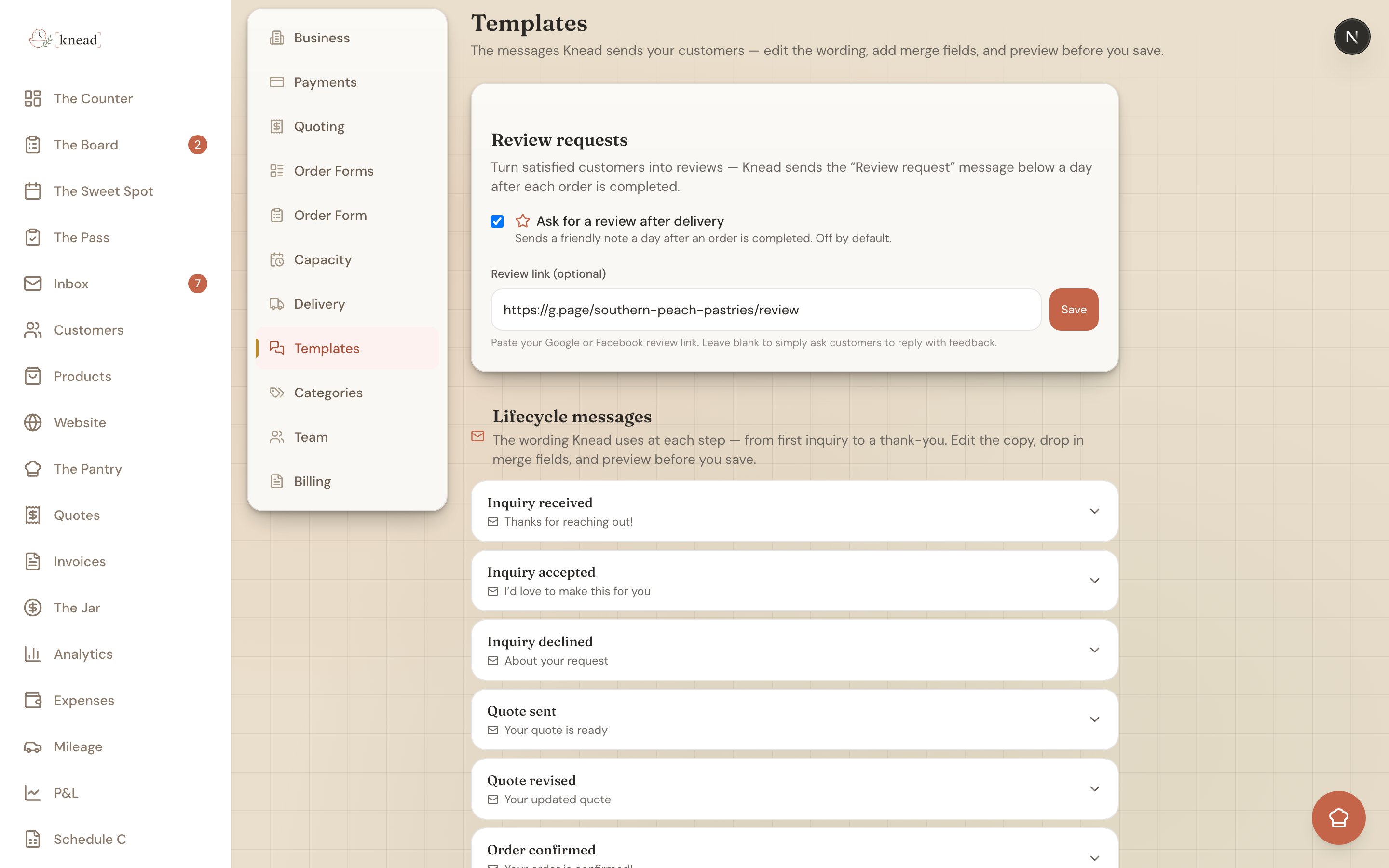
Go to **Settings → Templates** (`/settings/templates`). The page has three parts:
1. **Lifecycle messages** — the 15 emails Knead can send at key moments in an order.
2. **Quick replies** — reusable snippets you insert into inbox replies.
3. **Review requests** — an automatic "how did we do?" email after an order is completed.
Good to know: if you're an old hand and you go looking for the Canned Responses page, it now lives right here — it redirects to Templates.
## Lifecycle messages
Each customer moment gets its own card. Click one to expand it, and you'll see an editable **email subject**, an editable **message body**, a set of **merge-field chips** you can drop into the text, and a live **preview** rendered with sample data so you can see exactly what your customer will get.
## Where to find your templates
Go to **Settings → Templates** (`/settings/templates`). The page has three parts:
1. **Lifecycle messages** — the 15 emails Knead can send at key moments in an order.
2. **Quick replies** — reusable snippets you insert into inbox replies.
3. **Review requests** — an automatic "how did we do?" email after an order is completed.
Good to know: if you're an old hand and you go looking for the Canned Responses page, it now lives right here — it redirects to Templates.
## Lifecycle messages
Each customer moment gets its own card. Click one to expand it, and you'll see an editable **email subject**, an editable **message body**, a set of **merge-field chips** you can drop into the text, and a live **preview** rendered with sample data so you can see exactly what your customer will get.
 ### Editing a message
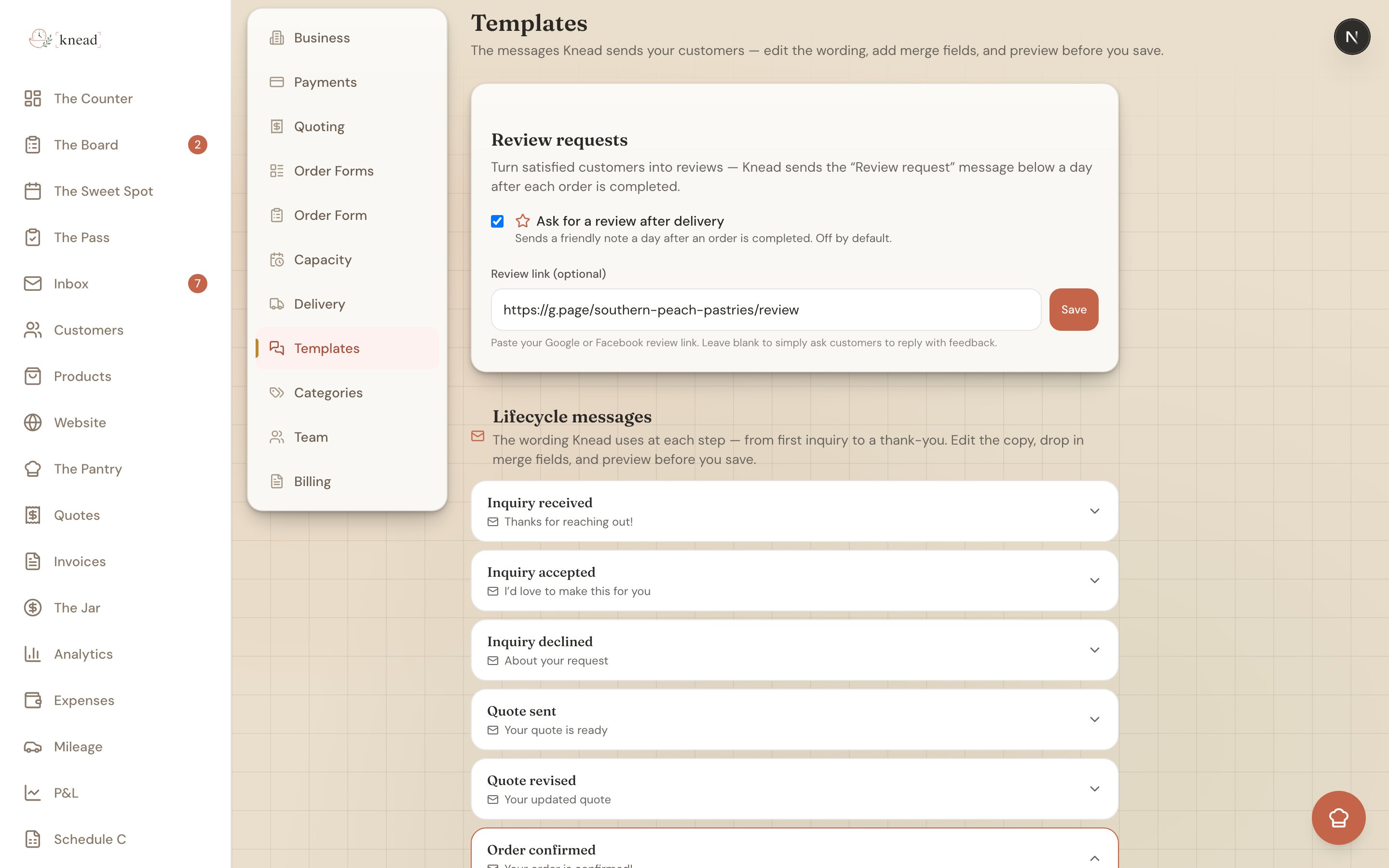
1. Go to **Settings → Templates**.
2. Click the card for the moment you want to change (for example, **Order confirmed**).
3. Edit the **Subject** and **Message** to sound like you.
4. Drop in a **merge field** wherever you want Knead to fill in a detail — click a chip like `{{customer_name}}` and it's inserted at your cursor.
5. Check the **Preview** to see the finished email with sample data filled in.
6. Click **Save**.
That's it — the next time that moment happens, your customer gets your wording.
Pro tip: write these the way you'd actually talk to a customer at pickup. A warm "Can't wait for you to try these!" beats a stiff "Your order has been confirmed" every time.
### The 15 moments Knead can send
| Moment | When it fires |
| ---------------------------- | ----------------------------------------- |
| Inquiry received | A customer submits your order form |
| Inquiry accepted | You accept an inquiry |
| Inquiry declined | You decline an inquiry |
| Quote sent | You send a quote |
| Quote revised | You send a new version of a quote |
| Order confirmed | An order is confirmed |
| Order declined | You decline an order request |
| Order ready | You mark an order ready |
| Delivery reminder (24 hours) | The day before fulfillment |
| Delivery reminder (1 hour) | Shortly before fulfillment |
| Missed pickup | A pickup window passes without collection |
| Invoice sent | You send an invoice |
| Payment reminder | A balance is still outstanding |
| Payment received | A customer pays |
| Review request | \~24 hours after an order is completed |
### Merge fields
Merge fields are placeholders Knead swaps for real details when it sends the email. Click a chip to insert one:
| Field | Fills in with |
| --------------------- | ------------------------------------ |
| `{{customer_name}}` | The customer's name |
| `{{business_name}}` | Your bakery's name |
| `{{order_number}}` | The order number |
| `{{quote_number}}` | The quote number |
| `{{quote_total}}` | The quote total (e.g. \$185.00) |
| `{{invoice_number}}` | The invoice number |
| `{{balance_due}}` | The amount still owed (e.g. \$92.50) |
| `{{delivery_date}}` | The fulfillment date |
| `{{pickup_location}}` | The pickup address |
If a field has nothing to fill in — say you use `{{quote_number}}` in a message that isn't about a quote — it simply renders blank. Your customer never sees a raw `{{token}}`.
### Turning an email off
Every lifecycle message has an email **Subject**. If you clear that subject and leave it blank, Knead treats the message as **"Inbox only — no email."** Knead won't send an email for that moment; instead the wording is used as a short snippet inside your inbox. This is handy when you'd rather handle a moment personally than have an automatic email go out.
### Preview and reset
The **Preview** panel updates as you type, showing your subject and body with realistic sample data so there are no surprises. Changed your mind about an edit? Click **Reset to default** on any card to restore Knead's original wording for that message.
## Quick replies
Quick replies are the reusable snippets you insert into inbox replies with one tap — the fast way to answer questions you get all the time. Four come built in: **Thank you**, **Deposit reminder**, **Fully booked**, and **Need a little more info**. You can edit those, delete them, or add your own right here in the Templates editor.
When you insert a quick reply from the inbox, Knead fills in the merge fields for that specific conversation, so a snippet with `{{customer_name}}` arrives already personalized.
For the full walkthrough, see [Quick Replies](/communication/canned-responses).
## Review requests
At the bottom of the Templates page is the **Review requests** card. Turn on **"Ask for a review after delivery"** (it's off by default) and Knead will email each customer about 24 hours after you mark their order completed, asking how everything turned out. It sends once per order.
### Editing a message
1. Go to **Settings → Templates**.
2. Click the card for the moment you want to change (for example, **Order confirmed**).
3. Edit the **Subject** and **Message** to sound like you.
4. Drop in a **merge field** wherever you want Knead to fill in a detail — click a chip like `{{customer_name}}` and it's inserted at your cursor.
5. Check the **Preview** to see the finished email with sample data filled in.
6. Click **Save**.
That's it — the next time that moment happens, your customer gets your wording.
Pro tip: write these the way you'd actually talk to a customer at pickup. A warm "Can't wait for you to try these!" beats a stiff "Your order has been confirmed" every time.
### The 15 moments Knead can send
| Moment | When it fires |
| ---------------------------- | ----------------------------------------- |
| Inquiry received | A customer submits your order form |
| Inquiry accepted | You accept an inquiry |
| Inquiry declined | You decline an inquiry |
| Quote sent | You send a quote |
| Quote revised | You send a new version of a quote |
| Order confirmed | An order is confirmed |
| Order declined | You decline an order request |
| Order ready | You mark an order ready |
| Delivery reminder (24 hours) | The day before fulfillment |
| Delivery reminder (1 hour) | Shortly before fulfillment |
| Missed pickup | A pickup window passes without collection |
| Invoice sent | You send an invoice |
| Payment reminder | A balance is still outstanding |
| Payment received | A customer pays |
| Review request | \~24 hours after an order is completed |
### Merge fields
Merge fields are placeholders Knead swaps for real details when it sends the email. Click a chip to insert one:
| Field | Fills in with |
| --------------------- | ------------------------------------ |
| `{{customer_name}}` | The customer's name |
| `{{business_name}}` | Your bakery's name |
| `{{order_number}}` | The order number |
| `{{quote_number}}` | The quote number |
| `{{quote_total}}` | The quote total (e.g. \$185.00) |
| `{{invoice_number}}` | The invoice number |
| `{{balance_due}}` | The amount still owed (e.g. \$92.50) |
| `{{delivery_date}}` | The fulfillment date |
| `{{pickup_location}}` | The pickup address |
If a field has nothing to fill in — say you use `{{quote_number}}` in a message that isn't about a quote — it simply renders blank. Your customer never sees a raw `{{token}}`.
### Turning an email off
Every lifecycle message has an email **Subject**. If you clear that subject and leave it blank, Knead treats the message as **"Inbox only — no email."** Knead won't send an email for that moment; instead the wording is used as a short snippet inside your inbox. This is handy when you'd rather handle a moment personally than have an automatic email go out.
### Preview and reset
The **Preview** panel updates as you type, showing your subject and body with realistic sample data so there are no surprises. Changed your mind about an edit? Click **Reset to default** on any card to restore Knead's original wording for that message.
## Quick replies
Quick replies are the reusable snippets you insert into inbox replies with one tap — the fast way to answer questions you get all the time. Four come built in: **Thank you**, **Deposit reminder**, **Fully booked**, and **Need a little more info**. You can edit those, delete them, or add your own right here in the Templates editor.
When you insert a quick reply from the inbox, Knead fills in the merge fields for that specific conversation, so a snippet with `{{customer_name}}` arrives already personalized.
For the full walkthrough, see [Quick Replies](/communication/canned-responses).
## Review requests
At the bottom of the Templates page is the **Review requests** card. Turn on **"Ask for a review after delivery"** (it's off by default) and Knead will email each customer about 24 hours after you mark their order completed, asking how everything turned out. It sends once per order.
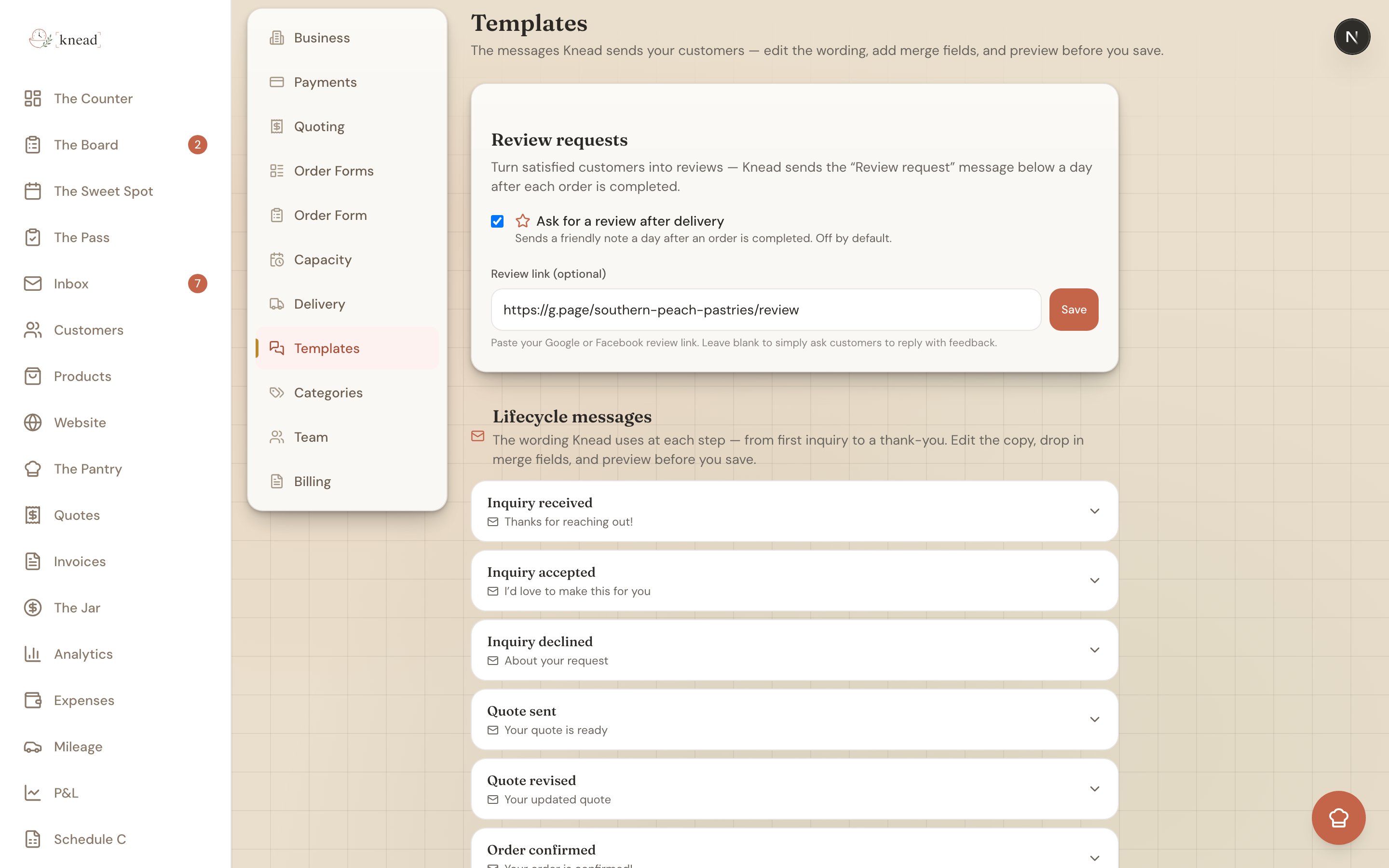 If you paste a **Review link** — your Google, Facebook, or other review page — the email includes a **Leave a review** button that takes the customer straight there. Leave the link blank and the email simply asks them to reply with their feedback, which lands right back in your inbox.
Pro tip: your Google Business Profile review link is the highest-value one to paste here. A steady trickle of fresh reviews is what pushes a home bakery up local search results.
## How your templates show up around Knead
The wording you set here follows you everywhere Knead talks to a customer:
* **In the inbox reply bar**, a template picker lists your quick replies first, then your lifecycle messages, and fills in the merge fields for whichever conversation you're in.
* **When you accept or decline an inquiry**, Knead drafts the email from your template so you can tweak and send — see [Inquiry Emails](/communication/inquiry-emails).
* **When you revise a quote or send an invoice**, the assisted email panels start from your saved wording.
Set your templates once, and every one of these gets easier.
## Related Articles
* [Quick Replies](/communication/canned-responses)
* [Inquiry Emails](/communication/inquiry-emails)
* [Customer Notification Emails](/communication/customer-notification-emails)
* [Setting Up Your Inbox](/communication/setting-up-your-inbox)
* [Revising and Versioning Quotes](/quotes/revising-and-versioning-quotes)
***
*Still need help? [Contact us](mailto:hello@kneadapp.co)*
If you paste a **Review link** — your Google, Facebook, or other review page — the email includes a **Leave a review** button that takes the customer straight there. Leave the link blank and the email simply asks them to reply with their feedback, which lands right back in your inbox.
Pro tip: your Google Business Profile review link is the highest-value one to paste here. A steady trickle of fresh reviews is what pushes a home bakery up local search results.
## How your templates show up around Knead
The wording you set here follows you everywhere Knead talks to a customer:
* **In the inbox reply bar**, a template picker lists your quick replies first, then your lifecycle messages, and fills in the merge fields for whichever conversation you're in.
* **When you accept or decline an inquiry**, Knead drafts the email from your template so you can tweak and send — see [Inquiry Emails](/communication/inquiry-emails).
* **When you revise a quote or send an invoice**, the assisted email panels start from your saved wording.
Set your templates once, and every one of these gets easier.
## Related Articles
* [Quick Replies](/communication/canned-responses)
* [Inquiry Emails](/communication/inquiry-emails)
* [Customer Notification Emails](/communication/customer-notification-emails)
* [Setting Up Your Inbox](/communication/setting-up-your-inbox)
* [Revising and Versioning Quotes](/quotes/revising-and-versioning-quotes)
***
*Still need help? [Contact us](mailto:hello@kneadapp.co)*