> ## Documentation Index
> Fetch the complete documentation index at: https://help.kneadapp.co/llms.txt
> Use this file to discover all available pages before exploring further.
# Blocking Off Dates and Unavailable Days
> Block days on your calendar so you keep them clear — vacations, holidays, or just a break from the oven.
## Overview
Life happens. Vacations, holidays, appointments, or a day when you just need a break from the oven. Blocking off a date in The Sweet Spot marks it as a day you're keeping clear, so it's easy to see at a glance and so Knead can warn you before an order lands on it.
 ## How to Block a Day
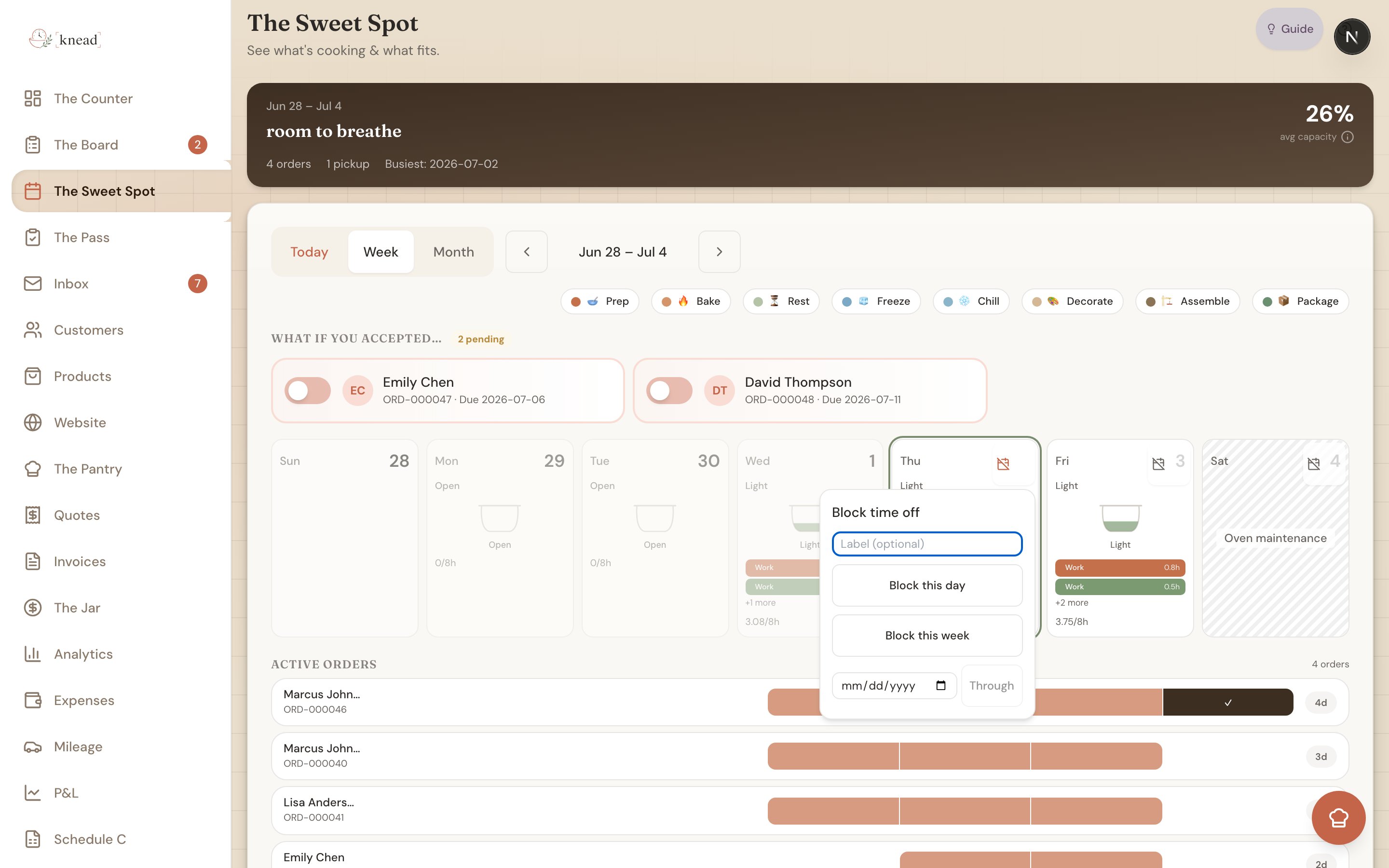
Every day card in **The Sweet Spot** has a small **calendar-with-a-slash** button in the corner. Tap it to open a **Block time off** popover:
1. Open **The Sweet Spot** and find the day you want to block.
2. Tap the **calendar-with-a-slash** corner button on that day.
3. Choose one of:
* **Block this day** — clears the single day you tapped.
* **Block this week** — clears the whole week that day sits in.
* **Through** a date you pick — blocks a range from that day through the end date you choose. Handy for a week-long vacation or a holiday closure.
4. Add an optional **label** (e.g. "Family vacation" or "Holiday"). This note is just for you.
The day is blocked right away. A blocked day shows on your calendar with its label so you can scan your week and immediately see what's off-limits.
Pro tip: Planning time away? Use **Through** and pick your return date instead of blocking each day one at a time. Add a label so future-you remembers why the week is clear.
## How to Unblock a Day
Changed your mind, or want to squeeze in a special order?
1. Open **The Sweet Spot** and find the blocked day.
2. Tap the **calendar-with-a-slash** corner button.
3. Choose **Unblock this day**.
The day returns to normal and follows your usual [working days and hours](/calendar-and-capacity/setting-your-production-hours) again.
## Managing Blocked Dates in Settings
You can also manage blocked dates in bulk from **Settings → Capacity**, under the **Blocked Dates** heading. Switch between **Single day** and **Date range**:
* **Single day** — pick a date, add an optional **Label (optional)**, and tap **Add**.
* **Date range** — set **From** and **To**, add a **Label (e.g. Vacation)**, and tap **Block {n} days**.
Every blocked date is listed as "date — label" with a **Remove** button, so this is the easy place to plan a season of closures in one sitting or tidy up blocks after your plans change.
## Blocked Dates and Existing Orders
Blocking a date is a heads-up, not a hard stop. It doesn't cancel or move orders you've already accepted for that day, and it doesn't hide the day entirely.
If you create or accept an order for a day you've blocked, Knead shows you a **blocked-date warning** with a **"Take It Anyway"** button — so you're reminded, but you're never locked out. See ["Can I Take This Order?"](/calendar-and-capacity/can-i-take-this-order) for how that warning fits alongside your capacity signals.
Before blocking a date that already has orders on it:
1. Open the day in The Sweet Spot and review what's scheduled.
2. Contact those customers to reschedule if needed.
3. Move or cancel the orders.
4. Then block the date.
Good to know: For a day you take off every single week, don't block each one. Turn that weekday off under **Working days** in [Capacity settings](/calendar-and-capacity/setting-your-production-hours) instead. Blocking is best for one-time exceptions.
## Related Articles
* [Using The Sweet Spot (Calendar & Capacity)](/calendar-and-capacity/using-the-sweet-spot)
* [Setting Your Production Hours](/calendar-and-capacity/setting-your-production-hours)
* ["Can I Take This Order?" — Checking Your Capacity](/calendar-and-capacity/can-i-take-this-order)
* [Handling Cancellations and Changes](/managing-orders/handling-cancellations-and-changes)
***
*Still need help? [Contact us](mailto:hello@kneadapp.co)*
## How to Block a Day
Every day card in **The Sweet Spot** has a small **calendar-with-a-slash** button in the corner. Tap it to open a **Block time off** popover:
1. Open **The Sweet Spot** and find the day you want to block.
2. Tap the **calendar-with-a-slash** corner button on that day.
3. Choose one of:
* **Block this day** — clears the single day you tapped.
* **Block this week** — clears the whole week that day sits in.
* **Through** a date you pick — blocks a range from that day through the end date you choose. Handy for a week-long vacation or a holiday closure.
4. Add an optional **label** (e.g. "Family vacation" or "Holiday"). This note is just for you.
The day is blocked right away. A blocked day shows on your calendar with its label so you can scan your week and immediately see what's off-limits.
Pro tip: Planning time away? Use **Through** and pick your return date instead of blocking each day one at a time. Add a label so future-you remembers why the week is clear.
## How to Unblock a Day
Changed your mind, or want to squeeze in a special order?
1. Open **The Sweet Spot** and find the blocked day.
2. Tap the **calendar-with-a-slash** corner button.
3. Choose **Unblock this day**.
The day returns to normal and follows your usual [working days and hours](/calendar-and-capacity/setting-your-production-hours) again.
## Managing Blocked Dates in Settings
You can also manage blocked dates in bulk from **Settings → Capacity**, under the **Blocked Dates** heading. Switch between **Single day** and **Date range**:
* **Single day** — pick a date, add an optional **Label (optional)**, and tap **Add**.
* **Date range** — set **From** and **To**, add a **Label (e.g. Vacation)**, and tap **Block {n} days**.
Every blocked date is listed as "date — label" with a **Remove** button, so this is the easy place to plan a season of closures in one sitting or tidy up blocks after your plans change.
## Blocked Dates and Existing Orders
Blocking a date is a heads-up, not a hard stop. It doesn't cancel or move orders you've already accepted for that day, and it doesn't hide the day entirely.
If you create or accept an order for a day you've blocked, Knead shows you a **blocked-date warning** with a **"Take It Anyway"** button — so you're reminded, but you're never locked out. See ["Can I Take This Order?"](/calendar-and-capacity/can-i-take-this-order) for how that warning fits alongside your capacity signals.
Before blocking a date that already has orders on it:
1. Open the day in The Sweet Spot and review what's scheduled.
2. Contact those customers to reschedule if needed.
3. Move or cancel the orders.
4. Then block the date.
Good to know: For a day you take off every single week, don't block each one. Turn that weekday off under **Working days** in [Capacity settings](/calendar-and-capacity/setting-your-production-hours) instead. Blocking is best for one-time exceptions.
## Related Articles
* [Using The Sweet Spot (Calendar & Capacity)](/calendar-and-capacity/using-the-sweet-spot)
* [Setting Your Production Hours](/calendar-and-capacity/setting-your-production-hours)
* ["Can I Take This Order?" — Checking Your Capacity](/calendar-and-capacity/can-i-take-this-order)
* [Handling Cancellations and Changes](/managing-orders/handling-cancellations-and-changes)
***
*Still need help? [Contact us](mailto:hello@kneadapp.co)*