> ## Documentation Index
> Fetch the complete documentation index at: https://help.kneadapp.co/llms.txt
> Use this file to discover all available pages before exploring further.
# Exporting Reports for Your Accountant
> Download your Profit & Loss, expenses, mileage, payments, and Schedule C as CSV files to hand straight to your bookkeeper.
## Overview
When it's time to hand your numbers to a bookkeeper or tax preparer, you don't want to retype anything. Knead lets you export your key reports as **CSV files** — clean spreadsheets your accountant can open in Excel, Google Sheets, or their tax software. Each file is scoped to a single calendar year, so you download exactly the year they asked for.
## Which Reports You Can Export
A **CSV** download button now sits on each of these screens:
| Screen | File you get |
| ------------------------ | ----------------------------------------- |
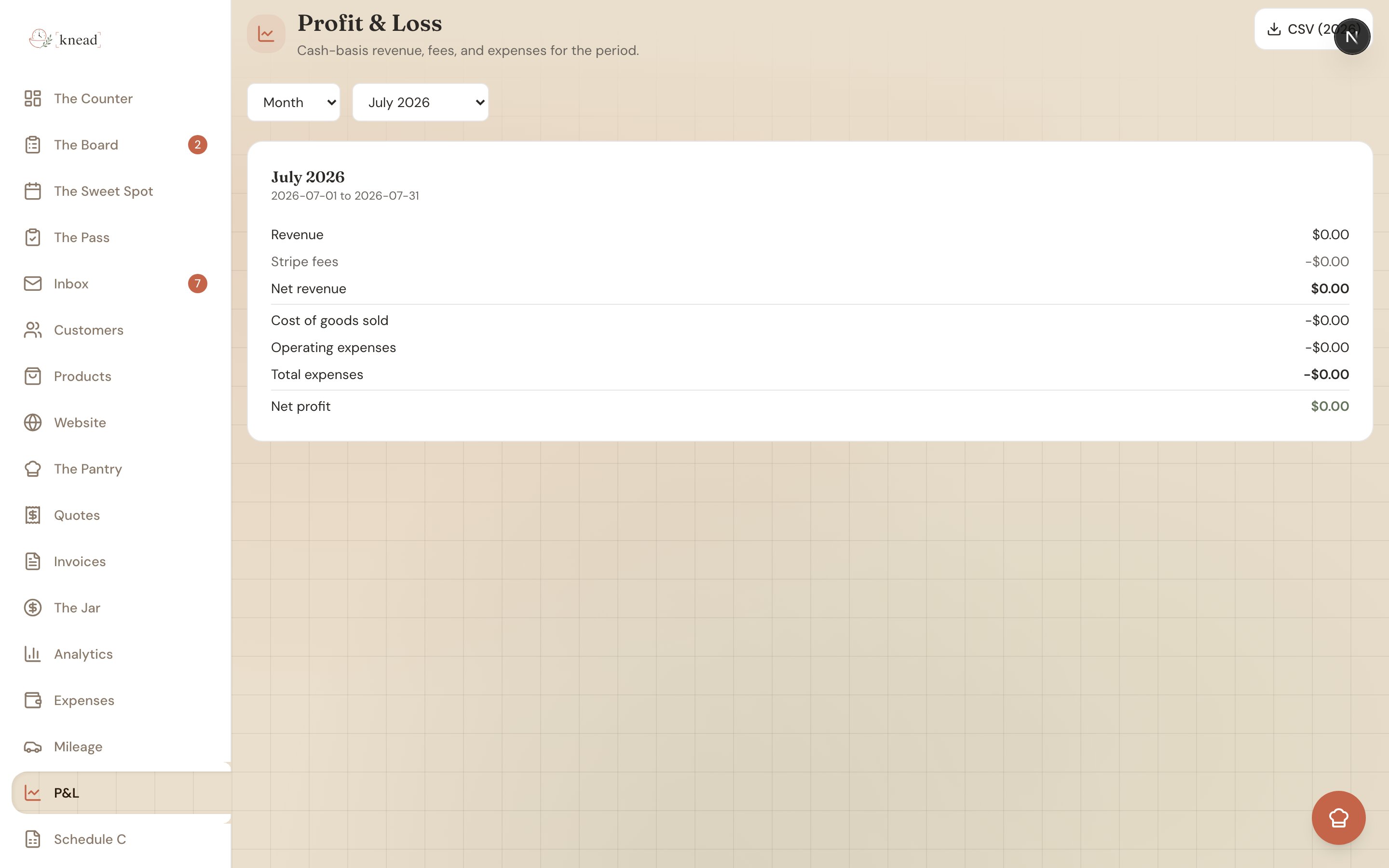
| **Profit & Loss** | `profit-loss-{year}.csv` |
| **Expenses** | `expenses-{year}.csv` |
| **Mileage** | `mileage-{year}.csv` |
| **The Jar → Payments** | `payments-{year}.csv` |
| **Schedule C Worksheet** | `schedule-c-{year}.csv` (also offers PDF) |
Each `{year}` is replaced by the calendar year you're viewing — for example, `expenses-2025.csv`.
## How to Export a CSV
The steps are the same on every screen:
1. Open the report — **P\&L**, **Expenses**, **Mileage**, **Jar → Payments**, or **Schedule C** from the sidebar.
2. Use the **year selector** to pick the calendar year you want.
3. Tap the **CSV** button (Schedule C also has a **PDF** button).
4. The file downloads to your device, named for that report and year.
 That's it — email the file to your accountant or drop it in a shared folder.
## What's in Each File
* **Profit & Loss** — your revenue, Stripe fees, and expenses by category, laid out the way the on-screen report reads.
* **Expenses** — one row per expense with the date, vendor, category, and amount.
That's it — email the file to your accountant or drop it in a shared folder.
## What's in Each File
* **Profit & Loss** — your revenue, Stripe fees, and expenses by category, laid out the way the on-screen report reads.
* **Expenses** — one row per expense with the date, vendor, category, and amount.
 * **Mileage** — one row per trip with the date, purpose, miles, and the IRS rate it was logged at.
 * **Payments** — every customer payment from The Jar, with client, amount, and date.
* **Schedule C** — your income and expenses rolled up by IRS Schedule C line, ready for your preparer.
Pro tip: Export all five for the same year in one sitting and send them together. Your bookkeeper gets the full picture — income, spending, mileage, and the tax-line rollup — without a single follow-up email.
Good to know: Before you export the Schedule C file, clear any uncategorized-expense warning so every dollar lands in the totals. See [The Schedule C Worksheet](/bookkeeping-and-taxes/schedule-c-worksheet).
## Related Articles
* [Your Profit and Loss Report](/bookkeeping-and-taxes/profit-and-loss-report)
* [The Schedule C Worksheet](/bookkeeping-and-taxes/schedule-c-worksheet)
* [Tracking Business Expenses](/bookkeeping-and-taxes/tracking-business-expenses)
* [Tracking Mileage for Tax Deductions](/bookkeeping-and-taxes/tracking-mileage)
* [The Jar](/invoicing-and-payments/the-jar)
***
*Still need help? [Contact us](mailto:hello@kneadapp.co)*
* **Payments** — every customer payment from The Jar, with client, amount, and date.
* **Schedule C** — your income and expenses rolled up by IRS Schedule C line, ready for your preparer.
Pro tip: Export all five for the same year in one sitting and send them together. Your bookkeeper gets the full picture — income, spending, mileage, and the tax-line rollup — without a single follow-up email.
Good to know: Before you export the Schedule C file, clear any uncategorized-expense warning so every dollar lands in the totals. See [The Schedule C Worksheet](/bookkeeping-and-taxes/schedule-c-worksheet).
## Related Articles
* [Your Profit and Loss Report](/bookkeeping-and-taxes/profit-and-loss-report)
* [The Schedule C Worksheet](/bookkeeping-and-taxes/schedule-c-worksheet)
* [Tracking Business Expenses](/bookkeeping-and-taxes/tracking-business-expenses)
* [Tracking Mileage for Tax Deductions](/bookkeeping-and-taxes/tracking-mileage)
* [The Jar](/invoicing-and-payments/the-jar)
***
*Still need help? [Contact us](mailto:hello@kneadapp.co)*